You do not need to automate every WhatsApp chat to get results. I’d start with the top 10–20 support questions, keep AI on low-risk tasks, and send billing, legal, complaint, and custom cases to a person from the start.
Here’s the short version: connect your WhatsApp Business number through the WhatsApp Cloud API, link it to ChatSpark, load current business facts, set tight reply rules, and build a few simple flows for FAQs, order status, booking, and lead intake. A narrow launch often works best, with AI handling about 20% to 40% of conversations at first, while repeat questions can make up close to 60% of message volume.
If I were setting this up today, I’d focus on:
- Getting Meta verification done early, since it can take 1 to 5 business days
- Using a System User Token for production, because a standard user token can expire every 60 days
- Keeping replies short, usually 1–3 sentences and under 120 words
- Setting a confidence threshold around 0.60 to 0.65
- Giving customers a clear human handoff path at any time
- Tracking ROI with hard numbers like first reply time, automated resolution rate, CSAT, and lead rate
A simple rollout usually covers four jobs:
- FAQs and policy answers
- Order updates
- Appointment booking
- Lead qualification and capture
I’d also keep these guardrails in place from day one:
- Never guess on pricing, links, or product details
- Never ask for passwords or full payment details in chat
- Hand off after two failed tries or any direct request for a human
- Show an after-hours reply with a specific follow-up time, like 10:00 AM the next business day
This article lays out the setup, the rules, the workflows, and the KPIs that matter most so you can launch WhatsApp AI support without making the experience messy for customers.
Set Up WhatsApp Business and Connect ChatSpark
Before you launch, make sure your Meta Business Account, WhatsApp Business Account, and a dedicated phone number are all set up and registered with the WhatsApp Cloud API. That setup is what lets you turn common support tasks - FAQs, order updates, booking requests, and lead qualification - into automated WhatsApp replies.
Meta Business Verification usually takes 1 to 5 business days [1]. So it’s smart to start early. After verification is done, check your WhatsApp business profile and make sure everything is current. Your hours, service area, and contact details should match your business info exactly.
One key rule: inbound messages can be automated, but outbound messages require approved templates and customer consent.
Connect the WhatsApp channel in ChatSpark
Once Meta is verified, connect your number in ChatSpark:
- Create your agent: Go to AI Agents, click Create Agent, and choose WhatsApp as the agent type.
- Authorize Meta: In the Settings tab, click Connect WhatsApp and sign in with the personal Facebook account that has admin access to your Meta Business account.
- Select your accounts: Choose your Meta Business Account and WhatsApp Business Account.
- Pick your number: Select the registered phone number from the dropdown.
- Save the connection: Click Save to go live.
For production use, set up a System User Token in Meta instead of a standard User Access Token. A User Access Token expires every 60 days [1].
Pick the right ChatSpark plan for your message volume and workflow needs
WhatsApp is available on Pro and Enterprise. Choose the plan based on how many messages you expect each month and how much automation your team needs.
Pre-launch setup checklist
Run through this list before you flip the switch:
Verification
- Meta Business Account is fully verified [1]
Number connection
- Phone number shows Connected status in Meta Business Manager [1]
- Number is registered with the WhatsApp Cloud API, not the mobile app [1]
Access
- Personal Facebook account with admin access is used for the connection [1]
- Business profile is accurate: hours, service area, and contact info
Templates and integrations
- Escalation contacts are defined for handoff
- Required system integrations are connected, such as order tracking, calendar, or lead routing systems
- System User Token is ready for production [1]
Once the channel is connected, you can build the knowledge base and response rules that drive each answer.
Build the AI Support Foundation
Once your WhatsApp channel is live, the next job is simple: implementing your AI customer support by defining exactly what your assistant should say and what it should avoid. Get this part right, and you’ll cut down on bad answers, annoyed customers, and cleanup work for your team.
Build a knowledge base with current business information
Start with the exact facts your AI needs to answer customer questions: pricing, turnaround times, shipping windows, order status, refund and cancellation policies, warranty terms, product or service details, business hours, service areas, and how customers can reach a human agent [3].
Keep each answer plain and direct. Aim for 1 to 2 sentences with the exact detail the customer needs, like a fee amount or a turnaround window [3]. If the answer is vague, the customer has to ask again. If it’s precise, the issue gets handled faster. It also helps to keep all policy and pricing details in one source of truth and update that source any time hours, prices, or policies change [3].
Once those facts are up to date, set tone rules and guardrails so replies stay steady from one chat to the next.
Set tone, guardrails, and clear formatting rules
Tell your assistant to write in concise, friendly U.S. English, stay focused on solving the issue, match the customer’s tone, and avoid internal jargon [6][2]. To keep replies consistent, use the same formatting every time:
| Element | Format to Use |
|---|---|
| Dates | September 30, 2026 |
| Times | 12-hour with time zone (e.g., 2:00 PM EST) |
| Prices | U.S. dollars (e.g., $19.00 or $129.00) |
| Reply length | Under 120 words, ideally 1–3 sentences |
Guardrails matter just as much as tone. Set a confidence threshold between 0.60 and 0.65. If the AI isn’t sure enough, it should ask one clarifying question instead of making a guess [6][2]. It should never make up URLs, pricing, or features, and it should never ask for payment details or passwords in chat [3][2]. Billing disputes, legal threats, security issues, and complaints that need a manager should go straight to a human [3][6].
Create a short welcome menu and routing logic
Your opening message should make it clear what the assistant can help with and give customers a fast path to the right option. The best setup is usually simple: a short greeting, then quick-reply buttons for things like asking a question, checking an order, booking an appointment, getting a quote, or speaking with a person [3].
Keep the menu to five choices or fewer so it feels easy to use [3]. Each button should send the customer to the right workflow, whether that’s FAQs, order updates, booking, or lead capture [7]. And there should always be an always-on Talk to a person button [3][4].
These routes connect straight into the FAQs, order updates, booking, and lead-capture workflows in the next step.
Connect Core Customer Service Workflows
Now take each menu option and turn it into a simple workflow. The goal is to keep every flow tight and predictable: collect, verify, respond, or hand off.
| Workflow | Customer Goal | Information Required | Automation Action | Escalation Condition |
|---|---|---|---|---|
| FAQs & Policy | Get instant answers | Keyword or intent | Return the saved answer | Low confidence or human request [3] |
| Order Updates | Track a package | Order number + email or phone | Check the connected order system | Missing order, payment failure, or shipping delay over 2 days [3][5] |
| Appointments | Book a service | Service type, preferred date, preferred time | Check calendar availability | No availability or custom service request |
| Lead Qualification | Start a project or purchase | Service needed, budget, timeline, contact info | Send lead data to the CRM | Ready-to-buy signal or urgent timeframe [4] |
Automate FAQ and policy answers
Start with the questions customers ask all the time, like pricing, shipping, and returns, to enhance service and focus on growth [3]. For each one, write a short, standard answer and add it to your ChatSpark knowledge base. When someone asks a question, the AI finds the closest match and replies right away.
For policy questions, link to the source document or policy page. That gives customers something clear to check if they want more detail.
Set up order updates and appointment booking
For order status, ask for an order number and a matching email address or phone number before pulling any account data [3][5]. After that check passes, ChatSpark can connect to your order management or e-commerce system and pull the current status.
If the order can't be found, the payment failed, or shipping is delayed by more than 2 days, send the chat to a human agent. That's one of those moments where a canned reply just won't cut it.
Appointment booking works the same way. The AI asks for the service type, preferred date, and preferred time, then checks your connected calendar in Calendly or Google Calendar. Only book the appointment after the calendar shows an open slot. If nothing is open, or the customer needs a custom quote, pass it to a person instead of making assumptions.
Capture and qualify leads
A lead intake flow should feel like a short conversation, not a long form. Keep it to three fields at most: name, email, and service interest [3]. Then send that info straight to the CRM so sales can follow up without manual copy-paste.
If someone gives a clear ready-to-buy signal, move that lead to a person right away. The same goes for urgent timelines [4].
These workflows should feed into the same handoff rules covered in the next section.
Launch, Monitor, and Improve the Experience
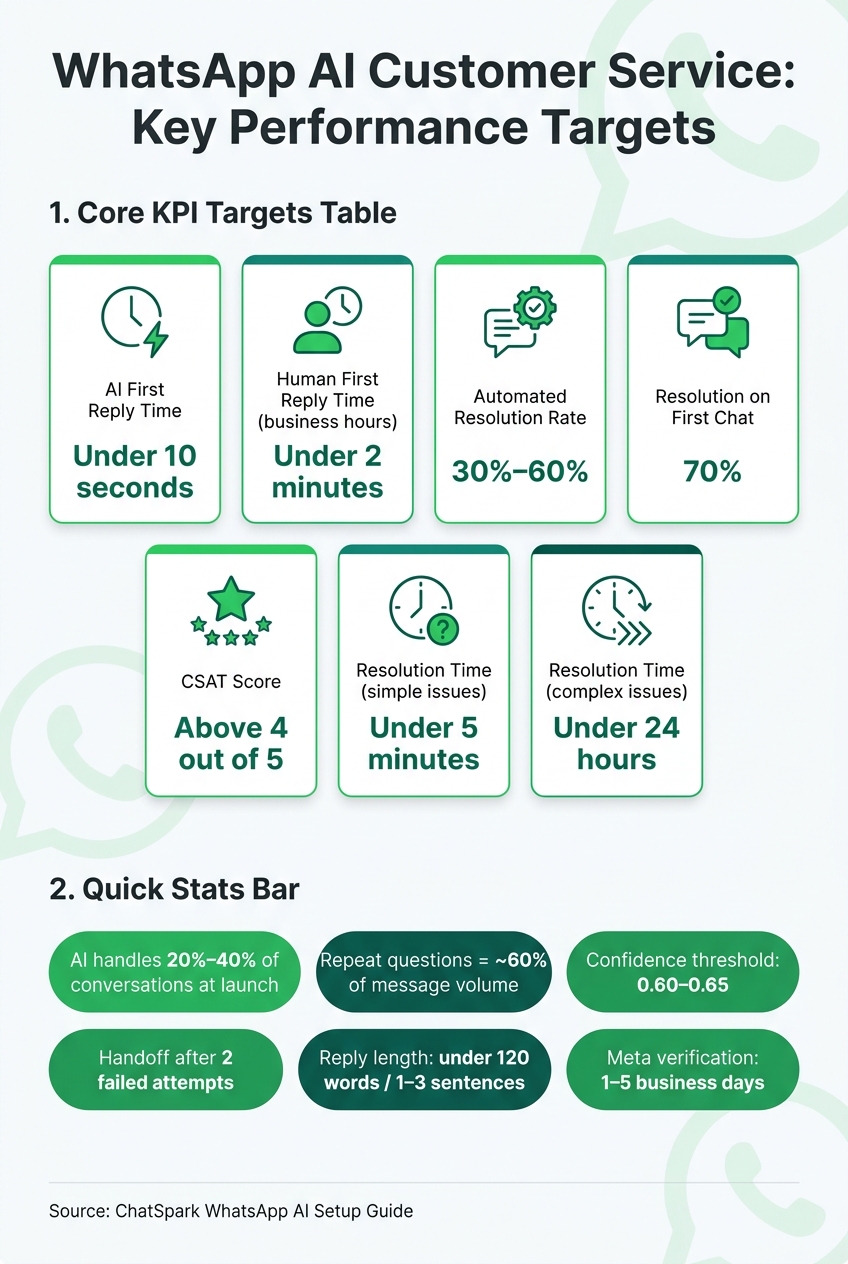
WhatsApp AI Customer Service KPIs & Performance Targets
Define handoff rules so customers can reach a person fast
Once your main workflows are live, automate customer support without losing quality by locking in handoff rules so no chat sits in limbo.
Set escalation rules so every customer gets to a person when that step makes sense. Move billing, legal, security, cancellation, and complaint-related chats to a human right away [6][2]. Do the same when the AI confidence score drops below 0.60 or 0.65 [6][2], or when it still can’t solve the issue after two tries [6].
If a customer types agent, human, or representative, send them to a person at once [3][4]. And make the Talk to a human option easy to spot, so nobody feels boxed in [3][6].
Before the handoff happens, pass along context like the customer’s name, email, or order number. That way, the agent can pick up the conversation without making the customer repeat everything [3][6].
For after-hours coverage, use a clear message that says the team is offline and replies will come by 10 a.m. tomorrow or by the next business day [6][4].
Test before launch and confirm readiness
Before launch, test every workflow the same way a customer would.
Run each one from start to finish: FAQ lookup, order status, appointment booking, and lead capture. Make sure the bot gives the right answer, gathers the right details, and hands off cleanly when needed. Test handoff triggers, after-hours replies, and human routing from end to end too.
Use this quick checklist before flipping the switch:
- [ ] Knowledge base answers verified against current business info
- [ ] Order and booking integrations tested with real data
- [ ] Handoff triggers confirmed: keyword, confidence threshold, two-failure rule [3][4][6]
- [ ] After-hours message set with a specific follow-up time [6][4]
- [ ] Privacy policy link included; no full payment details stored in chat [3][5]
Track the metrics that show real ROI
After launch, use performance data to tighten replies and cut down on handoffs. Once the system is live, track these KPIs:
| Metric | Target |
|---|---|
| AI first reply time | Under 10 seconds [6][2] |
| Human first reply time (business hours) | Under 2 minutes [4] |
| Automated Resolution Rate | 30%–60% [3][6] |
| Resolution on First Chat | 70% [5] |
| CSAT Score | Above 4 out of 5 [6] |
| Resolution Time (simple issues) | Under 5 minutes [6] |
| Resolution Time (complex issues) | Under 24 hours [4] |
Also track lead capture rate from WhatsApp inquiry and quote flows. Then review flagged chats every week, update the knowledge base, and fix the top five gaps. Expand automation only when satisfaction across your core workflows stays steady [3][6].
FAQs
How much does it cost to set up WhatsApp AI support?
To set up WhatsApp AI support, you’ll need the Pro plan or a higher tier. WhatsApp isn’t offered on Basic or Plus.
The Pro plan costs $129/month. It includes:
- Omnichannel deployment
- 2,000 messages
- 500 training pages
- 40 AI Actions
If you choose annual billing, you get a 14% discount.
You’ll also need an active WhatsApp Business account to finish the integration.
What should I automate first on WhatsApp?
Start with the 10 to 20 common, simple, low-risk questions that usually make up about 60% of support volume. Stick to factual FAQs, such as pricing, product features, shipping times, store hours, and onboarding steps.
Set up a clear handoff to a human agent for sensitive issues like billing disputes, account-specific data, or emotionally charged messages. Then review automated chats every week before you expand automation.
How do I know when to hand off to a human?
Hand off to a human when the AI doesn’t have enough information, seems unsure, or the topic is sensitive. A confidence threshold of around 0.6 to 0.65 is a solid trigger for escalation.
Customers should also have a simple, obvious way to ask for a person at any time. For example, they can type "agent" to move the conversation to human support.
Human support should be required for issues that carry more risk or need closer attention, including:
- Custom quotes
- Complaints
- Order-specific questions
- Billing disputes
- Security concerns
- Cancellations