If you run a WooCommerce store, I can sum this up in one line: connect your store data to ChatSpark, verify customer identity before order lookups, and let the bot handle routine support 24/7.
Here’s the short version:
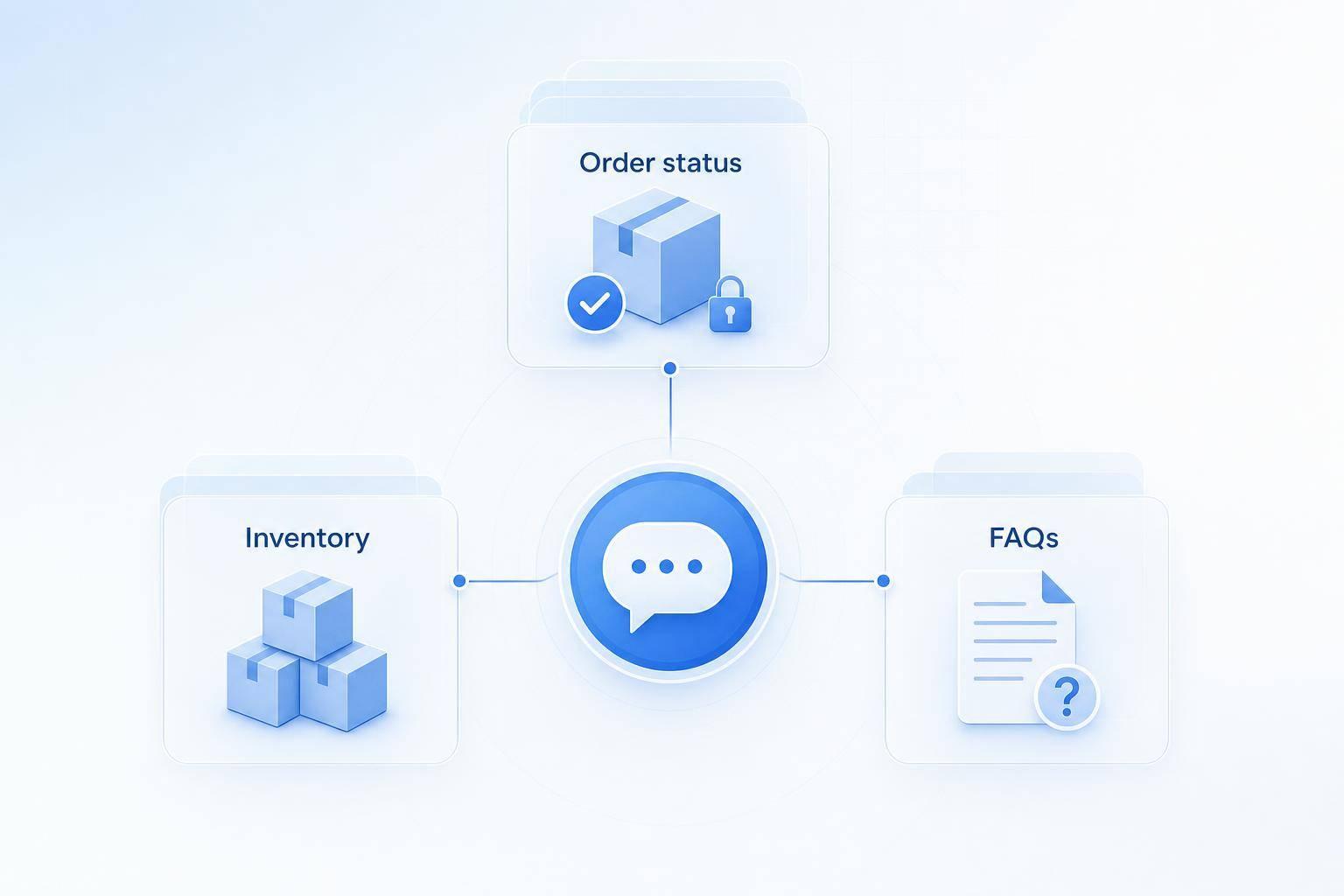
- Order status: I can use the WooCommerce REST API to pull live order details, then turn store status labels into plain customer messages.
- Inventory checks: I can answer stock questions for simple products and variants like size or color, as long as stock data is set up right.
- FAQ replies: I can answer shipping, returns, and warranty questions from fixed policy pages and FAQ content.
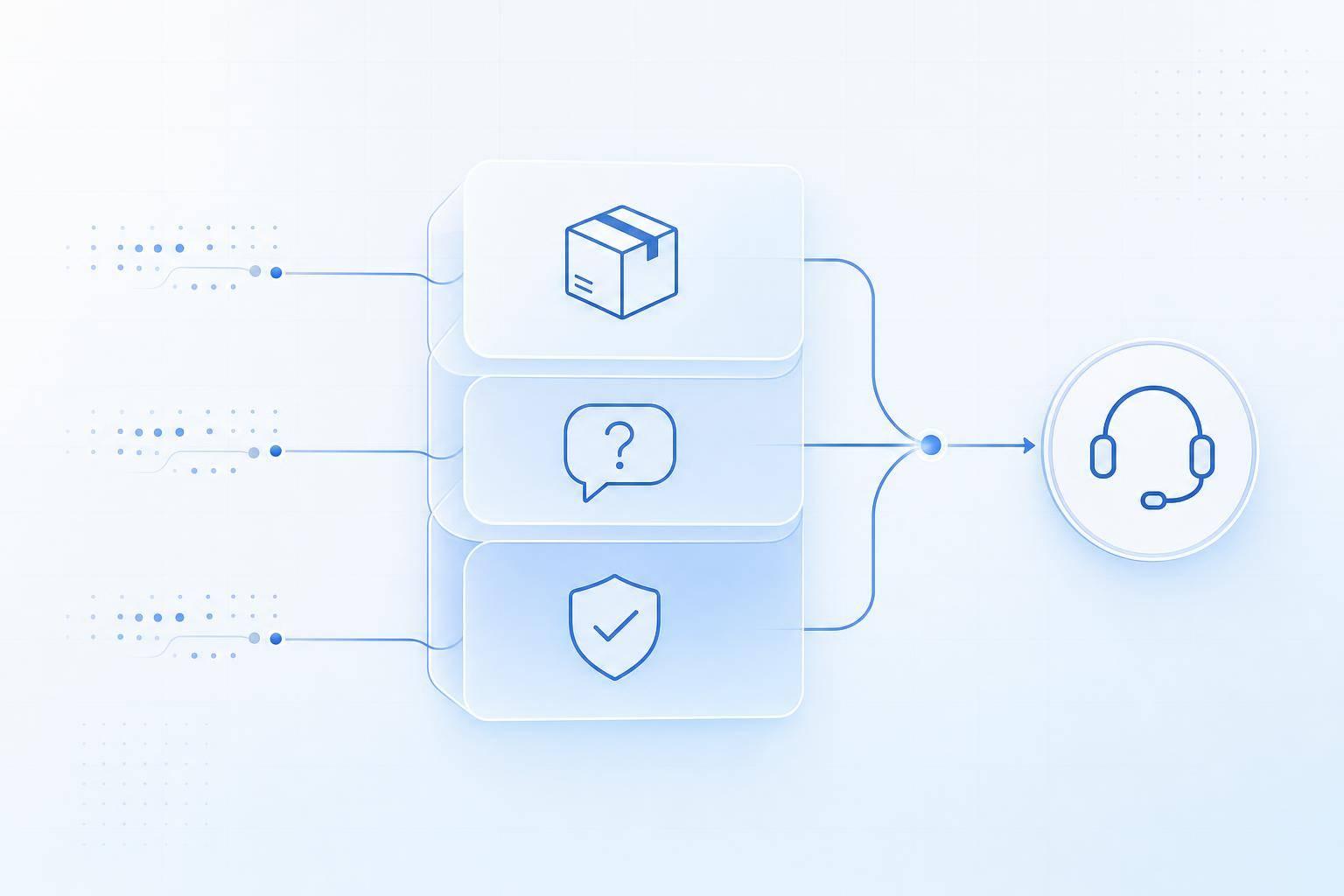
- Handoffs: I should pass chats to a human when the case involves disputes, damaged items, refund issues, or low-confidence replies.
- Security: I should ask for the order number plus a second detail like email or ZIP code before sharing order info.
A few setup points make the biggest difference:
- Use HTTPS
- Use a non-plain permalink structure
- Create read-only WooCommerce API keys
- Turn on stock tracking where needed
- Keep policy pages clear and specific
- Review chatbot transcripts each week
That matters because support teams often deal with the same small set of questions again and again. When those questions are tied to live store data and clean policy content, a bot can handle a big share of them without manual replies.
If I were setting this up, I’d start with three flows first:
- “Where is my order?”
- “Is this item in stock?”
- “What is your return policy?”
After that, I’d review failed chats, fix missing content, and expand one workflow at a time. That keeps the setup simple, lowers support load, and gives shoppers fast answers without making the bot guess.
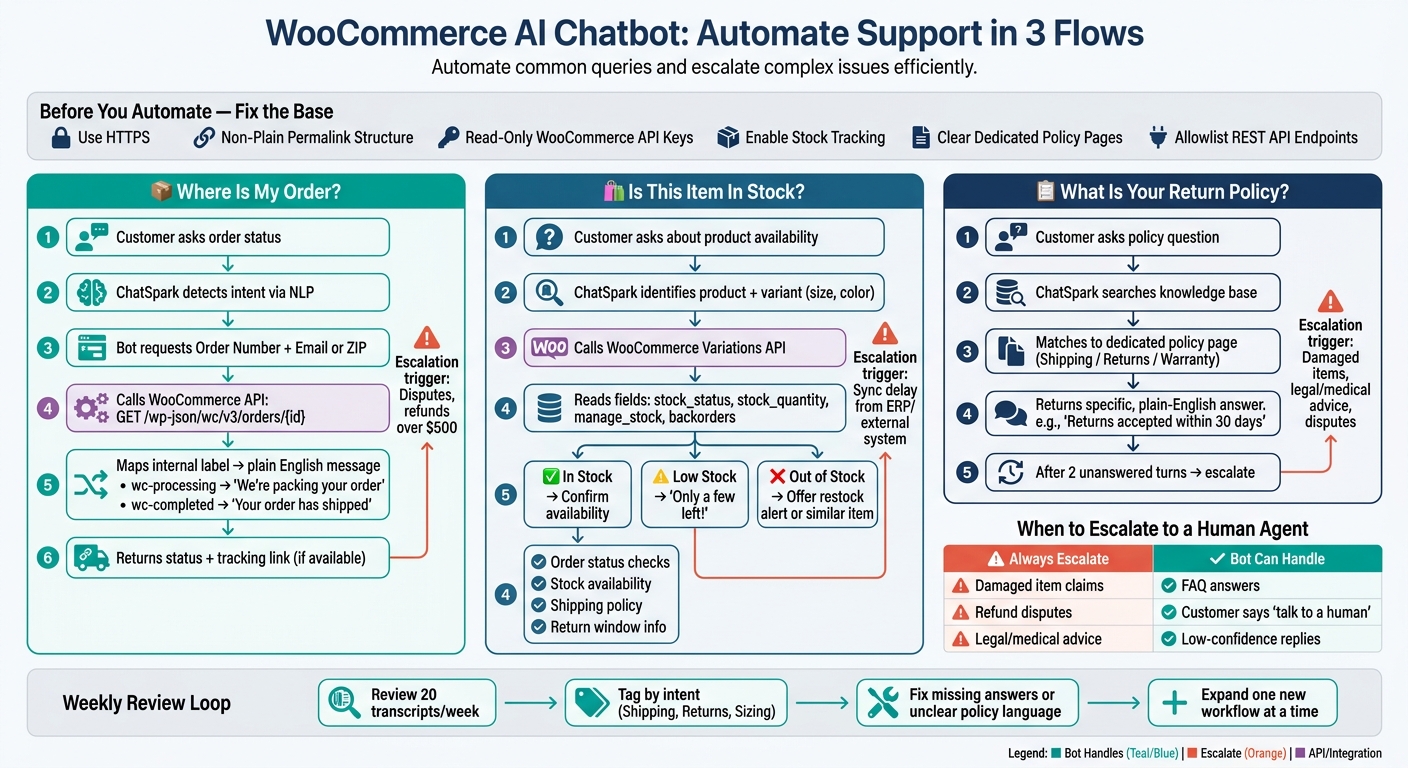
WooCommerce AI Chatbot Setup: 3-Flow Automation Blueprint
Set up WooCommerce and ChatSpark before automating support
Start with clean data and a secure connection. If order records are missing details, stock counts are wrong, or policies live across a bunch of different pages, the chatbot will surface those problems for customers. So fix the base first for order status, inventory checks, and FAQ replies. Then connect those sources to your order, inventory, and FAQ flows.
Enable the WooCommerce REST API and confirm order and product data is accurate
In WooCommerce → Settings → Advanced → REST API, click Add key. Add a label like ChatSpark Integration, set permission to Read, and save.
Use HTTPS and a non-Plain permalink structure. Plain permalinks can break the API [1]. After you generate the keys, copy the Consumer Key and Consumer Secret right away. The secret appears only once. Then enter both keys, along with your site URL, in the ChatSpark AI Actions dashboard [1].
Once the connection is active, ChatSpark can read WooCommerce order statuses like pending, processing, completed, cancelled, and refunded [1]. If a security plugin blocks API requests, allowlist the WooCommerce REST API endpoints so the connection doesn't fail [1].
Fix stock settings and variant data before customers ask about availability
Inventory answers are only as good as the stock data behind them. Check Manage Stock, Stock Quantity, and In-stock status at both the product and variation levels [2]. This is extra important for products with options, like a T-shirt in size M or an item in a certain color.
If WooCommerce shows a variant as in stock when it isn't, the chatbot will reply with bad availability data. That's a fast way to frustrate shoppers. Review your variant setup before connecting so customers get accurate stock answers.
Put shipping, returns, and policy content in one place for ChatSpark to read
ChatSpark answers policy questions from the content you give it, so create dedicated pages for shipping, returns, and warranty info with clear, specific wording [2].
Be exact where you can. Instead of loose shipping copy, give a delivery estimate in business days. For returns, spell out the return window and conditions [2].
| Policy Type | Key Information to Include |
|---|---|
| Shipping | Domestic regions, carriers, costs, delivery estimates in business days |
| Returns | Return window (e.g., 30 days), conditions, return portal link |
| Warranty | Coverage period, what's included, how to file a claim |
When those pages are live and organized, point ChatSpark to them during setup. Limit answers to your policy pages and product data [2]. After that, you're ready to automate order lookups and shipment tracking.
Automate order status and shipment tracking
With your WooCommerce REST API connected and your data cleaned up, you can let ChatSpark handle routine order status requests without pulling an agent into every conversation.
Pull live order data from the WooCommerce Orders API
ChatSpark pulls live order data from WooCommerce with the GET /wp-json/wc/v3/orders/{id} endpoint [1]. That request returns the current order status, order totals, and shipping details. If tracking info is available, ChatSpark can also share the tracking link [1][3].
One part matters a lot here: turning WooCommerce's internal status labels into plain English. A label like wc-processing doesn't tell most shoppers much. "We're currently packing your order" does [1]. Set up ChatSpark to map statuses like processing, completed, refunded, and cancelled to clear customer-facing messages, so people get answers they can understand right away.
Build a secure order tracking conversation flow
When a customer says, "Where is my order?", ChatSpark's NLP picks up the intent and starts the tracking flow [4][5]. The bot then asks for two details:
- The order number
- A verification detail, usually the email address or ZIP code tied to the order [2]
That verification step helps block unauthorized access. After both inputs are confirmed, ChatSpark calls the WooCommerce API and returns the current order status, along with a tracking link if one is available [2].
Use ChatSpark actions to return fast, structured order updates
ChatSpark can map intents like "track my order" straight to API calls, then format the response into a clean reply without any manual lookup.
That means faster replies, fewer routine support tickets, and more time for agents to handle edge cases. You can use this same live-data pattern for stock checks next.
Answer real-time inventory questions from live product and variation data
Live WooCommerce data gives ChatSpark a direct way to answer stock questions on the spot.
Check stock availability from product and variation endpoints
Use Get Product Info and Check Inventory to read the product endpoint for simple items and the variations endpoint for variable products [1][5]. For accurate stock replies, ChatSpark should look at these fields: stock_status (instock, outofstock, or onbackorder), stock_quantity, manage_stock, backorders, and low_stock_amount [1][2].
Before you go live, there’s one setup step that matters a lot: turn on "Manage Stock" at the product or variation level in WooCommerce. If you skip that, the API may return only a general instock value with no quantity data. And that means the chatbot can’t say much beyond “it’s in stock” [1].
Handle common inventory questions about size, color, and low-stock items
When a shopper asks, "Do you have this hoodie in size M?" or "Is the navy colorway available?", ChatSpark can call the WooCommerce Variations API and check that exact attribute combination [1][2]. If that variation is in stock, the bot can confirm it right away. If inventory is running low, it can use wording like "only a few left in stock" [2]. That kind of message can nudge someone to buy now instead of waiting.
If an item is fully out of stock, set the bot up to offer a restock alert or point the shopper to a similar item that’s still available [2].
Choose which inventory source the chatbot should read from
Not every store uses native WooCommerce stock controls. Some rely on inventory plugins. Others pull stock from an ERP or another outside system. ChatSpark should read from the source that reflects current stock the fastest and with the best variation-level detail.
| Inventory Source | Update Latency | Variation Accuracy |
|---|---|---|
| Native WooCommerce | Real-time (Instant) | High (Direct) |
| Inventory Plugins | Near Real-time | High |
| ERP / External Sync | Delayed (Sync intervals) | Medium (Depends on sync) |
If stock sync has a delay, say so. Let customers know availability may lag, and hand off when ChatSpark can’t confirm current stock.
Train the chatbot to answer shipping, returns, and policy questions
Once order and inventory automation are live, train ChatSpark on the policy questions it can answer from static content.
Build a searchable FAQ knowledge base from real support questions
Start with the support questions your team gets all the time. Pull the 10–15 most common ones and map them out clearly - things like shipping costs, return eligibility, and size guides [2].
Write each answer in plain English. Be specific. Instead of saying returns are accepted within a reasonable time, say returns are accepted within 30 days [2]. That kind of wording leaves less room for confusion and makes it easier for ChatSpark to pull the right answer.
Keep the content broken into short, dedicated sections. Separate pages for Warranty and Returns work better for ChatSpark than one long policy page that tries to do everything [2]. For legal disclaimers and promo terms, use fixed, pre-approved responses. That gives ChatSpark a clean knowledge base before you set escalation rules.
Define when ChatSpark should answer and when it should hand off to a human
ChatSpark should handle routine policy questions. But disputes, exceptions, and damaged-item claims should go to an agent [2][6].
Set a handoff after two unanswered turns [2]. Also configure ChatSpark to detect phrases like "talk to someone", "human", or "agent" and send those chats to a person right away [5]. In ChatSpark's agent personality settings, tell the bot to decline legal or medical advice requests and offer human help instead [2].
That split keeps the bot focused on simple policy answers while sending edge cases where they belong.
| FAQ Category | Automation Suitability | Required Data Source | Escalation Rule |
|---|---|---|---|
| Shipping Policy | High | Static Knowledge Base | Escalate for custom shipping quotes or remote regions |
| Return Policy | High | Knowledge Base (Static) | Escalate for policy exceptions |
| Damaged Items | Low | Knowledge Base / Live Agent | Always escalate to human |
| Refund Status | Medium | Stripe / PayPal API | Escalate for disputes or refunds over $500 |
Review chatbot transcripts and improve answers over time
Review 20 transcripts each week to find missing answers, unclear policy language, and failed lookups [2]. Then tag each conversation by intent - like Shipping, Returns, or Sizing - so you can see patterns in what customers still need help with [2][7]. If the same issue keeps popping up, that's your cue to tighten the FAQ or adjust the handoff rules.
Conclusion: Start with one automation and build from there
Start with clean order, stock, and policy data. Then automate the support requests that show up most often.
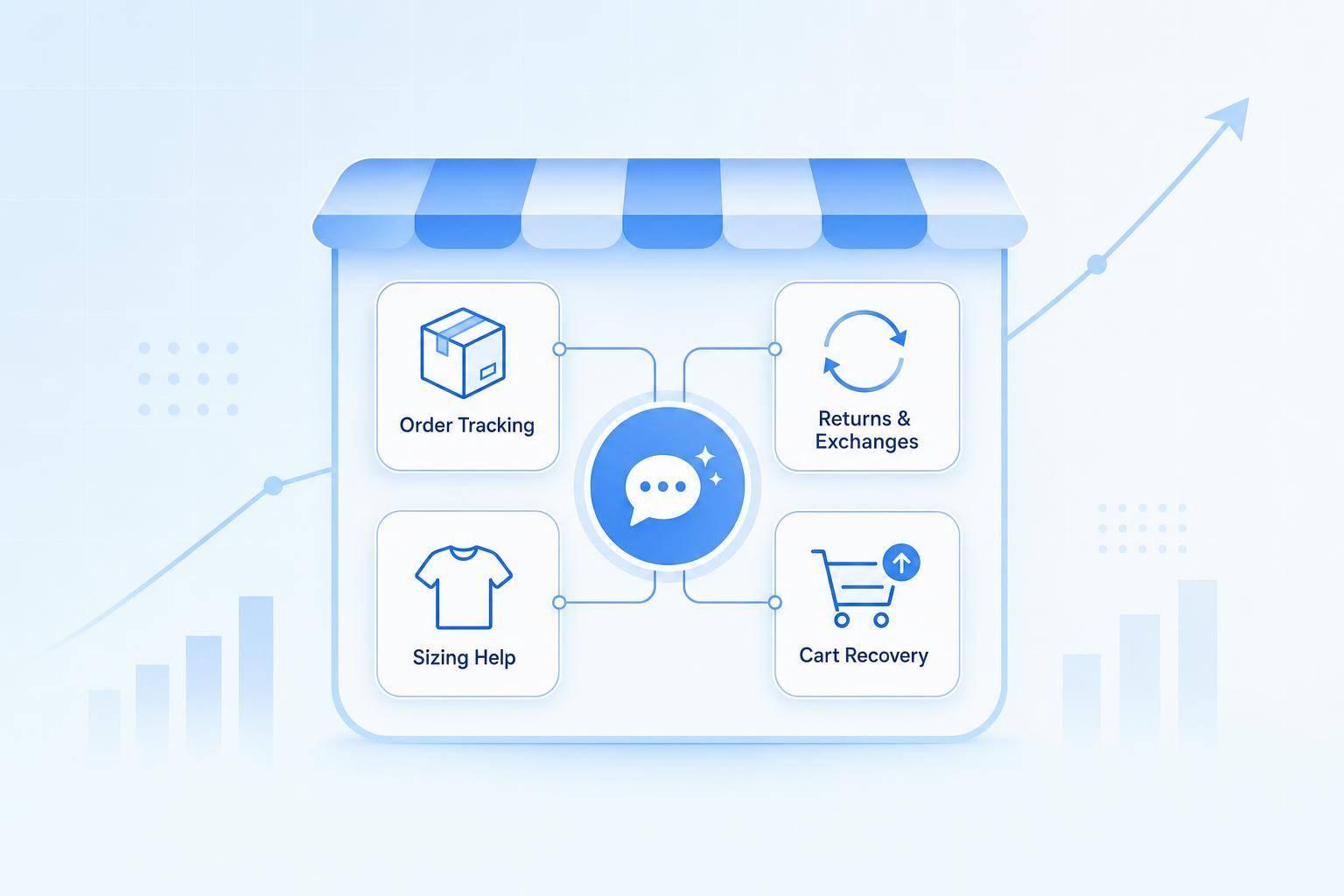
A simple place to begin is order status, inventory checks, and FAQs. Those topics cover a big share of day-to-day support. Most routine questions, including order tracking and returns, can be automated. That means fewer tickets, faster replies, and more time for your support team to handle the cases that need a human.
Once that base is steady, expand one workflow at a time. Add inventory checks and FAQ automation using the knowledge base structure from the previous section. Then review transcripts each week, fix weak answers, and roll out more workflows where they make sense.
FAQs
How long does WooCommerce chatbot setup usually take?
A basic ChatSpark widget and its setup usually takes less than an hour.
For the WooCommerce AI Actions integration, setup is mostly just entering your credentials or API keys and turning it on in the ChatSpark dashboard. Once you save it, you can test it right away, so it’s usually just a short extra step.
What customer data should the bot verify before showing order details?
The chatbot should verify the customer’s order number or email address before it shows any order details.
That step helps it securely pull the right order status, tracking info, and delivery updates from your WooCommerce store.
If the customer hasn’t shared either piece of info yet, the bot should ask for it first. It should also check that the order number is in the right format before sending an API request.
What should I automate first in a WooCommerce AI chatbot?
Start with the high-volume, low-variation questions that drive most of your support traffic. A good way to spot them is to review support tickets from the last 3 to 6 months and look for the same requests popping up again and again.
For a WooCommerce store, the best first automations are usually order status, shipment tracking, and return policy questions. After that, you can move into inventory checks, product details, and customer account issues.