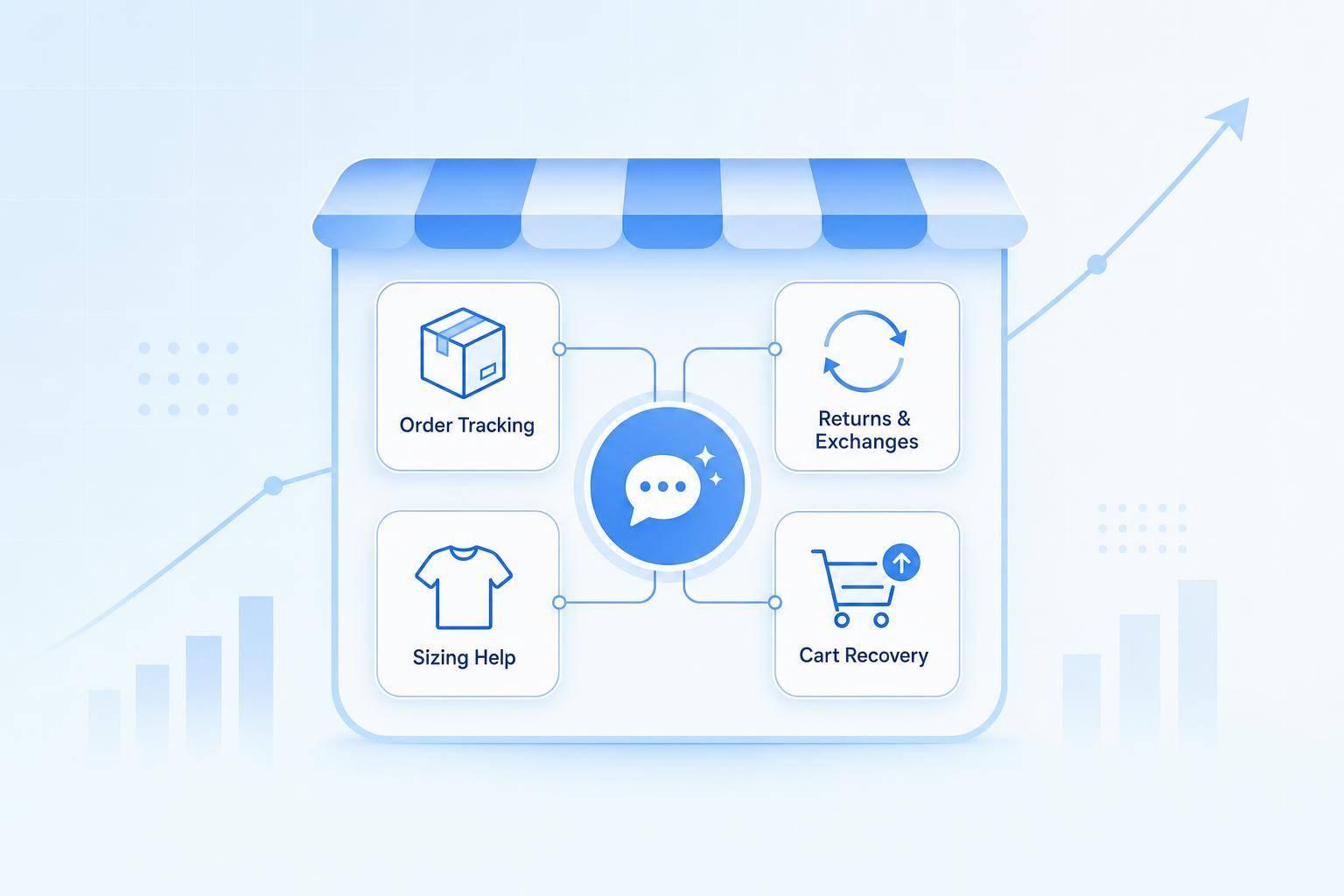
If I want Shopify AI-powered customer service to work fast, I should start with two jobs: order tracking and product questions. They use data I already have in Shopify, they follow clear rules, and they can cut repeat tickets before I add more bot flows.
Here’s the short version:
- Order tracking works best when I connect live order data, validate order numbers or email addresses, and show status, carrier, tracking links, and delivery dates in one short reply.
- Product questions work best when I connect live catalog and inventory data, then pair that with size guides, fit notes, care details, and policy pages.
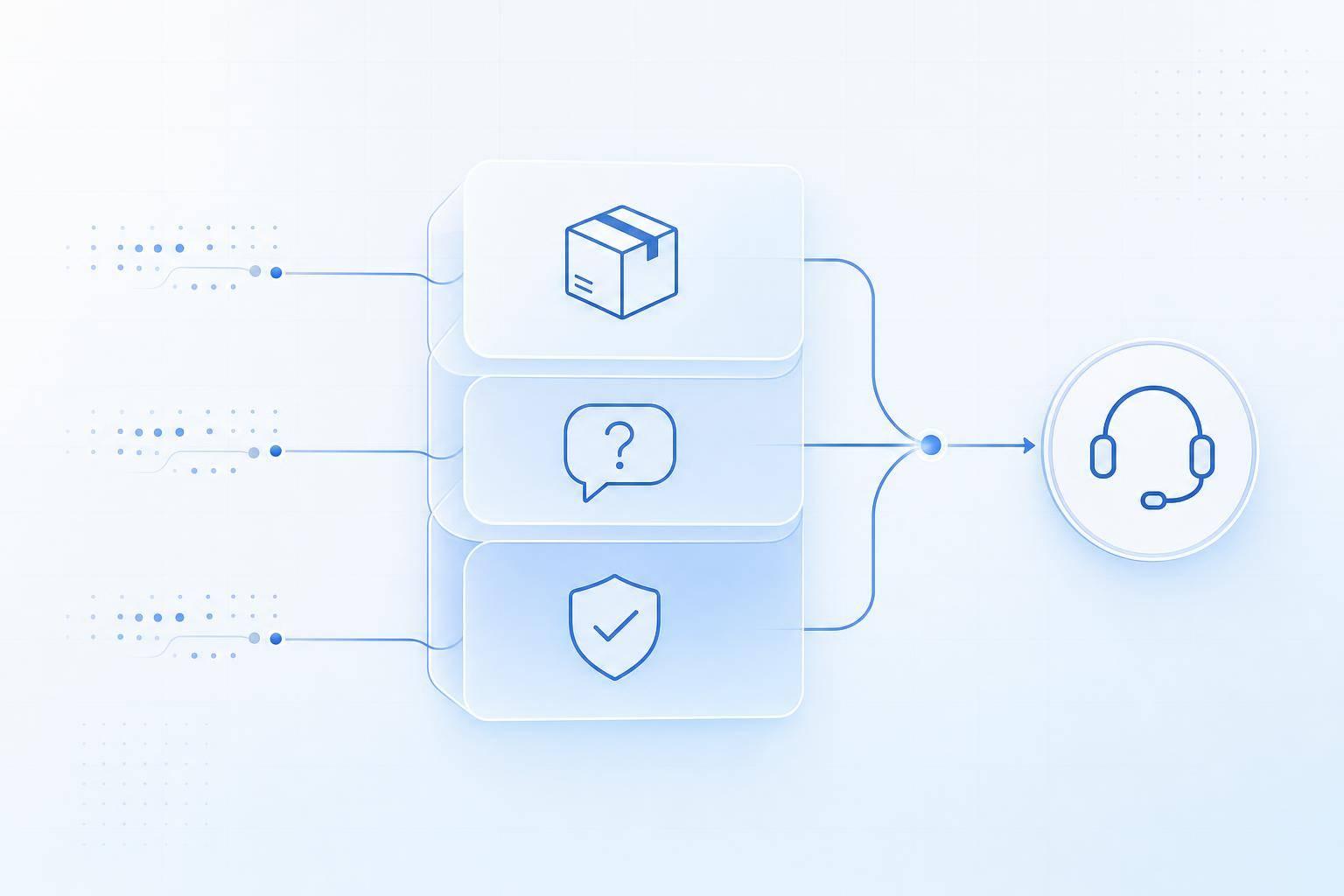
- I should set clear handoff rules for late shipments, lost packages, damaged items, payment issues, low-confidence answers, and any request for a human.
- A smart starting point is an 85%–95% confidence threshold, a two-turn limit before handoff, and escalation when tracking has no movement for 3 days past the expected scan window.
- Before launch, I should test against the last 90 days of tickets and run a 10–14 day review period where staff checks AI replies before they go live.
The core idea is simple: use Shopify for live facts, use a knowledge base for policies and fit details, and keep replies short, direct, and easy to verify.
A quick side-by-side view:
| Workflow | Main data source | Best for | Hand off when |
|---|---|---|---|
| Order tracking | Shopify order and fulfillment data | Status checks, tracking links, partial shipments, delay updates | Lost package, address issue after fulfillment, no tracking movement, low confidence |
| Product questions | Shopify catalog + help content | Size, stock, variants, materials, care, compatibility, product differences | Missing product data, unclear match, policy edge case, shopper asks for a person |
In short, I’d launch with these two flows first, test them hard, and only add more automation after the results stay steady.
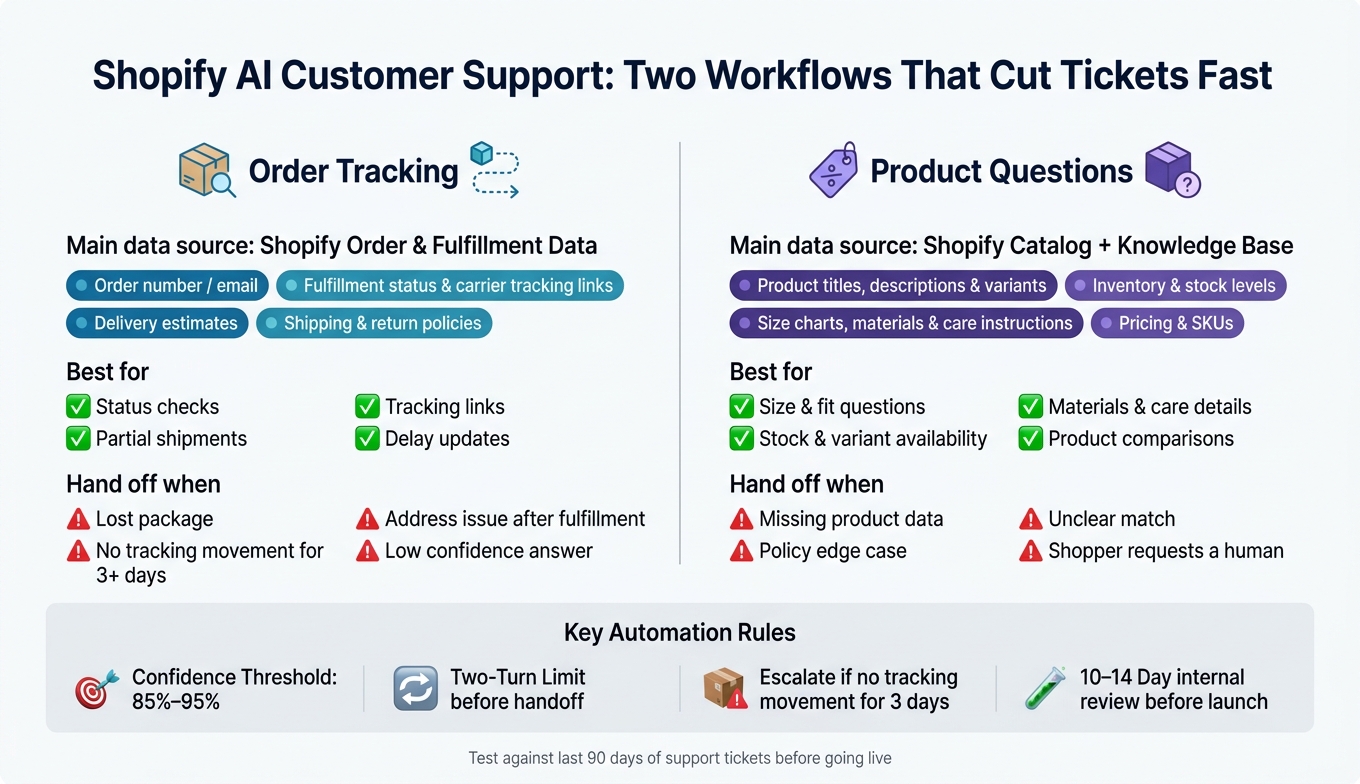
Shopify AI Support: Order Tracking vs. Product Questions Workflow
Prepare your Shopify data and support content
Before any workflow goes live, the AI needs clean data it can actually reach. The first step is simple: tie each answer to either a live Shopify field or a written policy source.
Data the AI needs for order tracking and product answers
Each workflow pulls from a different set of sources:
| Data Category | Order Tracking | Product Q&A |
|---|---|---|
| Order number / email | ✓ | - |
| Fulfillment status & carrier tracking links | ✓ | - |
| Delivery estimates | ✓ | - |
| Product titles, descriptions & variants | - | ✓ |
| Inventory & stock levels | - | ✓ |
| Size charts, materials & care instructions | - | ✓ |
| Shipping & return policies | ✓ | ✓ |
| Pricing & SKUs | - | ✓ |
For apparel merchants, this part matters more than it may seem. Don’t stop at S/M/L charts. Add exact measurements and fit notes like "athletic cut" so the AI can give clearer sizing answers and help cut down on returns.
Once the content is mapped, connect the store data the AI will query. The AI pulls this data in real time through the Shopify Admin API [1][2]. Before you connect anything, enable read_orders, read_customers, read_products, and read_inventory on a custom app [1].
Set permissions, knowledge sources, and brand rules
After the live Shopify data is ready, load the policy and help content the AI should use. Add your support content - FAQ pages, policy docs, and size guides - into ChatSpark as a knowledge source. Keep that content in short sections instead of long, dense pages [2].
Be specific. "Returns accepted within 30 days of delivery" gives the AI something clear to work with. "We have a flexible return policy" doesn’t [2].
Then set ChatSpark’s voice and escalation settings so its tone, role, and limits are clear [4]. This is also where you define brand voice and set escalation triggers for touchy cases like payment disputes or damaged items [2][4].
A good guardrail here is a two-turn limit: if the AI has two failed exchanges with a customer and still hasn’t solved the issue, it should hand the conversation to a human agent automatically [2].
Build the order tracking workflow
Once your Shopify data and knowledge sources are set up, the next step is to map the order-tracking flow. Start with the main order-tracking path first, then work through exceptions. The aim is simple: help the AI gather the right identifiers, find the order in Shopify, and show the order status when it can match the customer to the purchase.
Collect customer identifiers and show order status
The flow begins when a customer opens your chat widget. Add a "Track Order" quick-reply button to the greeting so people can jump straight into the verification flow [2]. That removes friction right away. After they tap it, ChatSpark asks for an order number or email address.
Before ChatSpark runs a lookup, validate the format of what the customer entered. If someone pastes a four-digit number when your order numbers are six digits, the bot should catch it on the spot and ask for the 6-digit order number from the confirmation email [2]. That small check helps avoid bad API calls and keeps the flow moving.
Once the identifier passes validation, ChatSpark uses the details to look up the order in Shopify. From there, reply with one short status update that includes U.S. date formatting and a direct tracking link [1][2]. For example, the bot can say the order is on its way, name the carrier, share the latest city, and show the estimated delivery date.
Handle delays, missing tracking, and exceptions
Before launch, map the edge cases you know customers will hit.
| Customer Intent | Shopify Data Used | AI Response |
|---|---|---|
| "Where is my order / is it shipped?" | Order number / email, fulfillment status | Provide fulfillment status, carrier, and tracking link |
| "My tracking isn't moving" | Tracking history | Explain "Label created but not scanned" or escalate if overdue |
| "I only got part of my order" | Order line items | List items shipped vs. items still processing |
| "My delivery is late" | Carrier notes, customs status | Provide an updated ETA or escalate for a lost package |
One case deserves extra care: "label created but not scanned." If the bot gives a vague answer here, customers get stuck in limbo. A reply like "The shipping label has been created, but the carrier hasn't scanned the package yet. Please check back in 24 hours for an update." sets a clear expectation and avoids pulling in a human agent too early [2].
That said, there should be a limit. If tracking has not updated for 3 days past the expected scan time, the AI should flag the case for escalation instead of looping through the same reply again [2].
Escalate order issues that need a human agent
Some issues just shouldn't stay in automation. Lost packages and address changes after fulfillment need a human agent [4]. Pushing the bot to answer anyway usually makes the interaction worse.
When ChatSpark hands the case off, include the order number, current status, and a conversation summary so the customer doesn't have to repeat the whole story [4][3].
Use this same setup for product questions too: collect one clear prompt, answer from live Shopify data, and escalate only when the catalog can't resolve it.
Build the product question workflow
After order tracking, product questions are usually the next big ticket driver. The fix is pretty simple: use live catalog data for stock and variants, and use your knowledge base for fit, care, and compatibility. Done well, both workflows cut repeat tickets and help shoppers get answers before they decide to buy.
Answer size, availability, and variant questions
If a shopper asks about size or stock but doesn't name a product, start with one clarifying question: which item are they asking about? Once you have that, ChatSpark can pull variant details with Get Product Info and check live inventory with Check Inventory [2].
For apparel, don't lean on S, M, and L alone. Store exact measurements like chest width, sleeve length, and inseam so the AI can answer fit questions more directly [2]. That extra detail can help cut fit-related returns [2].
Use this same setup for care, compatibility, and product comparison questions too.
Answer materials, care, compatibility, and product difference questions
For materials and care questions, pull from product descriptions and care FAQs. That lets the AI explain what an item is made from, how to clean it, or whether it works in a given compatibility case. For comparison questions, add a simple comparison table to your knowledge base so the AI can explain how two items differ without making the shopper do the detective work [2].
| Question Type | Primary Source | AI Action |
|---|---|---|
| Size & Fit | Knowledge Base (size charts, fit notes) | Get Product Info (variants) |
| Availability | Shopify API (real-time inventory) | Check Inventory |
| Materials & Care | Product descriptions, care FAQs | Knowledge Base lookup |
| Compatibility | Technical specs, compatibility guides | Knowledge Base lookup |
| Product Differences | Comparison tables, product spec sheets | Knowledge Base lookup |
Short answers tend to work best when the AI sticks to approved sources.
Keep answers short, accurate, and action-oriented
Each product answer should do three things:
- Answer the question directly
- Stay within 2–3 sentences [2]
- Point the shopper to the next step, like the product page, a size selection, or a size guide
Keep the AI limited to approved product data and policy pages [2]. If the answer isn't in the catalog or knowledge base, ChatSpark should say that plainly and offer a handoff instead of guessing. Unsupported material or compatibility claims can hurt sales and lead to more returns [2].
Set automation rules, run tests, and track results
Define when the AI answers and when it hands off
Once your workflows are in place, set the rules for when the AI should reply on its own and when it should pass the conversation to a person. Keep the AI limited to high-confidence matches only.
A good first step is to map your top 10–15 customer intents, like order status, shipping speed, return policy, and size guides. Then pair each intent with real ticket wording [2]. That gives ChatSpark a much better shot at matching the way customers actually ask.
Set a confidence threshold between 85% and 95%. If a request falls below that, send it to a human agent automatically and include the full conversation history [2][4]. You should also set firm escalation triggers for:
Test against real support conversations before launch
After the rules are set, test them against real support history before launch. Look at the last 90 days of tickets and focus on the repeat issues driving most of your support volume [2]. Then run live order numbers and SKUs through the widget to make sure it pulls the right Shopify data [1][2].
It also helps to run a 10–14 day internal testing period where the AI drafts replies, but humans review them before anything goes out [2]. That window gives your team time to spot gaps before customers ever see them.
Don't just test the easy stuff. Push on the awkward cases too, like missing tracking numbers, out-of-stock variants, and customs delays. If the AI fails to escalate those cases the right way, fix that before launch [2].
Once you're live, keep a close eye on performance. Review 20 random transcripts each week, tag what worked and what failed, update training data and reply rules, and track containment and escalation rates by intent [2].
Conclusion: Start with two workflows and grow from there
Order tracking and product questions are the best place to begin. They tend to be high-volume, clearly defined, and easy to check against live Shopify data. Connect your catalog and order data, set clear confidence thresholds and escalation rules, and test against real tickets before going live.
Start with order tracking and product questions. Then add more automation only after performance is stable.
FAQs
How much Shopify data do I need before launching AI support?
You don’t need a set amount of past Shopify data to get AI support live. For most Shopify stores, setup takes under five minutes.
Before you launch, map out your 10 to 15 most common support intents. Then make sure your help articles, policy docs, and product data are accurate and up to date.
If needed, you can add order lookup later.
What should happen if the AI can’t verify an order or answer a product question?
If the AI can't verify an order or answer a product question, it should say so clearly and politely instead of guessing.
Use a Custom Unknown Response to shape that reply. For example, you can ask for the customer's contact details for follow-up or point them to related topics that may help.
If confidence is low or the issue is more involved, hand the conversation off to a human agent and pass along the transcript and customer context.
How do I know if order tracking and product Q&A automation are working?
Check the Analytics tab in your AI Actions dashboard to review execution logs, success rates, and response times for your Shopify integrations.
Also keep an eye on containment rate, resolution time, and weekly transcripts. Those numbers tell you what’s happening under the hood. If the bot is missing queries, look for authentication errors and make sure your Shopify app scopes include read_orders and read_products.
It also helps to compare containment with customer satisfaction. A high containment rate can look good on paper, but if people leave frustrated, the bot may be ending chats too soon instead of actually helping.