Most teams don’t need more docs. They need answers where they already work: in Slack.
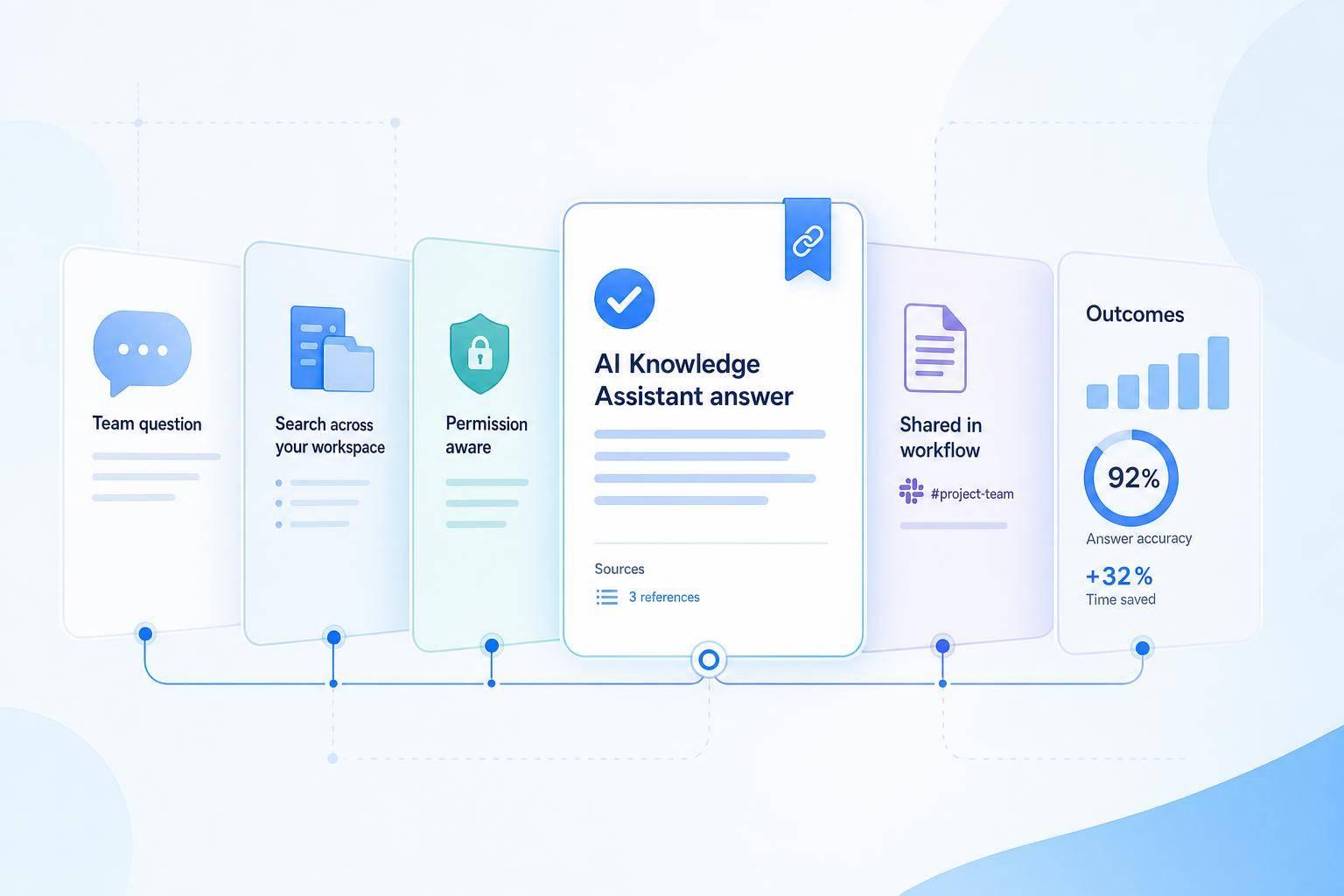
I’d sum the article up like this: a Slack AI knowledge assistant helps people get cited answers from approved sources without leaving Slack. That cuts repeat questions, lowers context switching, and routes risky or low-confidence cases to a human instead of guessing.
Here’s the core idea in plain English:
- I use the assistant to pull answers from tools like Confluence, Notion, SharePoint, Jira, Salesforce, HubSpot, Zendesk, and Freshdesk
- It answers in Slack with source links
- It follows user permissions, so people only see what they already have access to
- It can handle common HR, IT, sales, and support questions
- It can also take action, like creating Jira tickets, updating CRM records, or handing off the case with chat history attached
- If confidence is low - often below an 85%–95% threshold - it should route the request instead of making up an answer
- To check if it works, I’d track 100% citation coverage for policy answers, self-serve resolution rate, repeat-question volume, thumbs-up/down feedback, and unanswered-query logs
A few numbers stand out:
- Workers switch tools 300+ times a day
- Internal knowledge bases often cover only 10%–12% of employee questions
- It can take about 23 minutes to refocus after an interruption
- Routine support interactions can cost about $8 to $15 each
- A good rollout often starts with 10–14 days of shadow mode before launch
Bottom line: if I want Slack answers people will use, I need three things in place first: approved sources, access controls, and clear escalation rules.
This article explains how that setup works, where it helps most, and which metrics show whether it’s cutting repeat work.
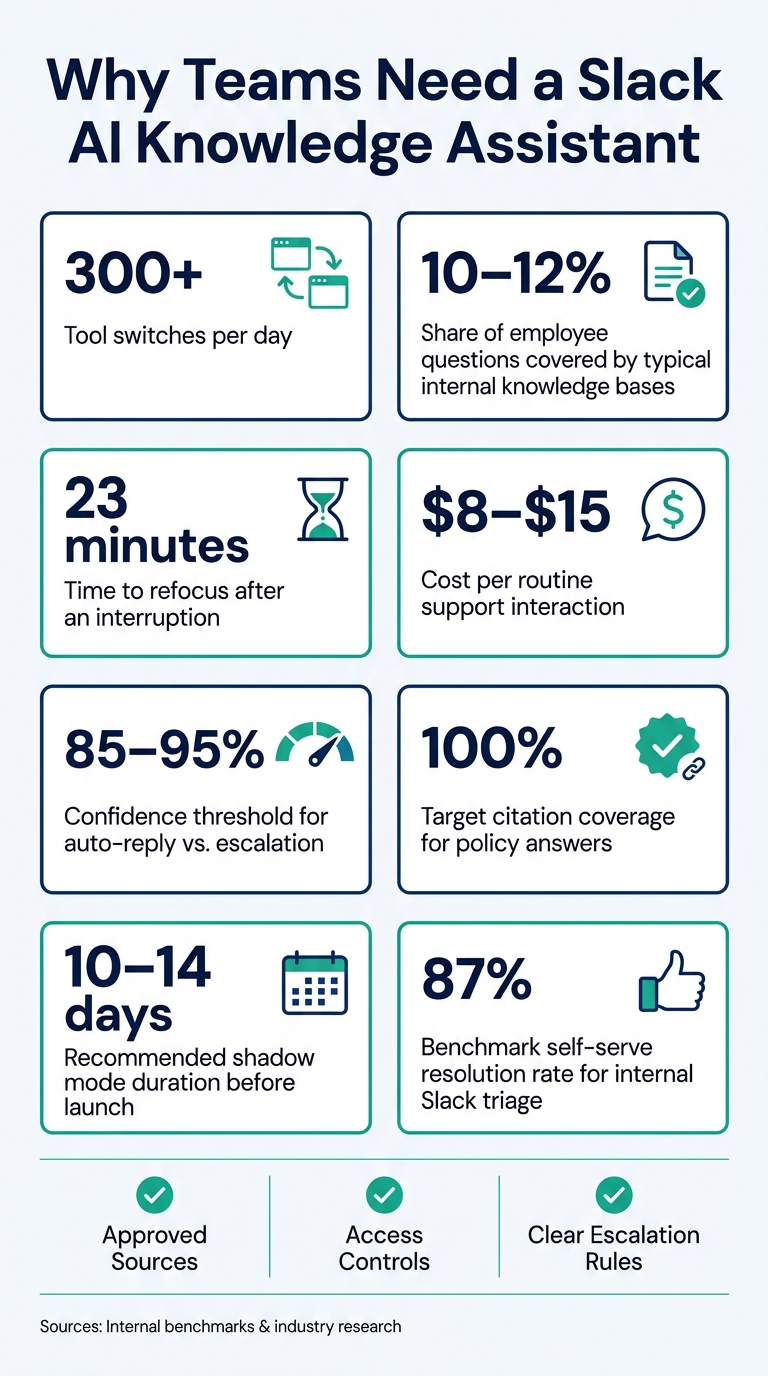
Slack AI Knowledge Assistant: Key Stats & ROI at a Glance
How a Slack AI Knowledge Assistant Works
Here’s what that in-workflow access looks like in practice: an employee asks a question in Slack, and the assistant replies right there in the chat with a cited answer pulled from approved sources. No need to switch tabs or leave the platform.
Core Retrieval and Citation Flow
The assistant gives people an answer, not just a list of search results. It also links straight to the source material - like Confluence pages or internal docs - so employees can check the information for themselves [1][2].
If the assistant can’t answer with enough confidence, it says so and routes the question for manual follow-up [4]. That’s a lot better than getting an answer that sounds sure but turns out to be wrong.
It also keeps follow-up questions in context across multiple turns [4]. So the conversation feels less like starting from scratch each time and more like talking to someone who remembers what you just asked.
Connected Sources and Permission-Aware Access
For integrations like Confluence, the assistant matches each user’s permissions and only pulls from spaces and pages that person is already authorized to read [1]. In DMs, answers stay limited to the requesting user’s Slack permissions [3].
That matters for two reasons. First, it helps keep answers accurate because the system pulls from the right set of documents. Second, it helps with compliance because people only see what they’re supposed to see.
With approved retrieval and permission checks in place, the assistant can support questions across teams like HR, IT, sales, and support.
How ChatSpark Fits the Workflow
ChatSpark connects right to Slack and adds the conversational layer for pulling answers from approved sources. It handles retrieval, generates cited responses, and supports multi-turn conversations.
It doesn’t stop at answering questions, either. ChatSpark can trigger AI Actions - like creating Jira tickets, updating CRM records, or escalating to a human agent with the full conversation history attached - so requests move toward resolution faster instead of just being surfaced [3][4].
| Capability | What It Means in Practice |
|---|---|
| Permission-aware retrieval | Results are scoped to what each user is authorized to see [1] |
| Source citations | Answers link directly to the source material [1][2] |
| AI Actions and escalation | Can create Jira tickets, update CRM records, or hand off to a human agent [3][4] |
These capabilities stand out most in day-to-day team workflows.
Practical Workflows: HR, IT, Sales, and Support
The biggest wins usually come from the same places: repeat questions, live lookups, and clean handoffs. These use cases matter most when people ask the same things again and again, and when the right answer can change fast.
HR and IT Questions Employees Ask Every Week
HR and IT deal with a steady stream of familiar requests every week - PTO policies, expense reimbursement forms, password resets, VPN setup, and device enrollment. The questions are routine, but they still eat up time that staff could spend on higher-priority work.
A PTO question can return the current policy plus the source link. A device-enrollment question can return the IT runbook.
Some requests shouldn't get a generic reply. Payroll and security issues need routing. Keyword triggers like "payroll error" or "account compromised" can send the request straight to HR or IT.
That same setup becomes even more useful in sales, where answers need to stay current.
Sales Enablement Lookups That Need Current Sources
Sales reps often need fast answers in the middle of a conversation: What's the current pricing or packaging? What's the approved positioning for a certain objection? What did we discuss with this account last quarter?
Instead of digging through tabs, reps can get live answers in Slack. The assistant pulls pricing, positioning, and account notes from approved sources, then sends the answer back in Slack with a source link. That source link makes it easy to check the answer on the spot.
| Sales Task | Without the Assistant | With the Assistant |
|---|---|---|
| Pricing lookup | Search spreadsheets or PDFs | Instant Slack query with source link |
| Objection handling | Ask peers or search the wiki manually | AI retrieves approved positioning from Confluence |
| Account history | Switch tabs to Salesforce or HubSpot | AI summarizes account notes and open tickets in Slack |
| Intelligent lead capture | Log manually after the call | AI Actions update deal stage directly from Slack |
Support follows the same pattern, but the bar for escalation is lower.
Support Escalation Guidance Inside Slack
For support teams, the assistant acts as a first-pass triage layer. When an agent gets a complex ticket, they can ask the assistant in Slack and get troubleshooting steps pulled from internal runbooks, with the source attached. That means they don't have to rely on memory.
If confidence drops below the threshold, or if the issue is high risk, the ticket gets routed to the right owner with context.
As Nenshad Bardoliwalla, Group VP for AI Products at ServiceNow, put it:
"A system that says 'I can resolve 70% of this autonomously and here's exactly why I'm escalating the other 30%' is more trustworthy than one that hallucinates an answer." [2]
The point isn't to make the assistant answer everything. It's to let it handle the cases it can handle with confidence, then pass off the rest without making the next person start from scratch.
Setup Requirements: Integrations, Governance, and Automation
Reliable Slack answers come from three things: approved sources, tight access rules, and clean handoffs when the assistant can’t handle something on its own.
Choose and Connect Authoritative Knowledge Sources
Start with the systems that get the most questions. For most teams, that usually means internal docs in Confluence, Notion, or SharePoint; help center platforms like Zendesk or Freshdesk; CRMs like Salesforce or HubSpot; and work tools like Jira or Asana.
Before you connect those sources, tidy them up. Old PDFs, duplicate policy docs, and draft pages can chip away at trust fast. Archive old files, remove duplicates, and make sure every document that stays in the index is clearly marked as approved.
Doc structure matters too. Use clear H1/H2/H3 headings so retrieval can pull the right section instead of some random line buried in a long page.
Once you’ve connected the right sources, the next job is simple: control who can read what and what the assistant is allowed to show.
Set Governance Rules for Accuracy and Access
Integrations use permission-scoped API tokens, so the assistant can only reach spaces and pages that account is permitted to read [1]. That sounds simple, but you should still test it. Run the same queries with accounts that have restricted access and with accounts that have global access. Then check that restricted content never shows up for the wrong user.
That’s what keeps Slack answers useful without leaking info people shouldn’t see.
Here are the main checks to finish before launch:
| Requirement | Why it matters | Responsible owner | Validation check |
|---|---|---|---|
| Authoritative sources | Prevents outdated or conflicting info | Knowledge Manager / Dept Head | Audit the top 20% of ticket topics for documentation coverage |
| Permission-scoped API tokens | Limits data to authorized views | IT Administrator | Test queries using restricted vs. global access accounts |
| Draft/archival exclusion | Keeps unapproved content out of responses | Knowledge Manager | Verify AI doesn't cite documents tagged as "Draft" |
| PII redaction rules | Protects sensitive data from logs | Security Officer | Run a test query with dummy PII and check logs |
| Governance and escalation rules | Defines when AI must route to a human | Operations Leader | Test billing, fraud, and technical-escalation scenarios |
Confidence thresholds matter here too. A common setup sends an auto-reply when confidence is above 85%–95% and escalates anything below that. For high-stakes categories, send the case to a human every time, no matter what the confidence score says.
With access rules locked in, the last piece is routing unanswered questions to the right person with the full story attached.
Automate Routing, Escalation, and Follow-Up
Automation turns approved retrieval into a workflow people can use, not just a search layer. Keyword triggers and intent detection can send billing, technical, and account questions to the right owner.
When the assistant can’t resolve a case, the fallback should grab context on its own. That includes the user ID, the original question, and any metadata the next person needs. No one wants to pick up a ticket and start from zero.
Run shadow mode for 10–14 days, review draft answers, and fix accuracy or routing gaps before launch.
How to Measure Adoption, Accuracy, and Business Impact
Metrics That Show If the Assistant Is Working
Once sources, access rules, and routing are live, the next job is simple: check whether Slack answers are cutting down repeat pings. You want to see if people are getting answers in Slack instead of asking the same thing again, opening escalations, or chasing help across channels. That applies across HR, IT, sales, and support.
Start with citation coverage. Policy answers should link straight to approved source material, like Confluence pages or internal wiki docs. For policy-related responses, aim for 100% citation coverage [1][2].
Then look at self-serve resolution rate. This is the share of questions answered in Slack without human follow-up. Pair that with repeat-question volume before and after launch. If the same questions keep showing up, something's off. Use 87% as a benchmark for internal Slack triage, not a promise [2]. It also helps to review unanswered query logs so you can spot source gaps or routing misses [2].
For fast feedback, add in-Slack thumbs-up/thumbs-down prompts. That gives employees an easy way to say whether an answer helped [2]. It's a quick read on relevance and trust, without waiting for a formal review cycle.
Use those signals to fix weak sources, then retest the same questions.
A Continuous Improvement Loop for Better Answers
Measurement matters only if it feeds back into the system. Review unanswered or low-confidence queries, update the source, then retest the same question. That loop helps keep answers from going stale as policies and processes shift.
Put plainly, this is how the assistant becomes a durable knowledge layer instead of a one-time rollout.
Conclusion: What Teams Gain from In-Workflow Answers
A Slack AI knowledge assistant works best when it pulls from approved sources, shows measurable accuracy, and gets better from feedback.
FAQs
How long does setup take?
Setup is fast and straightforward. There’s no coding and no complex configuration to deal with. For the Slack integration, an account owner or admin can usually finish the installation in under a minute.
Once that’s done, team members can connect their own sessions right away. That means your team can start using internal documentation and support resources with very little downtime or extra technical work.
What sources should we connect first?
Start with the systems that contain your most actionable data, especially CRM platforms, help desks, and core financial systems. These tools give your assistant the context it needs to deliver personalized help and real-time insights.
At the same time, connect your existing documentation, including help center articles, FAQs, SOPs, and internal wikis. Begin with clean, customer-ready content like help center articles and FAQs. That gives you more accurate, controlled responses from the start.
How do we prevent wrong answers?
Use human oversight and strong safeguards. Train the AI on structured, high-quality content so it can pull information with better accuracy, and set clear boundaries for what it can and can't do.
For high-stakes tasks, add human-in-the-loop workflows. Review errors through feedback loops and routine audits, and use policy validators to check outputs.
If the AI can't answer with confidence based on its training data, it should give a graceful fallback response instead of guessing.