I’d start Discord support automation with 10–20 common player issues - not every question players might ask. Use ChatSpark’s /ask command to answer from approved game docs, and keep human help one click away.
Here’s the setup I’d use:
- Prepare the answers: Check guides, patch notes, and known bugs. Keep private records and outdated fixes out.
- Limit bot access: Use designated support channels, protect the bot token, and send sensitive cases to private tickets.
- Set clear reply rules: Share documented steps, admit when an answer is missing, and let players reach staff without finishing a bot flow.
- Test and track results: Check answers, permissions, and handoffs before launch. Compare results with the previous 2–4 weeks, counting only player-confirmed or staff-verified resolutions.
- Keep it current: Update docs after patches, review failed answers, and weigh staff time saved against all bot costs.
My rule: <u>automate repeat questions, not staff judgment</u>. A fast reply helps only if it’s correct and players can still reach a person.
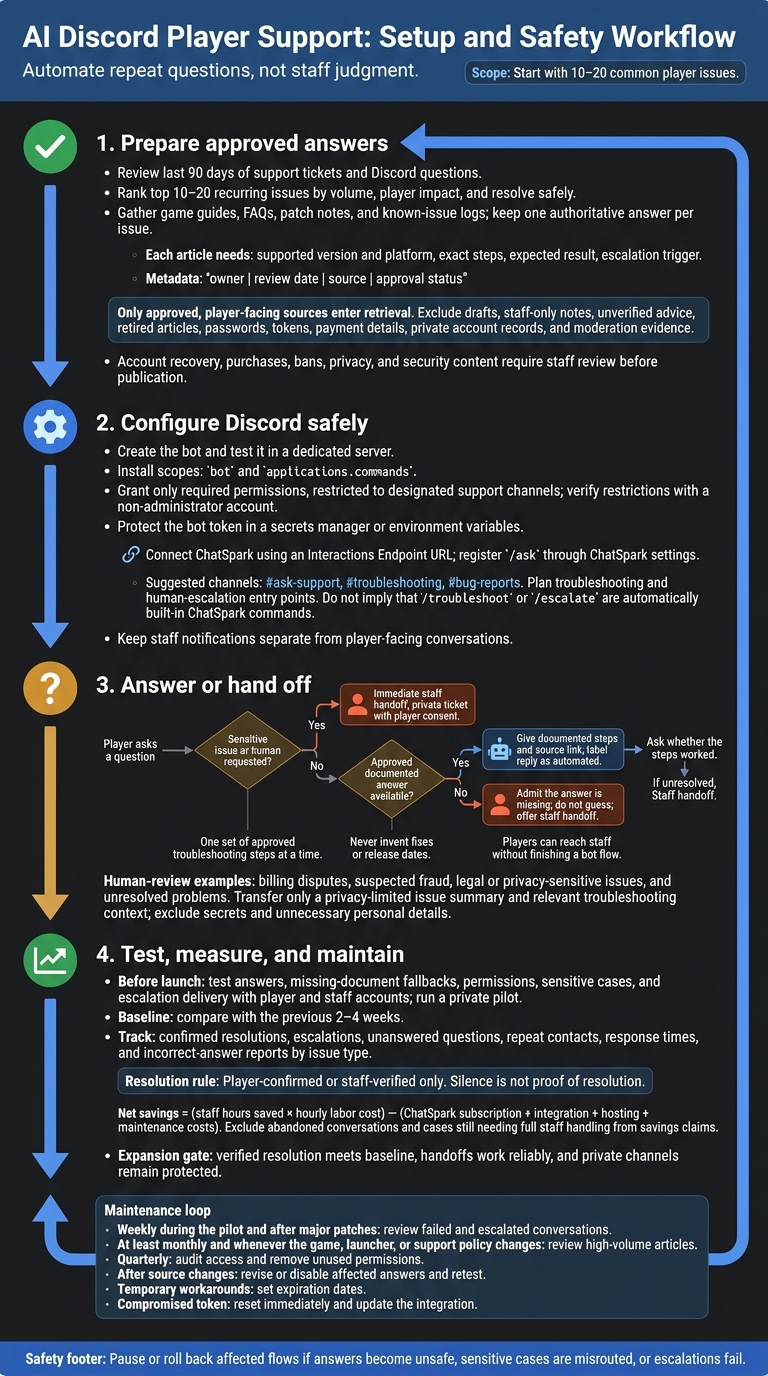
AI Discord Player Support: Setup and Safety Workflow
Step 1: Prepare Your Game Support Knowledge Base
Build the bot’s source library first. Every Discord answer should come from this library. Review the last 90 days of support tickets and Discord questions, then rank the top 10–20 recurring issues by volume, player impact, and whether approved steps can resolve them safely.
Include installation errors, patch confusion, and known bugs. Focus on repeatable issues rather than cases that need account investigation or staff judgment. These will be the first issues your bot handles on Discord.
Group Documentation by Player Need
Gather game guides, FAQs, patch notes, and known-issue logs. Organize them by player need: installation and updates, account access, gameplay and progression, purchases and refunds, connectivity and performance, troubleshooting, and known issues.
Keep one authoritative answer per issue. Use patch notes to explain updates. Use known-issue logs to track symptoms, affected platforms, approved workarounds, and current status.
Each article should include the supported version and platform, exact steps, expected result, and escalation trigger. Add these metadata fields: owner | review date | source | approval status.
Send account recovery, purchases, bans, privacy, and security content to staff review before publication. Only approved content should feed the bot’s responses.
Connect Approved Sources to ChatSpark
Before connecting approved sources, check their accuracy, version coverage, ownership, and intended audience. Connect only sources your bot’s retrieval setup supports. Leave out drafts, staff-only notes, unverified Discord advice, and retired articles. Use game, platform, language, region, and version labels to narrow retrieval.
Assign a documentation owner to review high-volume articles at least monthly and whenever the game, launcher, or support policy changes. Remove outdated workarounds from retrieval instead of just labeling them “old.”
Keep passwords, bot tokens, payment details, private account records, and moderation evidence out of the knowledge base. Store only player-facing steps.
Step 2: Set Up the Discord Bot and Support Channels
Create and Install Your Discord Bot
With your approved sources ready, connect the bot to Discord and limit it to support channels.
Create a Discord application, add a bot user, and generate an install URL with the bot and applications.commands scopes. Install the bot in a dedicated test server, then check that slash commands appear.[5][6][4]
Grant only the permissions the bot needs - typically Send Messages, Read Message History, and thread permissions, restricted to support channels. Test those limits with a non-administrator account. Confirm that the bot cannot access unrelated staff or moderation channels and responds only in the intended channels.[2][1][8][3] Do this before adding support commands and escalation.
Store the bot token in a secrets manager or environment variables - not in source control or Discord. If the token is exposed, rotate it immediately.[6][8][4]
Add Support Commands and Private Escalation
Before launch, give each command a clear support path. Pin a short channel guide that explains which command to use, what details to include, and when to ask for a human.
Set up these entry points for players:
#ask-supportfor common questions, with/askfor gameplay or account questions.#troubleshootingfor technical help, with/troubleshootfor technical problems.#bug-reportsfor bug intake, plus/escalateas the command for human help.
Keep private support out of public channels. With the player’s consent, route escalations and sensitive account details, logs, or screenshots to a private ticket.[2]
Once the channels are set, connect the bot’s reply rules to your approved knowledge base.
Connect ChatSpark and Set Reply Rules
Keep answers tied to approved content and preserve the human handoff described above. ChatSpark supports Discord deployment through an Interactions Endpoint URL. Configure that URL in the Discord Developer Portal, then register /ask globally through ChatSpark settings. The command may take several minutes to appear. Use slash commands rather than routing support through @mentions.[7][2]
Set the bot’s tone, game terminology, language, and reply length. Limit each request to the command, the player details needed to answer it, and approved knowledge-base context. Require links to approved documentation, make uncertainty clear, and label replies as automated.
If you use ChatSpark’s Notify Team action, send alerts to a staff-only notify channel, separate from player-facing conversations.[2]
Step 3: Define Answers, Troubleshooting, and Human Handoffs
Base Answers on Verified Game Documentation
Answer gameplay questions only from approved documentation. For known bugs, share the documented status and workarounds. Don’t invent fixes or release dates. If there’s no verified answer, say so.
Use these same rules in Step 4 to test whether the bot answers, refuses, or escalates correctly.
Build Short Troubleshooting Flows
Keep troubleshooting flows for installation errors and crashes short. Ask only for the details needed to investigate. Keep passwords, verification codes, payment details, and unredacted logs out of the conversation.
Use the existing support thread or slash command so troubleshooting stays out of the main channel. Give players one set of approved steps at a time, then ask whether those steps worked before continuing. If the flow stalls, use the handoff path below.
Route Sensitive or Unresolved Issues to Staff
Let players escalate immediately. Send billing disputes, suspected fraud, legal or privacy-sensitive issues, and unresolved problems to staff for manual review. Don’t force an automated answer.
Send a privacy-limited summary to a staff-only channel. Include only the issue and relevant troubleshooting context - not passwords, tokens, or unnecessary personal details. Send the player an automated acknowledgment, and make clear that it isn’t a human reply.
Next, test, measure, and update these answer and handoff rules.
Step 4 and Conclusion: Test, Measure, and Maintain Your Support Bot
Once the bot, reply rules, and handoff paths are live, test the entire player journey before launch.
Test Answers, Permissions, and Handoffs
Start in a separate Discord test server, away from players. Check the full support flow, then run a private pilot using approved sources and commands.[4][8]
Test gameplay questions, installation errors, known bugs, unclear requests, unsupported issues, and sensitive cases. Missing documentation should trigger a fallback - not a guess. Check command access, response timing, and escalation delivery. Use both player and staff accounts to verify channel visibility and permissions.[8][3]
Measure Resolution Quality and Staff Time Saved
Compare verified resolution rates against a baseline from the previous 2–4 weeks. Track confirmed resolutions, escalations, unanswered questions, repeat contacts, response times, and incorrect-answer reports by issue type. Count a case as resolved only when the player confirms success or staff verifies it. Silence is not proof of resolution.[9][10]
Estimate net savings using this calculation: staff hours saved × hourly labor cost − ChatSpark subscription, integration, hosting, and maintenance costs. Exclude abandoned conversations and cases that still need full staff handling.
Expand only when verified resolution meets your baseline, handoffs work reliably, and no private channels have been exposed to people without access.
Update Answers and Review Access
Review failed and escalated conversations weekly during the pilot and after major patches. Update approved source documents first. Then revise or disable affected answers and retest them. Set expiration dates for temporary bug workarounds so outdated advice doesn't stay active after a fix.
Assign named owners for knowledge updates, Discord configuration, credentials, and human handoffs. Audit access quarterly and remove unused permissions. If a bot token is compromised, reset it in the Discord Developer Portal and update the integration immediately.[1][2]
Pause or roll back affected support flows when answers become unsafe, sensitive cases go to the wrong place, or escalations fail.
FAQs
How can I stop players from manipulating the bot’s answers?
Limit the bot to your approved, curated knowledge base, including validated help articles, FAQs, and policy documents. This keeps its answers tied to approved sources.
Set **high confidence thresholds - typically 85–95% - **and triggers that immediately escalate legal, billing, or security concerns to a human agent. Also configure automatic routing when the AI detects frustration, negative sentiment, or repeated failed attempts. Your support team can then handle complex or adversarial interactions.
How should I handle escalations when staff are offline?
When staff are offline, your automated system should keep collecting the information they’ll need. Use the Notify Team action to alert a designated Discord channel. Include the full conversation history, a description of the problem, and relevant context, such as account details or troubleshooting steps already tried.
Let the player know you’ve received their request and when they can expect a human response. This gives staff a record of the handoff to review later.
Can one bot support multiple games without mixing up answers?
Yes. Use a centralized knowledge base that keeps each game’s content separate. Create one focused article per task or issue, use consistent terms, and configure the AI to rely only on verified sources for the game in question.
Set high confidence thresholds and send unclear questions - or those involving conflicting information - to human staff. This helps the bot avoid guessing or mixing policies between games.