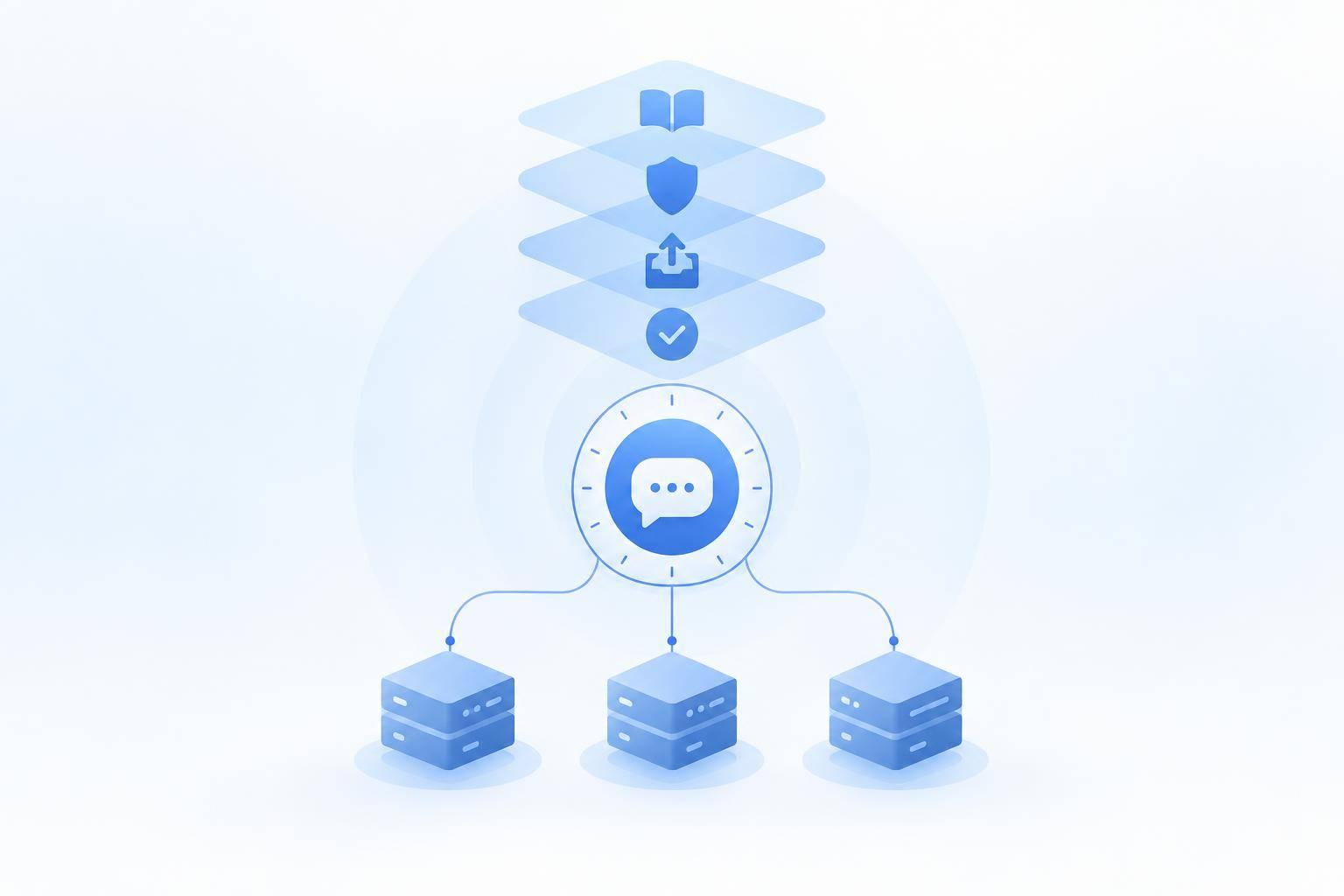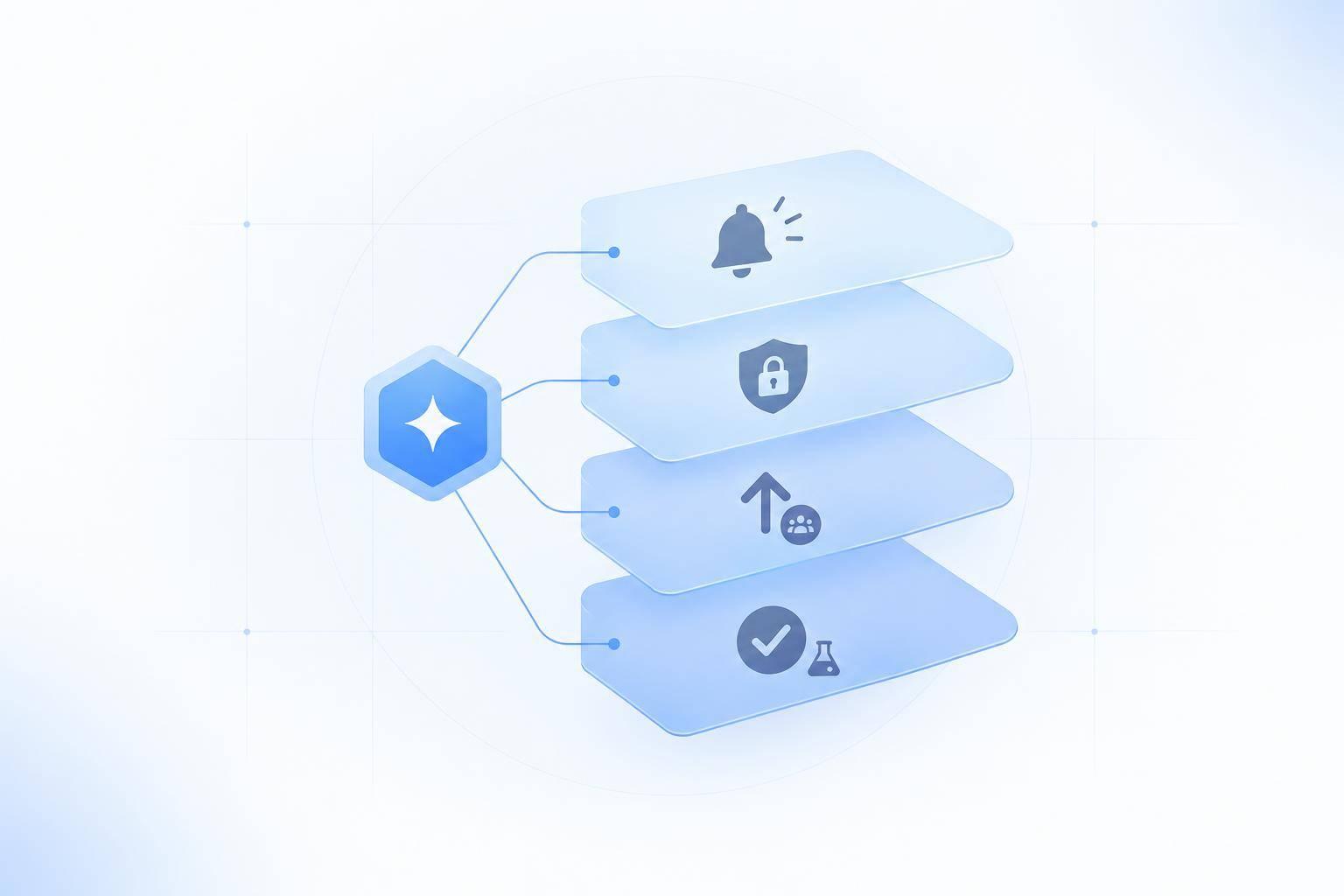
I’d use a Discord AI agent for routine questions and event updates - not moderator decisions. Start with approved rules, schedules, and support guides, then test answers and channel access privately before launch.
Here’s the setup I’d use:
- Answer member questions: Use
/askfor registration, match times, rules, and documented tech fixes, with source links. - Hand issues to staff: Route unanswered questions, disputes, payment issues, and sensitive reports to a private moderator channel.
- Send approved updates: Check the event, audience, channel, and schedule link. Keep standard posts under 2,000 characters.
- Check and fix: Review after the first event, then weekly. Pause faulty automation, correct errors, and retest before restarting.
My rule: <u>staff stay in control</u>. Give the agent only the access it needs, keep private details out of public replies, and require approval for major changes. Automate the routine work; leave judgment calls to people.
Discord AI Agent Workflow for Esports Communities
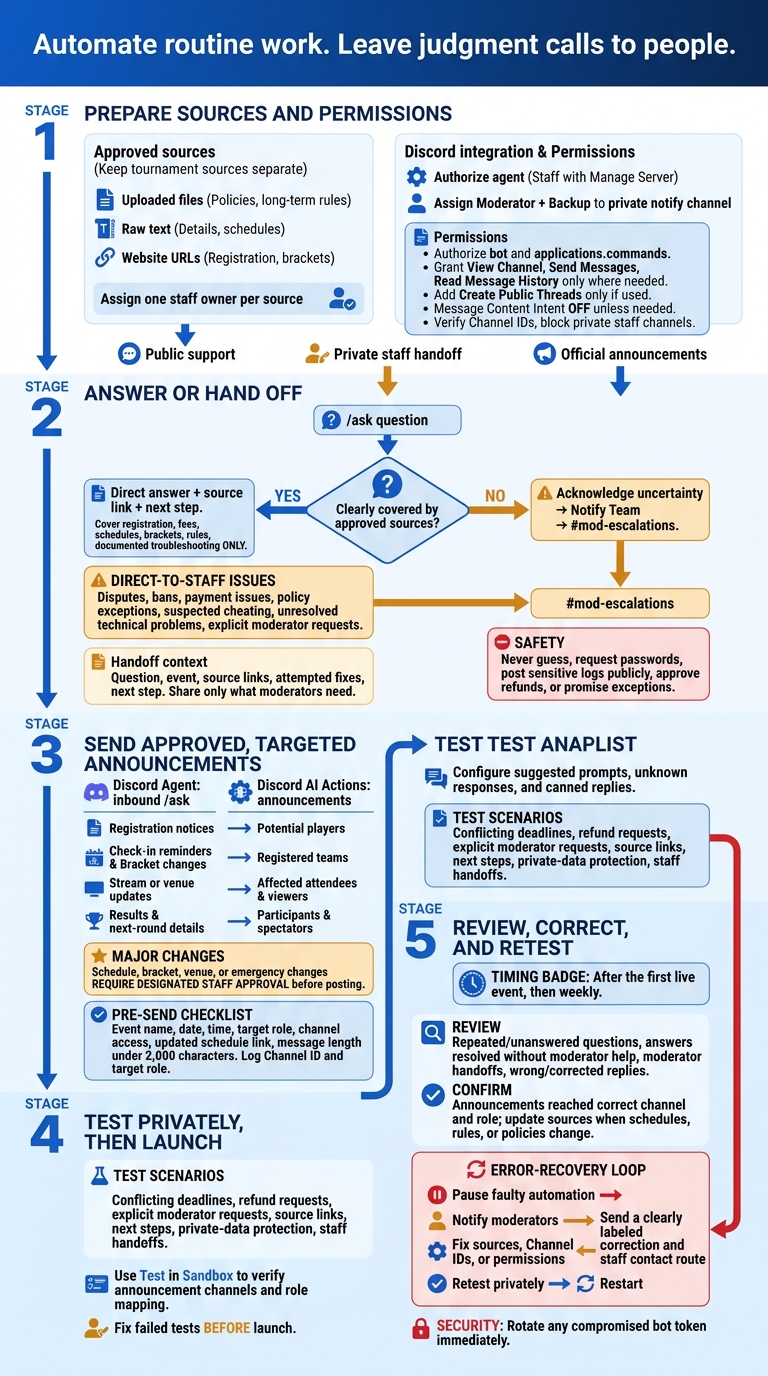
Step 1: Prepare Resources and Discord Permissions
Have a staff member with Manage Server authorize the agent. Confirm that your plan includes Discord integration, and assign a moderator and a backup to monitor the private notify channel. [1][2][3][4]
Next, organize the sources the agent will use to answer questions.
Organize ChatSpark Sources by Event and Topic
Keep each tournament’s sources separate, grouped by registration, schedules, brackets, rules, and tech support. ChatSpark accepts uploaded files, raw text, and website URLs. Use files for rules and policies that rarely change, and text for details that change often, like schedules. [6]
Assign one staff owner to each source to keep it up to date. [7]
Once the sources are ready, set limits on where the agent can answer and post.
Set Channel Access and Agent Permissions
Give the agent access only to the channels it needs. [2]
- Public support: Allow
/askanswers in the support channel. - Private staff handoff: Send unresolved or sensitive questions to a dedicated staff-only notify channel.
- Official announcements: Route approved updates to the designated announcement channel.
Authorize the bot and applications.commands scopes for /ask. Grant View Channel, Send Messages, and Read Message History only where needed. Add Create Public Threads only if your support team uses threads. Leave Message Content Intent off unless the agent needs to read raw message text. [2][3]
Use Developer Mode to copy the required channel IDs. Then check that the bot role cannot access any private staff channels except the designated notify channel. [2]
Step 2: Set Up Answers and Moderator Handoffs
Once sources and permissions are in place, define how the agent answers questions and when it hands them off to staff. Set Agent Personality to a calm, direct support tone. Require every answer to include a direct response, a source link, and a next step. The agent must not guess missing details or grant policy exceptions. [5]
Answer Registration, Schedule, Rules, and Tech Questions
Define answers for registration, fees, match schedules, brackets, rules, and technical troubleshooting. Keep technical advice limited to documented troubleshooting steps. Every answer must use approved source links, pointing to the exact registration page, rule page, or support guide. [5]
If the sources don’t clearly cover a question, send it to moderators.
Send Unresolved and Sensitive Questions to Moderators
Set Custom Unknown Response to acknowledge uncertainty and route the issue to staff. Configure Canned Responses and Notify Team to send disputes, bans, payment issues, policy exceptions, suspected cheating, and unresolved technical problems to #mod-escalations. Include the question, event, source links, attempted fixes, and next step. [2][5]
Never request passwords or post sensitive logs publicly. Share only the context moderators need. The agent must not approve refunds or promise exceptions. [2][5]
Test conflicting deadlines, refund requests, and explicit requests for a moderator. Review those conversations in ChatSpark to check answers, source links, useful next steps, and staff handoffs without private-data leaks. Fix failed tests before launch. [1][2][5]
Step 3: Set Up Targeted Event Announcements
Once support replies and handoffs are working, use the same permissions and role-based routing for targeted announcements. Use Discord AI Actions to send announcements and the Discord Agent to handle inbound /ask questions [3][2]. Log each announcement’s Channel ID and target role.
Match Event Updates to Channels and Roles
Use Post Message for member announcements and Notify Team for staff alerts [2]. Send registration notices to potential players, and check-in reminders and bracket changes to registered teams. Direct stream or venue updates to affected attendees and viewers. Share results and next-round details with participants and spectators.
For a schedule change, send the proposal to staff through Notify Team. After approval, use Post Message to notify captains in the event channel, linking to the updated schedule [2].
Check channel and role mapping with Test in Sandbox [2]. Once the audience mapping is set, limit final-post approval to designated staff.
Check Official Announcements Before Sending
Require staff approval for major schedule, bracket, venue, or emergency changes. Only approved staff should be able to post in official channels.
Before sending, verify:
- Event name, date, and time
- Target role and channel access
- Updated schedule link
- Message length under 2,000 characters to stay within Discord’s character limit [2]
Conclusion: Launch and Maintain Your Workflow
Review Answer Accuracy and Moderator Workload Weekly
Once support replies and announcements are live, review the workflow after the first live event, then weekly. In ChatSpark, check repeated or unanswered support questions, answers resolved without moderator help, moderator handoffs, and replies that were wrong or needed corrections.
Fill gaps in your sources, and update them whenever schedules, rules, or policies change. Also, confirm that each targeted announcement reached the right channel and role. [7][8]
If you find errors, pause automation before they spread.
Pause and Fix Faulty Posts and Handoffs
Pause faulty automation and notify moderators. Fix outdated sources, incorrect Channel IDs, and permission issues. Send affected members a clearly labeled correction and give them a way to contact staff. Retest the affected workflow privately before restarting. Rotate any compromised bot token immediately. [1][2][3][5]
Launch checklist: Prepare approved sources; set suggested prompts, unknown responses, and canned replies; verify permissions and moderator handoffs; test questions and targeted announcements privately; and schedule the first review. [1][2][3][5][7][8]
FAQs
How can I prevent conflicting answers across tournaments?
Train your AI agent using one approved source of truth: centralized documentation with current tournament rules, schedules, and policies. Keep it consistent and up to date to avoid mixed messages.
When high-stakes information needs exact wording, use Canned Responses to send predefined messages when specific keywords are detected. This keeps answers consistent across tournaments and topics.
How should I handle reminders across time zones?
Always include the time zone in your announcements. When setting up Discord AI Actions to post event reminders or schedule changes, stick to a consistent format, such as 7:00 PM EST, so members know when to join.
For a global community, list the event time in several major time zones to help members work out when it happens in their region.
How can I measure whether the agent reduces staff workload?
Use your ChatSpark dashboard to compare questions the agent handles automatically with those that need human help. This shows how much repetitive support work the agent takes off your team’s plate.
Review escalated questions to find topics that still need manual support. Then update the agent’s training documentation to address those topics.