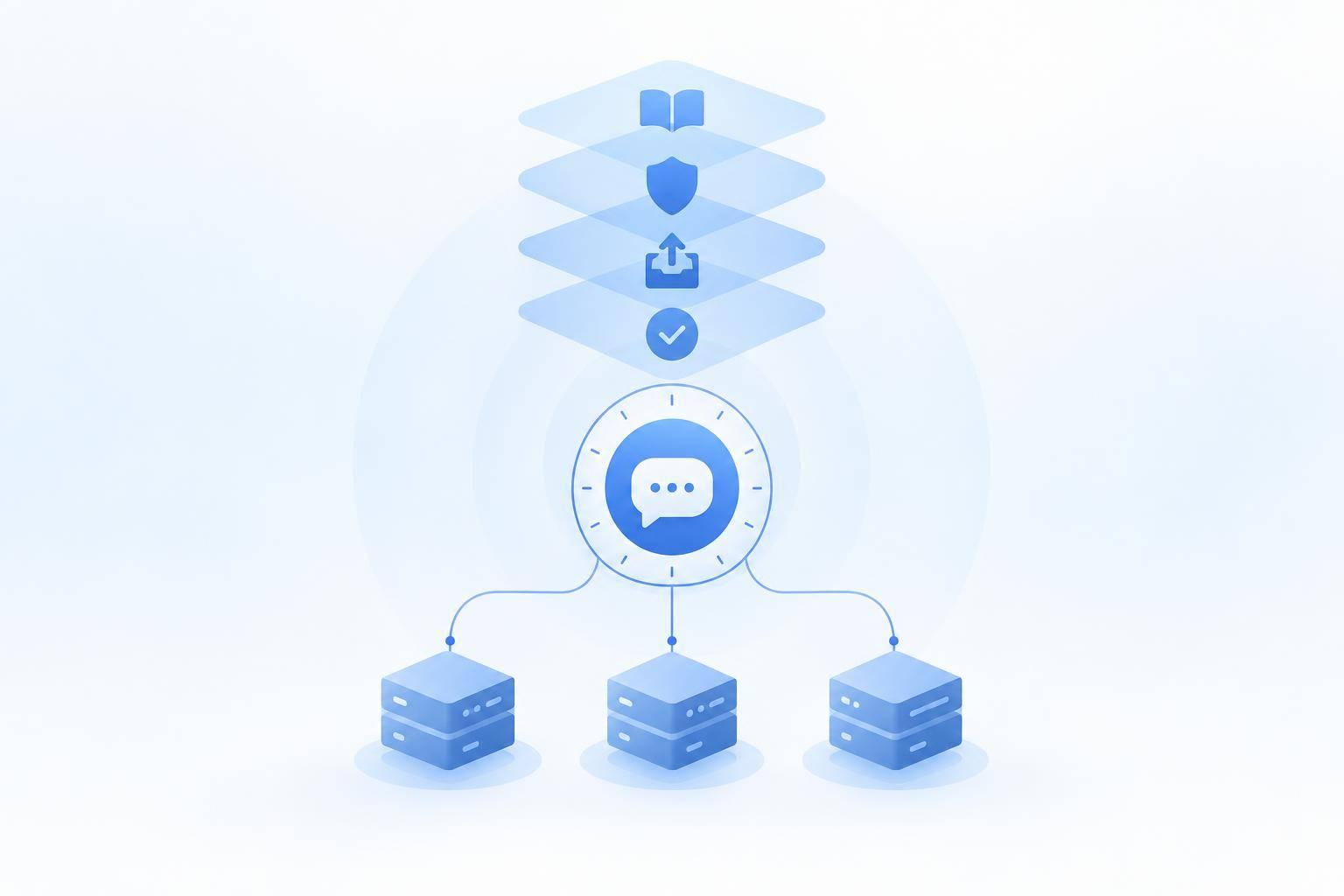
I’d set up 24/7 Discord support with ChatSpark by connecting approved player docs, starting in one help channel, and leaving moderation decisions to people. Your bot should answer routine questions - not guess when information is missing.
Here’s the setup I’d use:
- Prepare the docs: Separate rules, connection steps, commands, and fixes. Assign owners and review sources weekly.
- Limit access: Use
/ask, protect the bot token, and keep staff sources private. - Set reply rules: Stay under Discord’s 2,000-character limit and admit uncertainty.
- Plan handoffs: Send cases to moderators via Freshchat AI handoffs after two failed troubleshooting attempts - or whenever a player requests a person.
- Test before expanding: Check answers, privacy, handoffs, and message costs.
My rule: <u>automate routine help, not staff judgment</u>. Available all night should never mean making up answers.
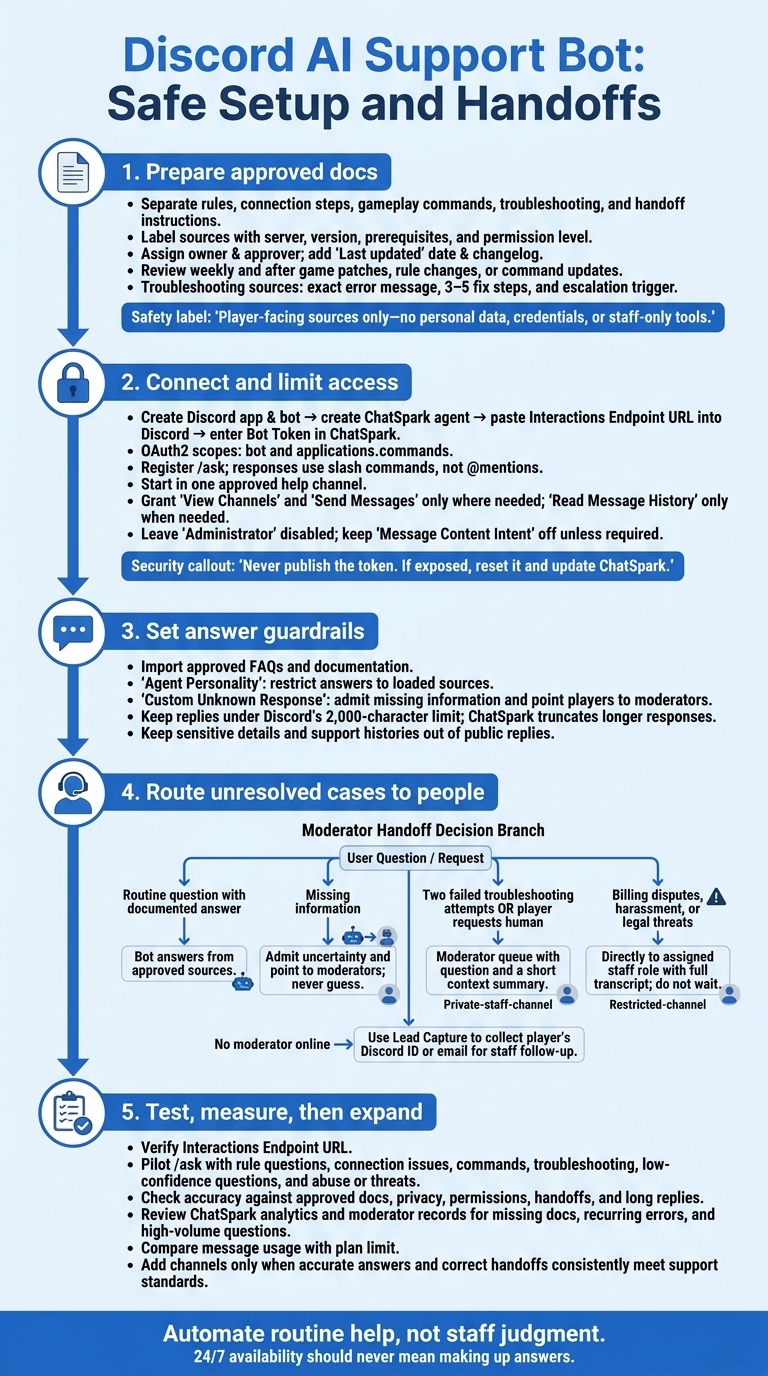
Discord AI Support Bot: Safe Setup and Handoffs
Step 1: Prepare Your Server Documentation
Create one approved, player-facing knowledge base for the bot to search. Give each document a single task, and label it with the server, version, prerequisites, and permission level.
Connect only player-facing sources. Keep moderator procedures, personal data, credentials, and staff-only tools out of the knowledge base.
Organize Rules, Commands, and Troubleshooting
Keep rules, connection instructions, gameplay commands, troubleshooting, and handoff steps separate. Use the following structure so the bot has enough detail to answer each question fully:
| Document type | Structure | Details to include |
|---|---|---|
| Server rules | Bullets grouped by category | Rule, penalty, and appeal link |
| Connection guide | Numbered steps | Server IP, port, required version, and mod links |
| Gameplay commands | Table or list | Exact syntax, description, and permission level |
| Troubleshooting | Symptom-based sections | Exact error message, 3–5 fix steps, and escalation trigger |
Assign Owners and Schedule Updates
Assign an owner and approver to each source. Review the knowledge base weekly and after game patches, rule changes, or command updates.
Add a Last updated date and a short changelog to each document. Delete outdated duplicates so players don’t get conflicting instructions.
Once the source library is clean, connect it to ChatSpark and set where the bot can answer.
Step 2: Set Up ChatSpark and Discord Access
With your source library ready, connect ChatSpark to Discord and limit its access to player support channels.
In the Discord Developer Portal, create an application and bot, then copy the Bot Token. Create a Discord agent in ChatSpark and generate its Interactions Endpoint URL. Paste that URL into Discord’s Interactions Endpoint URL field, then enter the Bot Token in ChatSpark’s agent settings.[3]
Keep the Application ID and Public Key handy. Generate the OAuth2 URL with the bot and applications.commands scopes, and register /ask in ChatSpark so it appears in Discord. Never publish the token. If it’s exposed, reset it in Discord and update ChatSpark right away.[3]
Add Sources and Set Answer Rules
Import your server FAQs and documentation into ChatSpark. Include rules, connection issues, commands, and troubleshooting.
Use Agent Personality to set the bot’s tone and restrict answers to loaded sources.[1] Set Custom Unknown Response to acknowledge missing information and point players to moderators.[1]
Keep replies under Discord’s 2,000-character limit. ChatSpark truncates longer responses.[3]
Choose Where and When the Bot Responds
Use /ask in public help channels for common questions. This integration responds through slash commands, not @mentions. Send unresolved issues to moderators, keep account-specific support in restricted channels, and route moderator alerts to a private staff channel.[3]
To copy channel IDs, turn on Discord Developer Mode under User Settings → Advanced. Keep sensitive details and support histories out of public replies.[3]
Limit Discord Permissions
Grant View Channels and Send Messages only in selected help channels. Add Read Message History only when needed, and leave Administrator disabled. Keep Message Content Intent off unless a feature needs message text.[3]
Step 3: Test Support and Track Results
After setup, run a small pilot before opening support to all players.
Set Up Moderator Handoffs
Send questions to your moderator queue after two failed troubleshooting attempts or when a player asks to speak to a human. Include the question and a short context summary. Send billing disputes, harassment, and legal threats directly to the assigned staff role with the full transcript.
If no moderator is online, use ChatSpark’s Lead Capture to collect the player’s Discord ID or email so staff can follow up later [1].
Check these handoffs to make sure unresolved cases reach staff with enough context to respond fast.
Test Accuracy, Safety, and Access
Before expanding access, use /ask to test rule questions, connection issues, gameplay commands, troubleshooting, low-confidence questions, and abuse or threats [3]. Check each answer against your documentation. Enforce allowed-sources rules and a no-guess rule so the bot admits uncertainty rather than making up an answer.
Confirm that public channels grant only the permissions needed for support and that moderator channels stay private [3][2].
Track Support Results and Costs
Review early results with ChatSpark analytics and moderator records. Look for missing documentation, recurring errors, and high-volume questions before adding the bot to more channels.
Compare message usage with your plan limit before expanding access.
Conclusion: Keep 24/7 Player Support Accurate
Start with one approved support channel. Before opening access, verify the Interactions Endpoint URL.[2] Once access is verified, keep the rollout limited until support quality is stable.
Check long troubleshooting replies against Discord’s 2,000-character limit.[3] Keep the steps players need, even when shortening a reply.
Add more channels only when accurate answers and correct handoffs consistently meet your support standards. 24/7 support depends on accuracy and fast handoffs for edge cases.
FAQs
Can one bot support multiple game servers?
Yes. ChatSpark’s Discord bot supports multiple game servers. Set up the Discord integration for each server and channel where the bot is invited and has access. Players can then use the /ask command in those channels.
The bot replies directly in the channel through Discord’s HTTP interactions endpoint for slash commands. This lets it work across all connected servers.
How do I estimate monthly support costs?
Estimate your monthly support costs based on the features you need. ChatSpark plans start at $19 per month for Basic, $59 for Plus, and $129 for Pro. Discord integration is available ONLY on Pro and Enterprise, so budget $129 per month if you choose Pro for this feature.
Automating routine player questions can cut manual work and support costs by handling high message volumes without human input.
How can I prevent players from abusing the bot?
Set firm rules in the bot’s personality instructions, including which topics it can and can’t discuss. Use prewritten responses for high-stakes or regulated information to help keep answers accurate.
Configure the bot to escalate immediately to a human moderator when it detects frustration, negative sentiment, or keywords related to security or disputes. Set a high confidence threshold for answers, and send low-confidence questions or repeated failed attempts to your support team so users don’t get stuck in a loop.