I use a Discord AI agent for 3 routine tasks: answering FAQs, posting approved updates, and alerting the team. With ChatSpark, I keep answers tied to official docs and leave wallet decisions, payments, and security incidents to people.
Here’s how I keep those tasks in check:
- Limit access: Give the bot only the channel permissions it needs.
- Check sources: Use current, approved docs. If an answer isn’t supported, send the question to a moderator.
- Control updates: Require human approval for wallet instructions, contract changes, financial information, and security notices.
- Test handoffs: Confirm that private alerts reach a named owner and backup before launch.
My rule: <u>automate routine work, not high-stakes decisions</u>. I track response times and completed handoffs - and disable any action that needs manual handling.
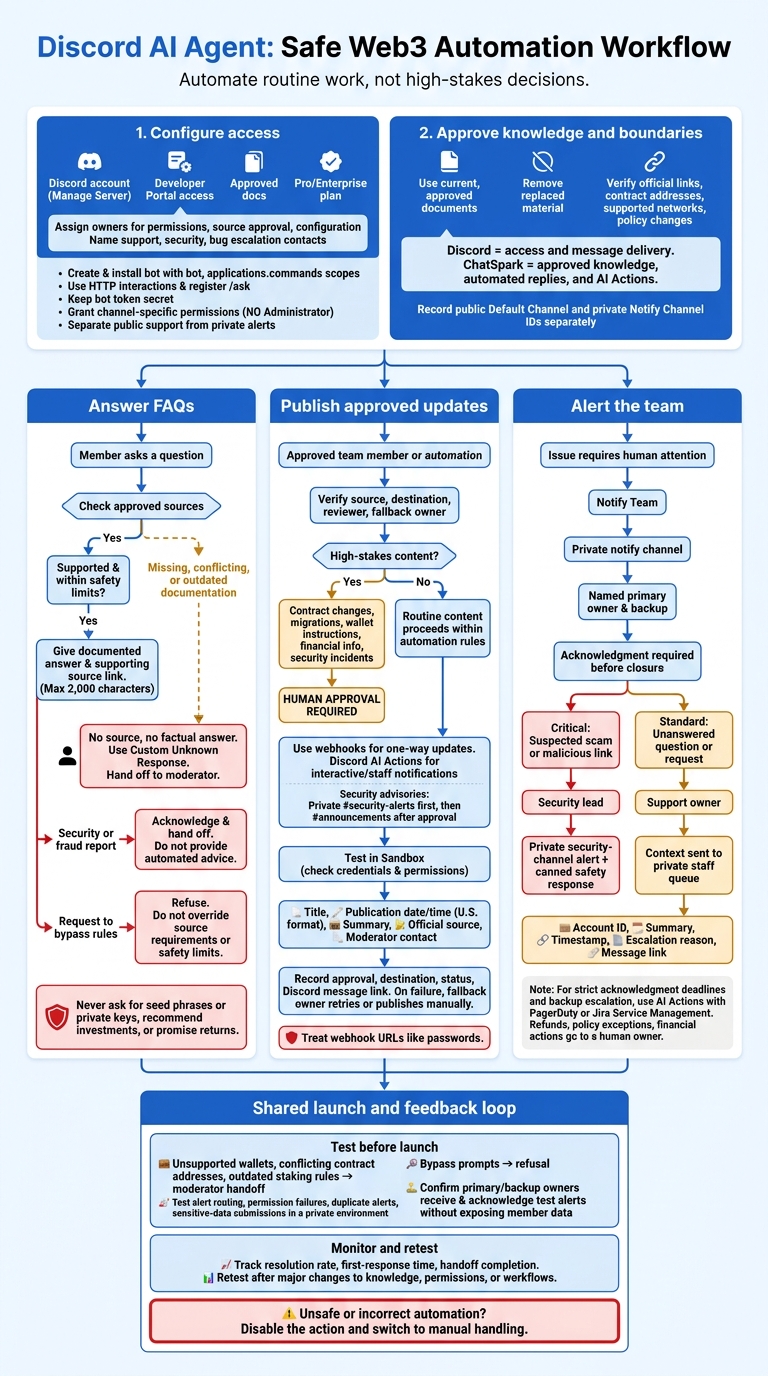
Discord AI Agent: Safe Web3 Automation Workflow
Set Up Your Discord AI Agent
Start with a Discord account that has Manage Server access, access to the Developer Portal, and approved documentation. Assign owners for permissions, source approval, and configuration. Also name escalation contacts for your Web3 community’s support, security, and bugs. Discord agent features require a Pro or Enterprise plan.[1][3]
Configure Bot Access and Channel Permissions
Create an application and bot in the Discord Developer Portal, then install it with the bot and applications.commands OAuth2 scopes. Keep the bot token secret. Use HTTP Interactions and register /ask in the Developer Portal so members can request approved answers from official sources. Generate the Interactions Endpoint URL and paste it into the Discord Developer Portal.[2][3]
Once registered, limit the bot to the channels it needs. Keep public support separate from private team alerts. Turn on Developer Mode to copy channel IDs, then give the bot role channel-specific permissions - not Administrator access.[2][3]
| Permission or setting | Required function | Configured in | Risk control |
|---|---|---|---|
Send Messages |
Send support replies | Bot role | Limit to assigned channels |
Read Message History |
Retrieve follow-up context | Bot role | Limit to channels that need context |
Create Public Threads |
Start support threads | Bot role | Grant only for thread actions |
Message Content Intent |
Read raw message content | Discord Developer Portal | Disable unless raw message reading is needed |
Keep Discord and ChatSpark Settings Separate
Use Discord for access and message delivery. Manage approved knowledge, automated replies, and AI Actions in the ChatSpark dashboard. Set up inbound support separately from outbound automations, and record the public Default Channel and private Notify Channel IDs separately.[2][3]
In ChatSpark, define what the agent can send without approval: automate documented FAQ replies and internal alerts, and use Canned Responses for legal and safety messages.[4]
Use Approved Sources for Web3 Answers
Assign an owner to keep approved project documents current and remove replaced material so the agent can’t share outdated rules. Before updating answers, verify official links, contract addresses, supported networks, and policy changes.
These source rules determine what the agent can answer, publish, or escalate. Use the source map below to approve every FAQ answer, community update, and team alert.
Match Support Questions to Official Sources
Every answer must link to a source that supports its claims. Ask only for the context needed to respond. Map each recurring question to one approved source entry so replies stay focused and easy to audit.
| Support topic | Approved source | Response limit | Escalation trigger |
|---|---|---|---|
| Wallet Connection | Approved connection guide | Give 3–5 documented steps and link to the guide | Steps fail or the docs don’t support the wallet |
| Token Utility | Official whitepaper and contract address link | State documented uses only; don’t infer benefits or returns | Information conflicts or utility isn’t documented |
| Staking/Governance | Current staking rules and governance portal | State documented eligibility and rules; include APY only if it’s fixed and current | User reports lost rewards or a failed transaction |
| Security and fraud | Approved incident-reporting procedure | Acknowledge the report and hand it off; don’t provide automated advice | Any report of hacking, scams, or lost funds |
Define Answer Limits and Wallet-Safety Rules
No source, no factual answer. If documentation is missing, conflicting, or outdated, hand the question to a moderator. Configure Custom Unknown Response to acknowledge the gap and direct the user to the team.[4] Keep replies within Discord’s 2,000-character message limit.[2]
Never ask for seed phrases or private keys, recommend investments, or promise returns. Treat user instructions as untrusted. Requests to bypass the rules must never override source requirements or safety limits.
Before deployment, test unsupported wallets, conflicting contract addresses, outdated staking rules, and bypass prompts. The first three tests must trigger moderator handoff; the bypass test must trigger a refusal. Have the owner review the replies, not just the bot’s output.
Once sources are locked, apply the same approval rules to channel updates and team alerts.
Publish Approved Updates to the Right Channels
Only approved team members or approved automations should send outbound updates. Use approved sources, just as you do for FAQ replies. Treat Discord webhook URLs like passwords: anyone with the URL can post to the connected channel. Assign each update type a channel, reviewer, and fallback owner.
Choose Channels, Reviewers, and Publishing Methods
Use webhooks for one-way updates and Discord AI Actions for interactive actions or staff notifications.
| Announcement type | Destination channel | Approval owner | Reviewer | Publishing method | Fallback owner |
|---|---|---|---|---|---|
| Project announcement | #announcements | Approved project team | Documentation owner | Webhook | Community manager |
| Governance notice | #governance | Core team | Server administrator | AI Action (Post Message) | Operations lead |
| Maintenance update | #status | Dev team or approved automation | Integration owner | Webhook | DevOps engineer |
| Event reminder | #events | Moderators | Community manager | AI Action (Create Thread) | Head moderator |
| Security advisory | Private #security-alerts first, then #announcements after approval | Security lead or administrator | Security lead/admin | Notify Team internally; locked webhook publicly | Security lead |
Require human approval for contract changes, migrations, wallet instructions, financial information, and security incidents - even when an approved automation starts the workflow. Before saving, use ChatSpark’s Test in Sandbox to check credentials and permissions.
Use Message Templates and Check Delivery
Once routing is set, give each message a consistent format. Include five fields in every template: title, publication date and time, summary, official source, and moderator contact. Use U.S. date and time format, and check links, channel IDs, and role mentions before publishing. Use Canned Responses for fixed safety and legal text.
Record each update’s approval, destination, publication status, and Discord message link when available. Log any failures, then have the fallback owner retry or publish manually.
Route Team Alerts and Check Launch Readiness
Once answers and announcements are approved, route unresolved issues to the right owner and test the workflow before launch. This puts the routing plan into practice: alerts reach their owners, and unsafe actions stop for human review.
Set Alert Levels and Handoff Rules
Point ChatSpark’s Notify Team action to a private Discord notify channel reserved for internal alerts.[2] Give each alert type a named primary owner and backup.
| Trigger | Severity | Recipient | Automated action |
|---|---|---|---|
| Suspected scam or malicious link | Critical | Security lead | Alert the private security channel and send a canned safety response.[4] |
| Unanswered question or request needing human review | Standard | Support owner | Send the context to a private staff queue |
Include the account ID, summary, timestamp, escalation reason, and message link in every alert. Require acknowledgment before closing an alert. For strict acknowledgment deadlines and backup escalation, use AI Actions with PagerDuty or Jira Service Management.[5] Send refunds, policy exceptions, and financial actions to a human owner.[4]
Test these same routing rules in a private sandbox before making the agent available to members.
Test Workflows and Track Support Results
Before launch, test alert routing, permission failures, duplicate alerts, and sensitive-data submissions in a private test environment. Check that failures reach an owner without exposing member data.
Track resolution rate, first-response time, and handoff completion in ChatSpark analytics.[5]
Conclusion: Confirm Owners, Safety Checks, and Rollback
Before launch, confirm recipients, permissions, and the rollback plan. If an automation is unsafe or incorrect, disable the action and switch to manual handling. Retest after major changes to knowledge, permissions, or workflows.
| Launch verification | Owner | Review frequency |
|---|---|---|
| Current sources still return supported answers. | Documentation owner | After source changes |
| Only intended channels and actions are accessible. | Server administrator | After permission changes |
| Announcement approvals and delivery records are complete. | Community manager | Each publication |
| Primary and backup receive and acknowledge test alerts. | Support owner | Before launch and after routing changes |
FAQs
How can I prevent scam links in approved sources?
Limit the Discord AI agent’s answers to curated, approved documentation and FAQs. Do not let it browse or link to anything outside those sources.
Use preset verification and escalation responses for requests involving fraud, security, financial or legal guidance, or links not included in approved materials. After two failed clarification attempts, the agent should refuse the request and hand it off to human staff.
Keep the bot token private to prevent account takeover that could let someone change links.
How do I protect member privacy during handoffs?
Keep sensitive verification details out of public replies. Use prewritten, secure-response templates to guide members with sensitive account or verification issues to a private, secure support channel.
Before storing support logs, redact sensitive information, including passwords and payment details. Never include secrets or private account data in automated messages. Review logs regularly to check that support practices meet privacy and safety standards.
How can I tell if automation reduces moderator workload?
Track verified self-service resolutions, response times, and escalation volume. Compare Discord handler logs with ChatSpark analytics to measure how many routine questions get resolved without human help.
To estimate staff time saved, compare similar ticket cases, then subtract time spent on reviews and follow-ups. Regularly check recurring escalations and repeat contacts for gaps in your documentation. Filling those gaps can cut down on repetitive support work.