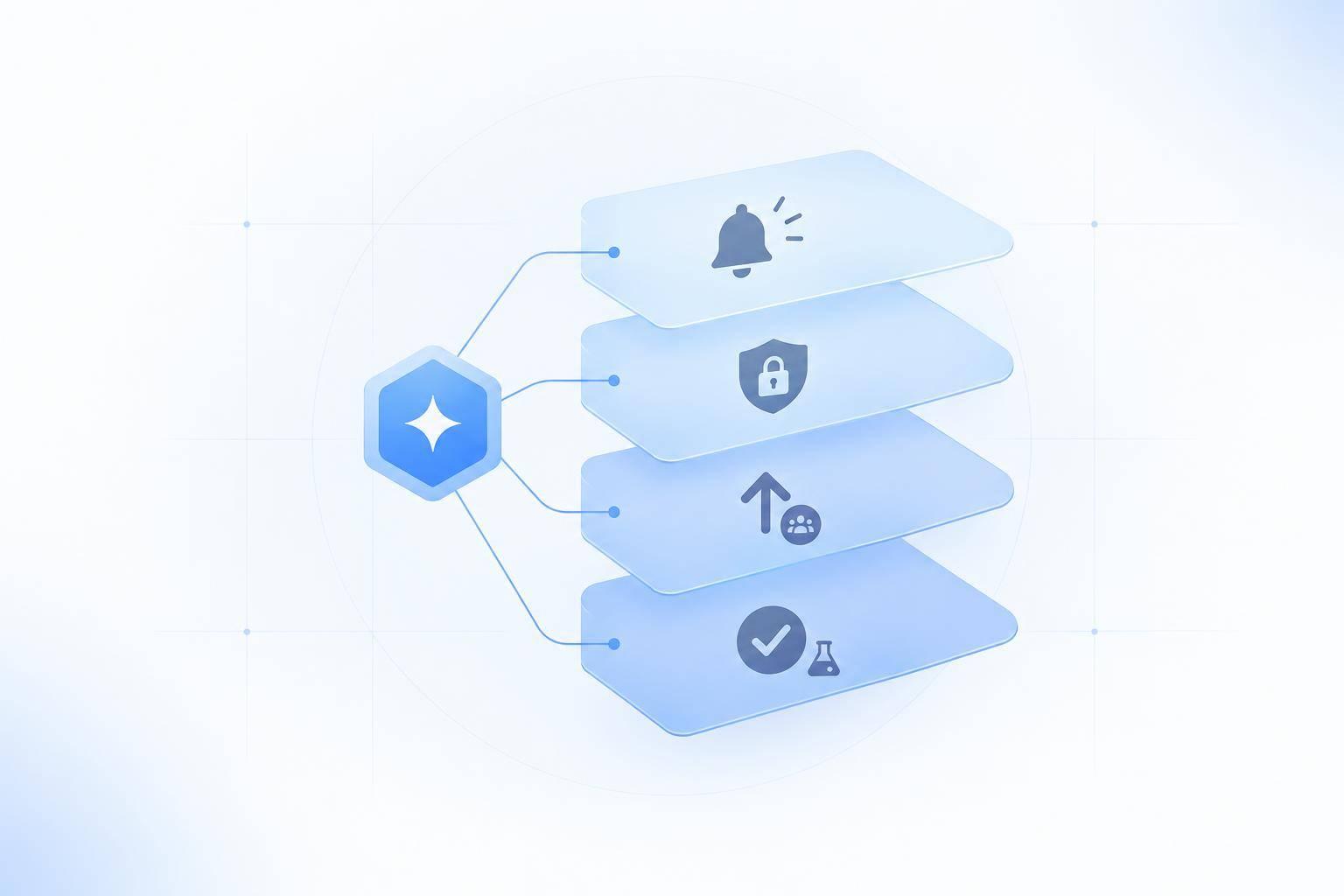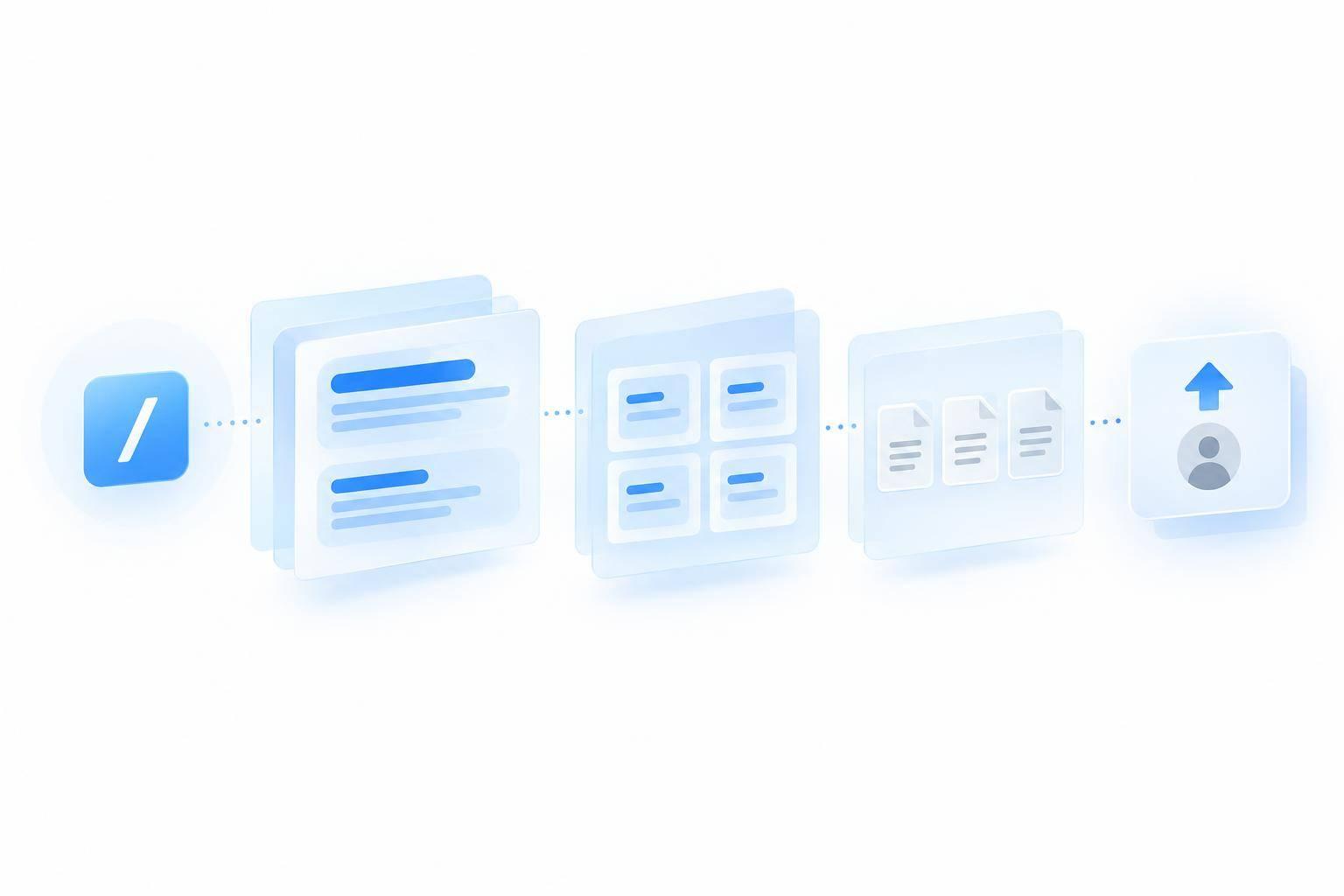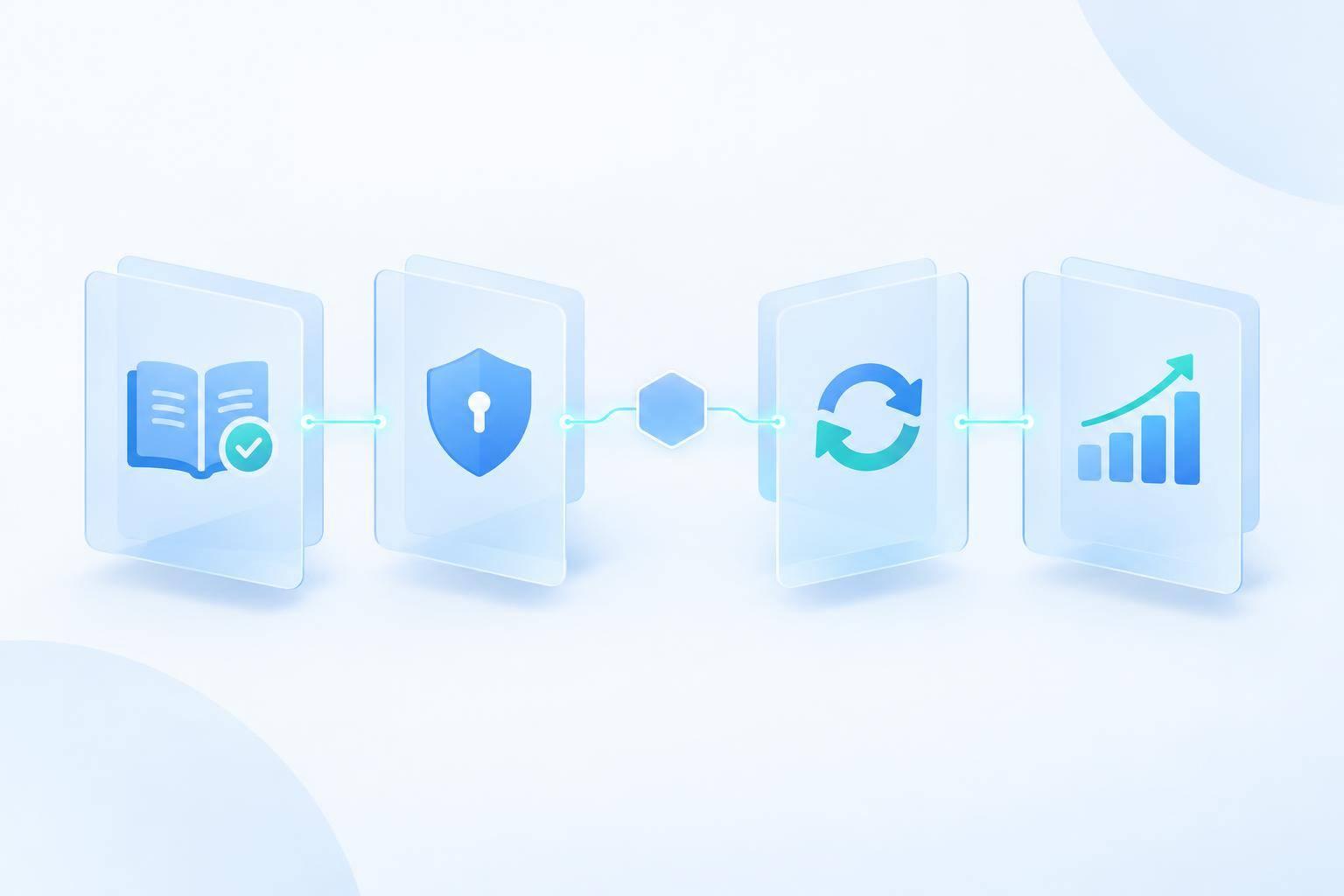
I use Discord AI to explain official game updates - not guess at fixes. My starting point: approved sources, version and region checks, dated citations, and a private route to staff when an answer is missing or account details are involved.
Here’s the workflow I recommend:
- Set limits first: Check Discord permissions, restrict source editing, and test commands in a private channel.
- Answer from verified records: Explain patch values, match known issues, and share only approved workarounds.
- Keep status updates current: Separate maintenance, outages, and monitoring. Set a 15–30 minute verification target for critical incidents - not a promise.
- Hand off safely: Collect only needed diagnostics and keep passwords, authentication codes, and payment details out of chat.
- Measure results: Track confirmed player success, missed handoffs, outdated answers, and time saved after review costs.
My launch rule: <u>start with one game, one language, and one restricted channel</u>. Expand only when source checks, privacy controls, and staff handoffs pass testing.
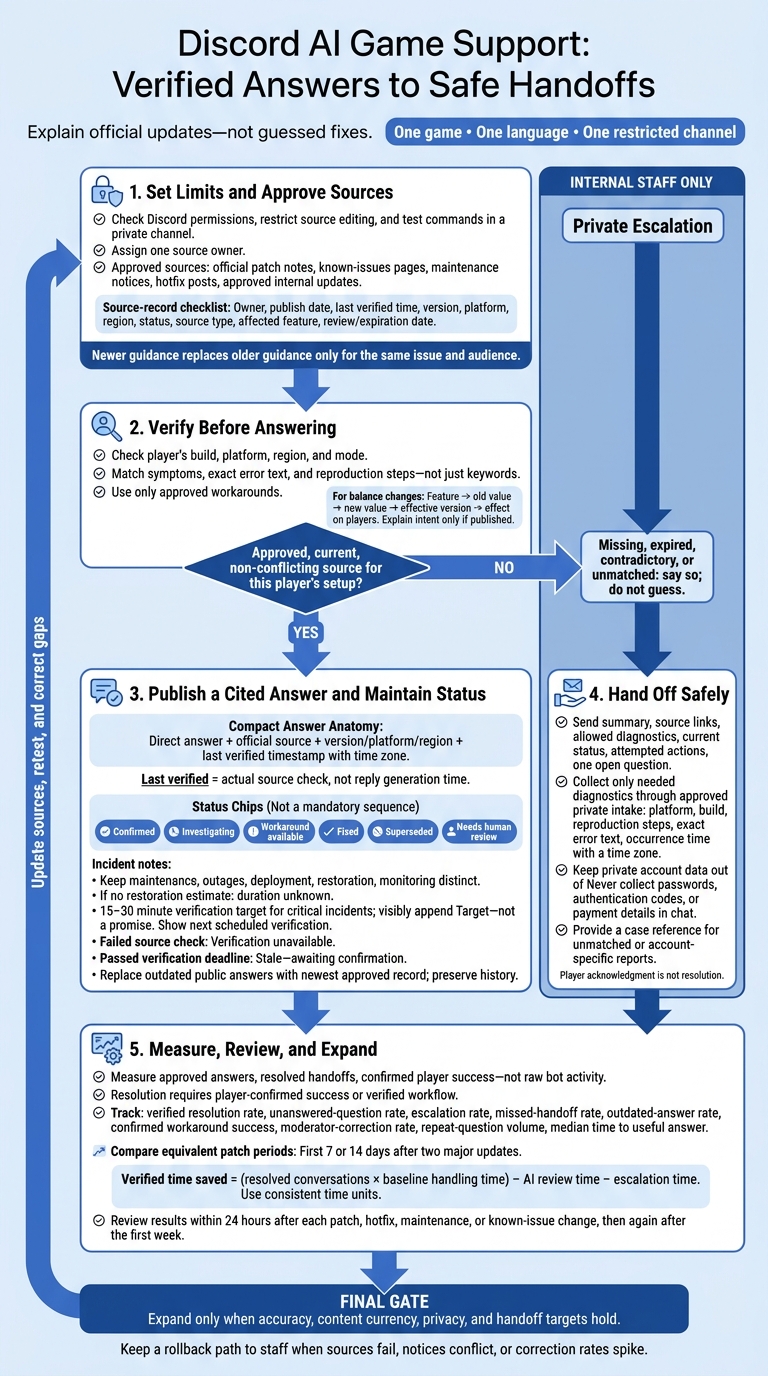
Discord AI Game Support: Verified Answers to Safe Handoffs
1. Set Up Approved Sources and Discord Access
With access confirmed, set source rules so Discord replies stay verified and current.
Choose Approved Sources and Update Rules
Assign one source owner to settle conflicts across developers, QA, community, and live ops staff. Use official patch notes, known-issues pages, maintenance notices, hotfix posts, and approved internal updates. Keep evergreen policy docs separate from patch-specific notes, incident notices, and unverified reports.
Tag each record with its owner, publish date, last verified time, version, platform, region, status, source type, affected feature, and review or expiration date.
Newer guidance should replace older guidance only when it covers the same issue and audience. Review temporary guidance every 24 hours during incidents, more often during outages, and immediately after hotfixes, rollbacks, or maintenance. Mark replaced records as Superseded rather than deleting them.
Set Up Discord Commands and Permissions
Set up commands for verified player support, but keep command registration separate from bot installation: applications.commands adds commands; bot adds the bot user.[4][3] Restrict commands by role and channel.[8] Authorized staff can edit sources, approve updates, or override statuses.
Limit access to the support channels, responses, commands, and escalation notices the bot needs. Avoid broad administrator access, unrelated private channels, and permissions to delete messages or manage the server unless explicitly required.
Start with /patch, /known-issue, /maintenance, and /report. Add buttons with these labels:
“Show source,” “This solved my problem,” and “Request staff review.”
Use select menus to collect platform, region, game mode, and version. A report modal should collect symptoms, error text, reproduction steps, and optional system details.
Discord interactions can arrive through the Gateway or an HTTP endpoint. An interaction can return a message, modal, or deferred response for longer tasks.[5][6]
In staging, test command registration, permission checks, source retrieval, version and region filters, citation rendering, response timing, logging, and staff escalation.[5][7] Keep the launch scope small so every command can be tested against verified source data.
Once commands and permissions are set, standardize how replies display sources and statuses.
Add Citations, Status Labels, and Fallbacks
Each reply should show the direct answer, an official source citation or link, the applicable game version, platform and region, and the last verified timestamp. Include a time-zone label, such as ET or PT. The timestamp must reflect an actual source check, not when the reply was generated.
Use clear status labels: Confirmed, Investigating, Workaround available, Fixed, Superseded, or Needs human review. These help players tell confirmed fixes apart from active investigations.
If source information is missing, expired, or contradictory, say so directly. Route the case to staff with the player’s question, relevant metadata, and conversation reference - but leave out private account data.
2. Explain Patches and Check Known Issues
Use the same verified-source rules to explain patch changes and match live bug reports.
Explain Balance Changes With Exact Values
Use versioned developer notes for balance changes and approved known-issue records for bugs. For each change, include the feature, old value, new value, effective version, and effect on players. Explain the intent only if it was published. Otherwise, say the notes give no reason.
Before answering, check the player’s build, platform, region, and mode. Clearly flag staged or platform-specific rollouts. A higher stat alone does not prove best-in-slot performance.
After explaining the patch changes, check whether the report matches a known issue or needs escalation.
Match Bug Reports to Known Issues and Workarounds
Compare symptoms, exact error text, reproduction steps, and the player’s setup - not just keywords. Determine whether the report matches an official issue and its status, duplicates another report, involves an unsupported setup, or remains unresolved.
The VALORANT examples below distinguish investigation, player action, and fixes. Last update means the source publication date, not the time of a new verification.
Issue Affected platform or mode Status Workaround Last update Escalation route Outlaw missing reserve ammunition Team Deathmatch Investigating None published January 2024, Patch 8.0 Private support if it does not match the official issue Resolution and display settings reset after patching First launch after the Unreal Engine 5 update Acknowledged; no software fix planned Readjust resolution and display settings August 2025, Patch 11.04 Private support if approved steps fail Significant stuttering after Patch 12.03 Affected build after Patch 12.03 Fixed in Patch 12.04 after partial hotfix improvement None published March 2026, Patch 12.04 Staff review if symptoms persist on the fixed build
These are source-specific examples, not current incident guidance. Before replying, check the latest approved update, confirmed fix release, deployment scope, and restart requirement. If there’s no official match or workaround, say so. Don’t suggest speculative fixes.
If the report doesn’t match an existing issue, collect only what’s needed to reproduce it.
Collect Diagnostics Without Sharing Account Data
Use an approved private intake form to collect the platform, build, reproduction steps, exact error text, and occurrence time with a time zone. When relevant, ask for the region, affected mode, and whether the issue affects one account or multiple accounts. Request device or network details only when needed.
Link duplicate reports to the primary issue, keeping any new diagnostic details. Escalate reports that extend the issue’s scope. For unmatched or account-specific cases, explain that a human will review the report and provide a case reference.
3. Manage Live Updates and Staff Handoffs
Share Maintenance and Hotfix Status by Region
When an issue affects many players, move from individual replies to a shared incident record.
Give each event a versioned incident record with an ID and owner. Keep scheduled maintenance, emergency downtime, deployment, restoration, and monitoring separate so players can see the service’s current state. Include the player impact, official source, publication time, and last verification time. Keep monitoring marked as unresolved until the fix is confirmed. Preserve the source time zone and add a U.S. conversion, such as:
“10:00 AM–12:00 PM PT / 1:00–3:00 PM ET.”
If no restoration estimate has been published, say “duration unknown.”
If service status varies, use a Markdown table with approved information only. Specify the affected service, platform, and region instead of saying the entire game is down.
| Service | Platform | Region | Status | Start time | Expected duration | Last verified |
|---|---|---|---|---|---|---|
| Login | Affected platform(s) | Affected region | Status | Start time | Estimate or duration unknown | Latest successful check |
| Matchmaking | Affected platform(s) | Affected region | Status | Start time | Estimate or duration unknown | Latest successful check |
| Store | Affected platform(s) | Affected region | Status | Start time | Estimate or duration unknown | Latest successful check |
Update Answers When Incident Status Changes
Replace every outdated public answer with the newest approved incident record as the status changes. Keep previous statuses and resolved records for audits and search. For each change, log the source, scope, timestamp, and approving role.
Set a 15–30 minute verification target for critical login and payment incidents - not a promise. Show the next scheduled verification. If a source fails, label the answer Verification unavailable. If the verification deadline passes, use Stale - awaiting confirmation. Send conflicting sources to staff for review.
Route /ask status requests to the current incident record.[1][2] Use Post Message or Post Thread Message for updates.[2] If you use acknowledgment buttons, log receipt separately from resolution. A Still affected report should add the incident ID, affected service, region, symptom, and attempted workaround to the staff handoff. It must not automatically reopen or close the incident.
Send Sensitive and Unresolved Cases to Staff
Keep public status updates brief. Move unresolved issues and sensitive details into a private staff handoff.
Use Notify Team to send cases to designated private staff channels.[2] Include a summary, source links, allowed diagnostics, current status, attempted actions, and one open question. Keep sensitive evidence in the private handoff, not public replies.
Use the priorities below only when staffing can meet them. Otherwise, show the next staffed window. Allow authorized moderators to approve, correct, expire, or suppress entries, and log the reviewer, time, reason, and replacement source.[10]
| Issue type | Automated response | Required evidence | Human owner | Priority | Response window |
|---|---|---|---|---|---|
| Regional login outage | Show verified status and incident ID; collect platform and region | Error text, timestamp, platform | Live-ops lead | P1 | Acknowledge within 15 minutes |
| Payment failure or duplicate charge | Stop automated troubleshooting and provide the official support route | Transaction date, platform, order reference with sensitive fields removed | Billing support | P1 | Acknowledge within 15 minutes |
| Suspected exploit | Keep exploit details out of public replies; open a restricted case | Reproduction steps, clips or logs through an approved channel | Security or anti-cheat lead | P1 | Restrict immediately; review within 30 minutes |
| Repeated workaround failure | Record the affected build and attempted steps | Version, platform, region, diagnostics | QA or technical support | P2 | Review within 4 business hours |
| Harassment or safety concern | Preserve evidence and direct the player to reporting procedures | Message links, timestamps, witness context | Trust and safety moderator | P1 | Immediate moderation review |
| General unresolved gameplay issue | Search known issues and collect structured details | Steps to reproduce, frequency, version | Community support | P3 | Review within 1 business day |
4. Conclusion: Launch and Maintain Accurate Support
Once verified support is live, check quality before expanding access. Start with one game, one language, and a restricted Discord channel to test the verified-source workflow. Require moderator sign-off on approved sources, version-aware answers, incident records, confirmed workarounds, and staff handoffs before opening support to more players.
Measure Support Quality and Return on Investment
Measure approved answers, resolved handoffs, and confirmed player success - not raw bot activity. Compare equivalent patch periods, such as the first 7 or 14 days after two major updates.
Track verified resolution rate, unanswered-question rate, escalation rate, missed-handoff rate, outdated-answer rate, confirmed workaround success, moderator-correction rate, repeat-question volume, and median time to a useful answer. Count a conversation as resolved only when the player confirms success or a verified workflow confirms it.
Calculate verified time saved as resolved conversations × baseline handling time, minus AI review and escalation time. Convert that time to dollars using loaded hourly cost, then subtract subscription, integration, hosting, and maintenance costs.
Use ChatSpark analytics to find content gaps, retrieval to find approved material, and tone controls to keep answers clear and tied to approved sources. Use these metrics to decide whether the workflow is ready to expand.
Check Readiness Before Launch and After Updates
Before expanding access, check source ownership and approval, version tags, review deadlines, permissions, privacy controls, escalation ownership, and moderator access to logs. Review and approve test results before opening access.
Review results within 24 hours after each patch, hotfix, maintenance event, or known-issue change, then again after the first week.[9] Update affected records, recheck temporary guidance, and investigate unanswered questions.
Expand only when accuracy, content currency, privacy, and handoff targets hold. Keep a rollback path to staff when sources fail, notices conflict, or correction rates spike.
FAQs
How can I test AI answers before a patch goes live?
Keep a “golden dataset” of 100–200 real player questions with verified, approved answers. Run these questions through your chatbot after every major update to check accuracy. Before saving, use Test in Sandbox in the AI Actions dashboard to check your integration and credentials.
For a safer rollout, run AI in shadow mode for 2–4 weeks. Or start with a small pilot group, with staff approving answers before the community sees them.
How do I prevent player messages from overriding approved sources?
Keep content in one source of truth, with internal guidance separate from player-facing material. Configure the AI to use ONLY approved knowledge base content, help center articles, and FAQs. Remove conflicting guidance, duplicate entries, and outdated information.
Set strict confidence thresholds so the AI answers only when it finds a high-confidence match in verified content. If it can’t find one, have it ask clarifying questions or hand the request to human staff.
When should I pause automated Discord support?
Pause or escalate automated Discord support when AI confidence is low (generally below 0.60), the issue remains unresolved after two clarification attempts, sources conflict or are missing, incident data is outdated, or the user asks for a human agent.
Hand off immediately for security reports, fraud, legal disputes, or detected user anger. Also escalate account-specific failures, complex technical issues, and player scenarios that approved documentation doesn't fully cover.