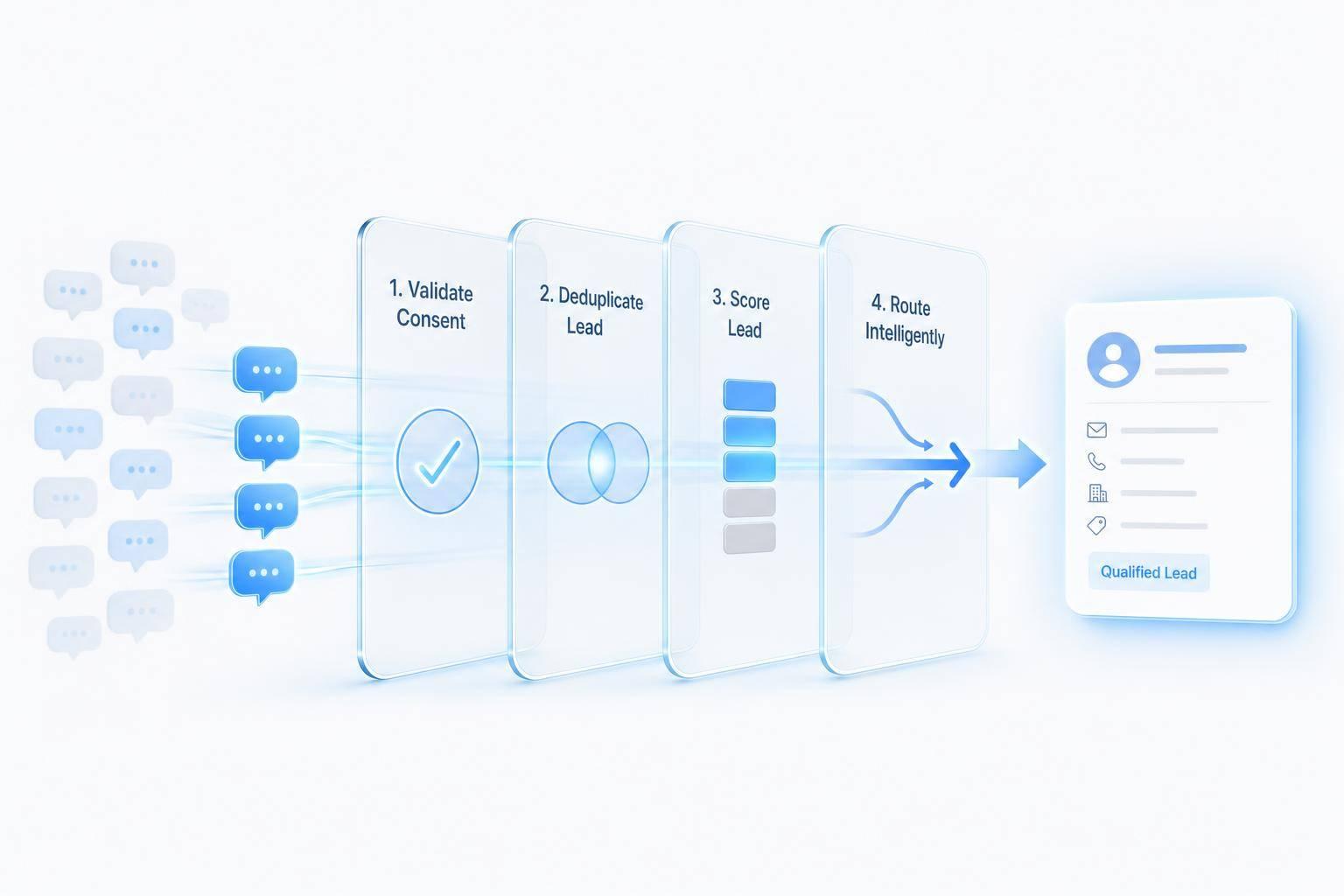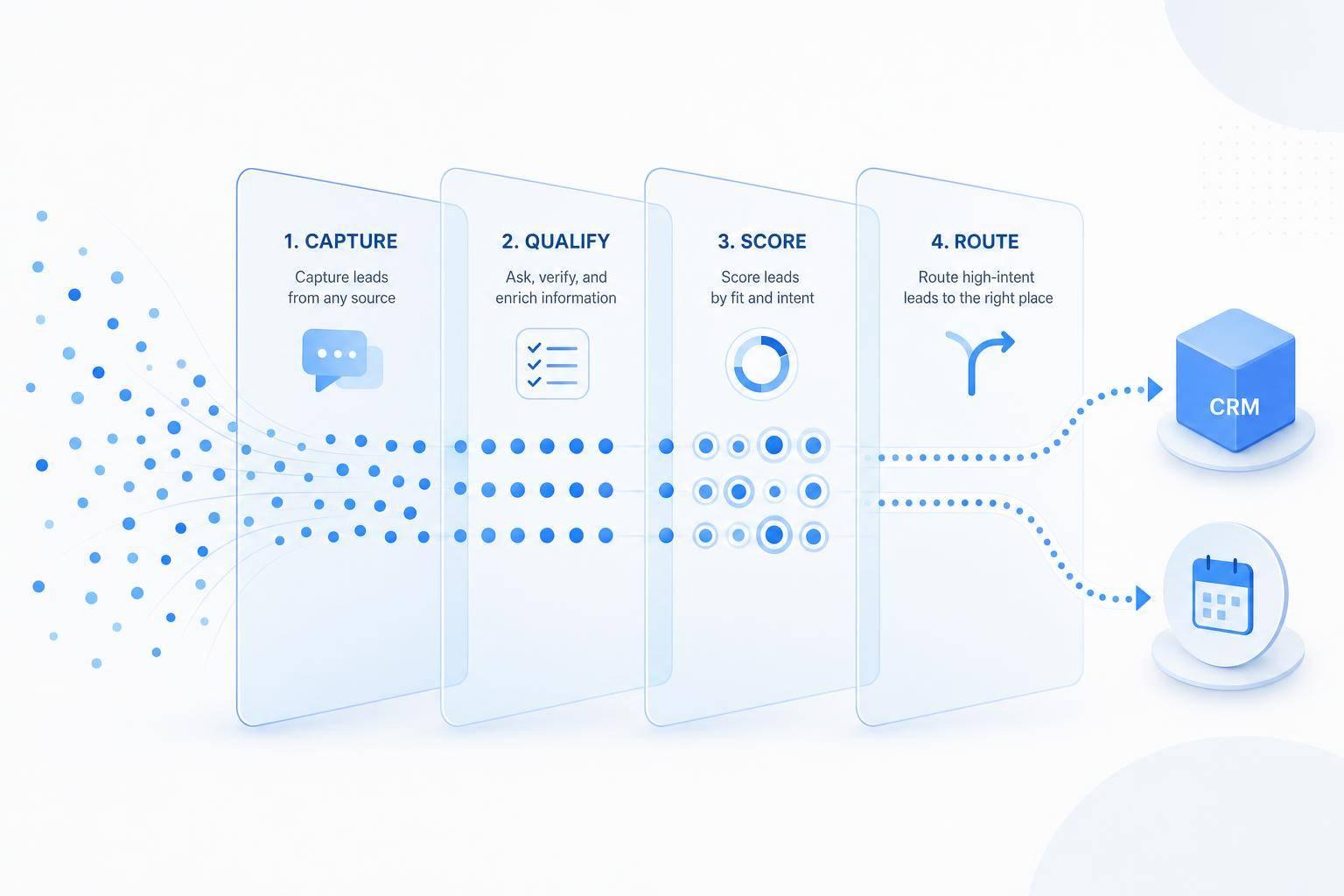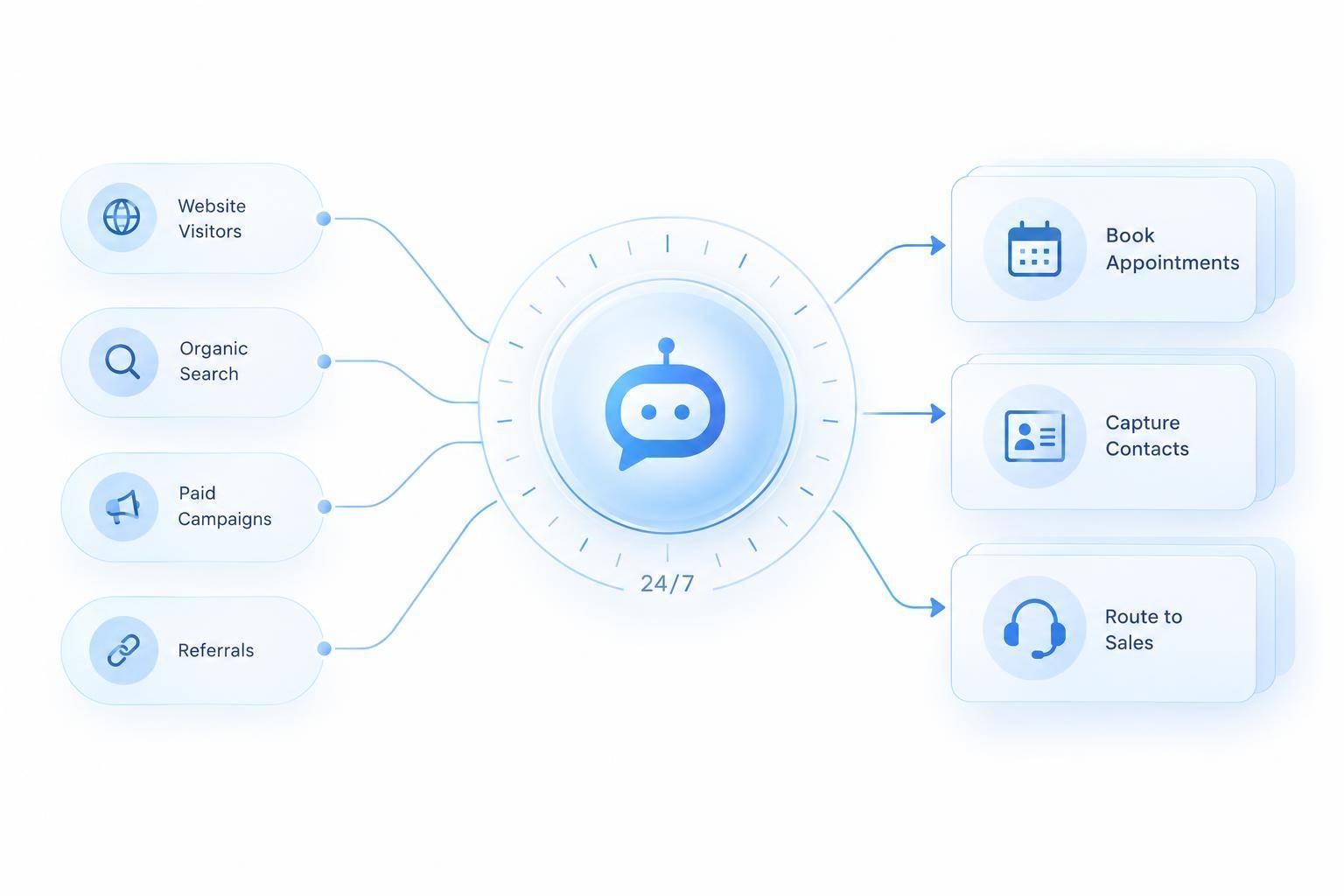
I’d start with one rule: answer the visitor’s question before asking 2–5 qualification questions. With ChatSpark, I’d use those answers to check fit and buying intent, save lead details, and route visitors to booking, sales follow-up, or helpful resources - even after hours.
Here’s the workflow I’d use:
- Define fit: Set rules for needs, budget, timing, and decision-maker involvement. No single answer proves a lead is ready.
- Keep the chat short: Ask only what’s missing, then request an email when the next step is clear.
- Save and route: Send answers and chat context to the CRM. Check which booking and integration options your plan supports.
- Set expectations: Show confirmed or pending booking status and give an after-hours response time sales can meet.
- Test and measure: Check failed bookings and integrations, review 50 conversations, and track sales-accepted leads - not just contact volume.
My goal: help visitors take the right next step and give sales enough context to follow through.
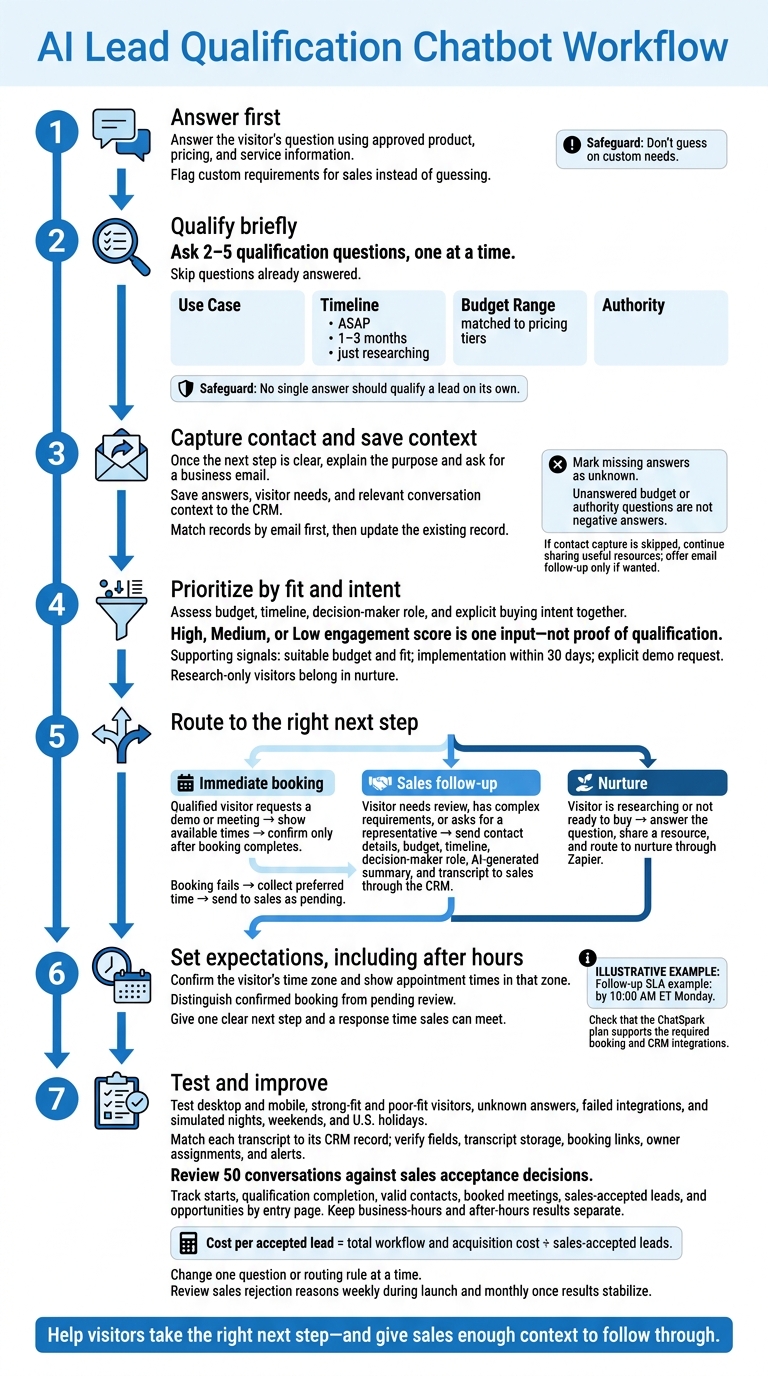
AI Lead Qualification Chatbot Workflow
Build the ChatSpark Qualification Conversation
Use the conversation to answer questions, assess intent, and collect qualified leads - even when sales is offline. The flow takes a visitor from their first question through a short qualification path.
Answer the Visitor's Question First
Start with a specific answer based on approved product, pricing, and service information. Keep the tone friendly and direct, and use the visitor’s question and available page context to guide your response.
If the source material doesn’t cover a custom requirement, flag it for sales instead of guessing. Keep the conversation short enough to qualify the visitor in a few turns.
Ask 2–5 Qualification Questions
Ask one question at a time. Skip anything the visitor has already answered, and collect only the details needed to qualify the lead.
| Prompt | Field to record | Next prompt or sales action |
|---|---|---|
| Ask what they want to do. | Use Case | Route the lead to the right sales owner. |
| Ask when they want to get started. Offer ASAP, 1–3 months, or an option for visitors who are just researching. | Timeline | For ASAP, send an instant sales alert. For visitors who are just researching, offer information and resources. |
| Ask whether they have a budget range in mind. | Budget Range | If the budget fits, offer immediate demo booking. If it’s unclear, keep sharing information and resources. |
| Ask whether they’re making the decision or someone else is involved. | Authority | If they’re the decision-maker, prioritize the lead for a direct sales call. |
Match budget ranges to your pricing tiers. No single answer should qualify a lead on its own.
Ask for Contact Details at the Right Time
Once the next step is clear, explain that you’ll use the visitor’s email to send the booking link or chat summary. Then ask for their business email.
If the visitor skips contact capture or booking fails, keep sharing useful resources. Offer email follow-up only if they want it. Visitors whose budget or timing is unclear should still receive useful resources.
Record the answers and route the lead immediately after contact capture.
Record Qualification Data and Prioritize Leads
Save Answers and Context to Lead Records
Once qualification is complete, save the answers where sales can use them right away.
Check your connection method before mapping fields. Depending on your setup, sync lead data during the chat or after it ends. Map native fields to your CRM, and add custom fields for budget, timeline, and decision-maker role.[4] Save the visitor’s needs and relevant conversation context with those answers.
Mark missing answers as unknown. Match records by email first, then update the existing record. Test that confirmed answers save correctly and that sales has enough context to pick up the conversation.
Once the data is saved, use fit and intent to decide which leads need attention first.
Use Fit and Intent to Set Lead Priority
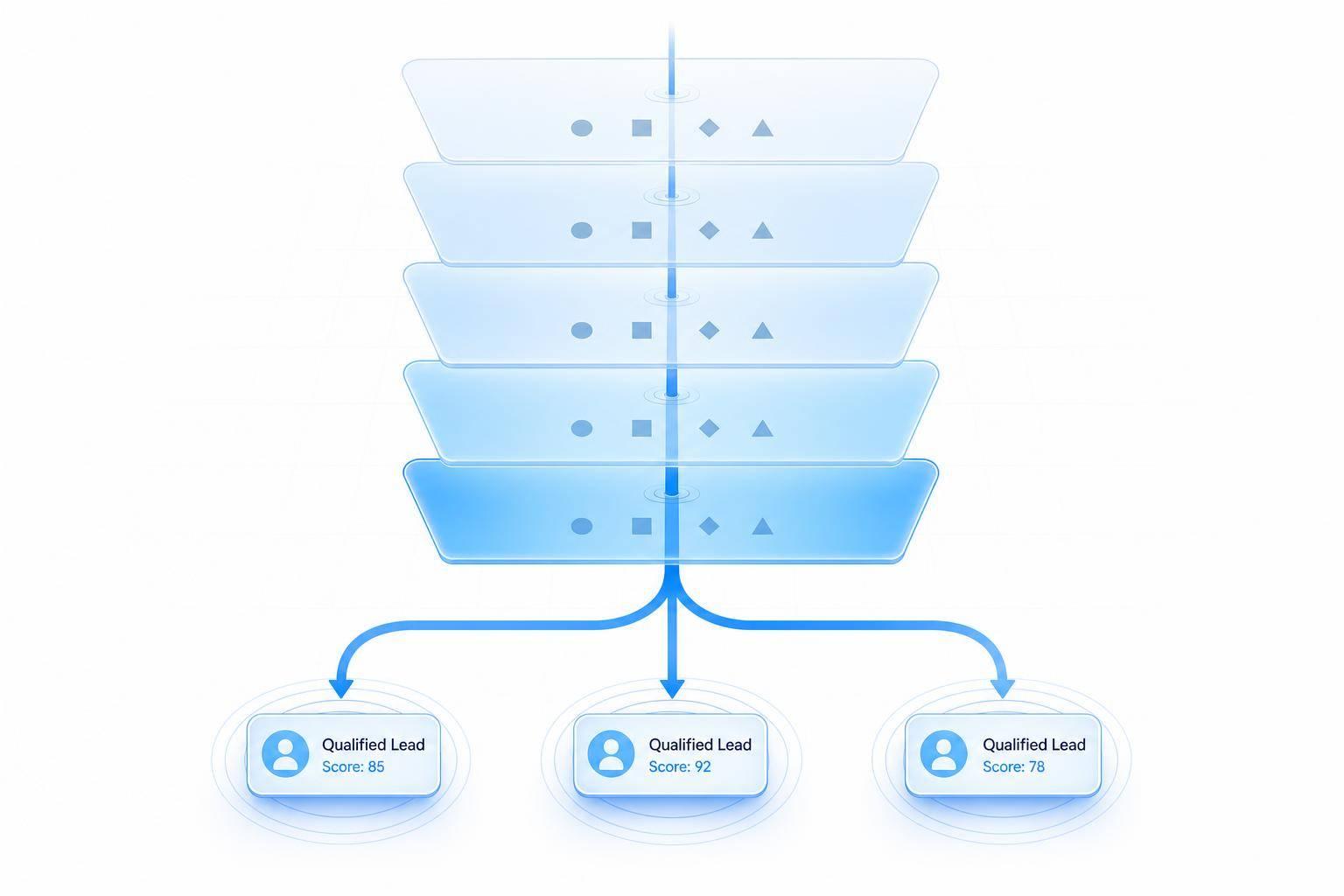
Treat ChatSpark’s High, Medium, or Low engagement score as one input - not proof that a lead is qualified.[4] Set fit-and-intent thresholds, priority tags, and routing rules in your CRM. Use the budget, timeline, and decision-maker role collected during qualification to rank leads.
| Qualification data | Intent signal | Recommended score impact | Next action |
|---|---|---|---|
| Suitable budget and fit | Clear budget range or enterprise-level fit | Strong positive | Sync to CRM as "Hot Lead" and notify sales |
| Near-term timing | Needs implementation within 30 days | Strong positive | Offer immediate meeting booking |
| Decision-maker role | Explicit demo request | Strong positive | Route to booking or sales |
| Research-only | Says they are just looking into options | Low | Tag as nurture and send a resource |
Review the last 50 conversations against sales acceptance decisions. Adjust thresholds when sales rejects high-priority leads or promising leads get missed. Give explicit buying intent more weight. Don’t count unanswered budget or authority questions as negative answers.
Use the priority tags to route leads to booking, follow-up, or nurture.
Route Leads to Booking or Sales Follow-Up
Offer Meetings and Notify Sales
Once a lead is qualified, offer a meeting or send it to sales. Include contact details, budget, timeline, decision-maker role, an AI-generated summary, and the transcript.[4][5]
Check that your ChatSpark plan supports real-time booking and CRM integrations. AI Actions can connect to Calendly, Square Appointments, HubSpot, Salesforce, and Follow Up Boss during the chat.[4][5]
For follow-up after the chat, connect Zapier at zapier.com/apps/chatspark. This lets you trigger a workflow when a lead is captured.[4]
Set Booking, Follow-Up, and Nurture Routes
Use the qualification priority tag to choose the right handoff. Route leads based on their last clear signal, not how much they chat.
| Route | Condition | Response and action |
|---|---|---|
| Immediate booking | Qualified visitor requests a demo or meeting | Show available times through Calendly, Cal.com, or Square Appointments. Confirm only after the booking is complete.[5] |
| Sales follow-up | Visitor needs review, has complex requirements, or asks for a representative | Collect details and sync the lead to your CRM with the conversation summary and transcript.[4][5] |
| Nurture | Visitor is researching or not ready to buy | Answer the question, share a resource, and send the lead to nurture through Zapier.[4] |
If booking fails, collect the visitor’s preferred time and send it to sales as pending.
Explain After-Hours Response Times
When sales is offline, visitors should still be able to book or submit their details. Keep routing those leads.[3][5]
Set one follow-up SLA you can meet, such as by 10:00 AM ET Monday.[3]
Confirm the visitor’s time zone and show appointment times in that zone.
Example: 2:30 PM ET.
Make the status clear: confirmed booking or pending review. Give the visitor one clear next step based on that status: their confirmed booking or pending follow-up.
Test and Improve the Lead Workflow
Test Qualification and After-Hours Handoffs
Once routing rules are set, test the full workflow before launch. Cover pricing inquiries, demo requests, general questions, unclear budgets, and visitors researching for someone else. Use test data on desktop and mobile for both strong-fit and poor-fit visitors. Check that general questions remain unqualified and that “I don’t know yet” maps to unknown.
Match each transcript to its CRM record. Check fields, transcript storage, booking links, owner assignments, and alerts. Repeat high-intent tests during simulated nights, weekends, and U.S. holidays. Disable an integration to check fallback handling: the lead should be saved, sales should receive an alert, and the visitor should see a clear fallback.
Once these tests pass, measure whether the workflow delivers accepted leads.
Measure Lead Quality and Conversion
Combine ChatSpark analytics with connected sales and scheduling records to see whether high-intent visits become accepted leads or booked meetings. Track starts, qualification completion, valid contacts, booked meetings, sales-accepted leads, and opportunities by entry page. Keep business-hours and after-hours results separate.
Cost per accepted lead = total workflow and acquisition cost ÷ sales-accepted leads. This tells you more than contact volume alone.
Change one question or routing rule at a time. Then compare matching traffic segments and time periods. Review sales rejection reasons weekly during launch and monthly once results stabilize. Look beyond abandoned chats: check for missing authority, unclear use cases, incorrect routing, and missed follow-up.
Conclusion: Keep Lead Collection and Handoff Up to Date
After testing, keep the workflow aligned with live sales rules. Before publishing, complete a launch checklist covering qualification thresholds, consent, CRM mapping, routing, booking checks, and fallback handling.
Launch one tested website workflow before adding it to more pages. Update knowledge sources, thresholds, routing, sales ownership, and fallback handling as sales needs change.
FAQs
How do I set qualification thresholds for my business?
Define your ideal customer profile (ICP) based on company size, industry, budget, and buying timeline. Then set up your chatbot to ask targeted questions and use rules to qualify or disqualify leads based on their answers.
For example, if a lead’s budget falls below your minimum, the chatbot can point them to other resources. That lets your sales team focus on prospects who meet your requirements.
How can I protect visitor data during qualification?
ChatSpark checks email addresses and phone numbers in real time before syncing them to your CRM. It focuses on accurate data and secure integration, with chatbot variables mapped directly to CRM fields to keep records consistent and intact [1].
Built-in safeguards also help prevent the AI from making up information, so qualification responses stay reliable and grounded in its knowledge [2].
How do I prevent duplicate leads from repeat visitors?
ChatSpark uses progressive profiling to recognize returning visitors and remember their past answers. That means the chatbot skips questions they’ve already answered and asks only for new information.
ChatSpark also brings together data from websites, email, and social channels. This prevents duplicate records in your CRM and gives your sales team a complete profile for each prospect - all in one place.