If your website chat sends every conversation into Salesforce, your team gets junk. I’d set this up to do one thing: send sales intent chats into Salesforce as clean Lead records, and keep support requests out.
Here’s the short version:
- I only send chats into Salesforce when the visitor shows buying intent, like pricing questions, demo requests, or product-fit questions
- I collect a small set of fields first: name, work email, company, inquiry type, need, and next step
- I validate details in the chat, record consent, and map answers to Salesforce fields before any record is created
- I check for existing Leads and Contacts first to cut duplicate records
- I use Salesforce Flow to score, assign, and create follow-up tasks right away
- I track record quality with metrics like duplicate rate, field completeness, and assignment time
One number stands out: research cited in the article says lead conversion can be more than 8x higher within the first 5 minutes than after that. So this is not just about data entry. It’s about getting the right record to the right person fast.
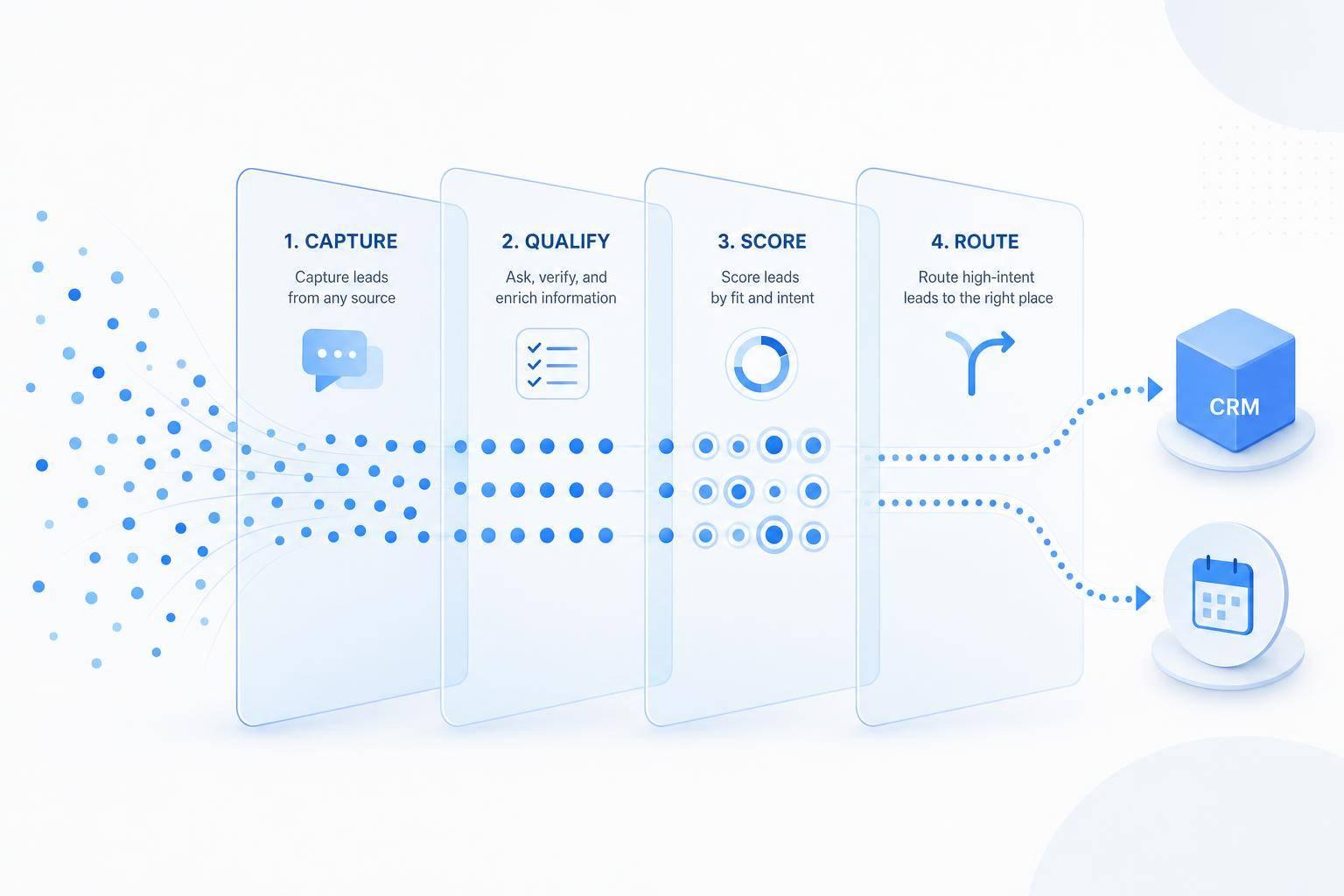
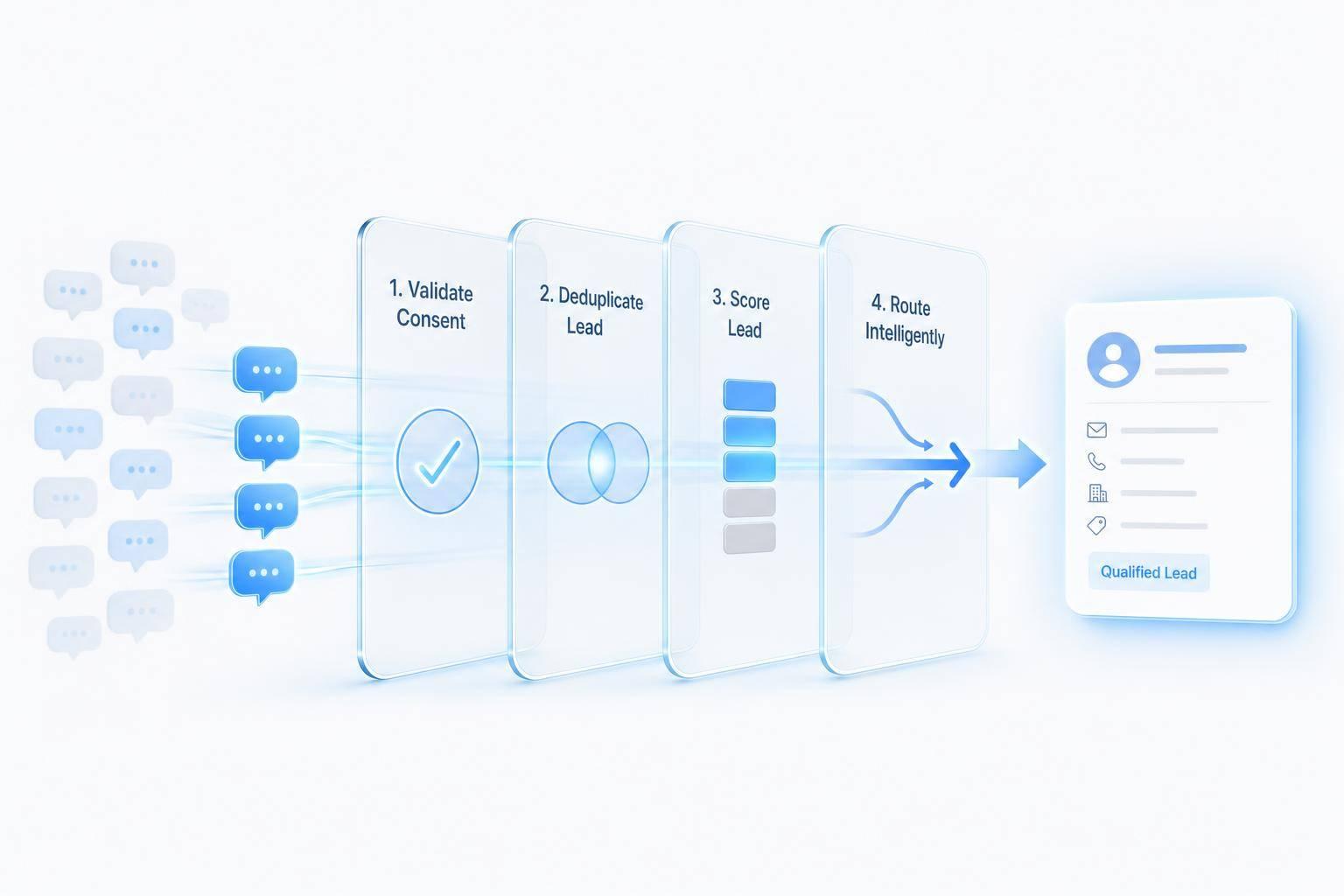
What I like about this setup is that it stays simple: classify the chat, collect only what sales needs, get permission, match records, then route the result. That gives sales cleaner Leads and cuts the back-and-forth that slows follow-up.
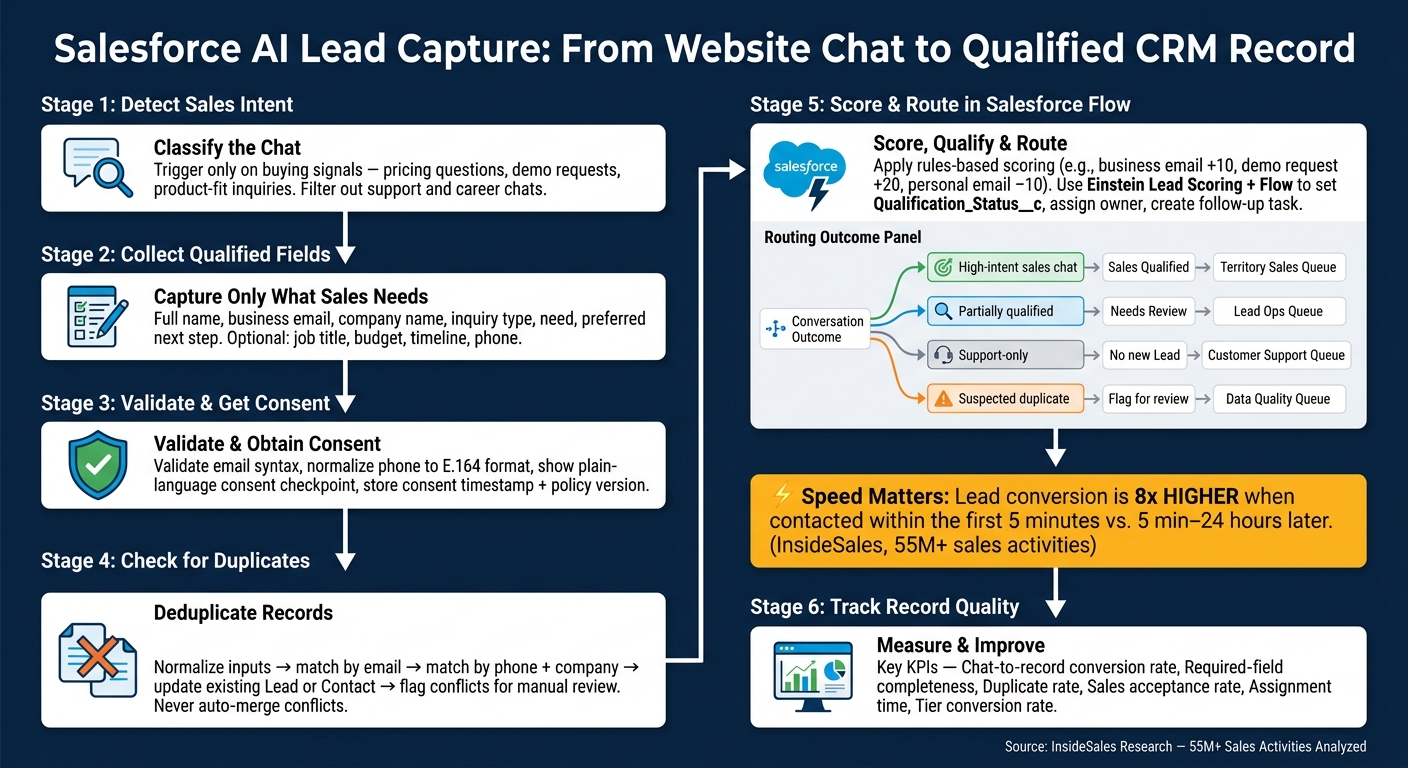
Salesforce AI Lead Capture: From Website Chat to Qualified CRM Record
Set up ChatSpark to collect lead data without hurting conversion
ChatSpark gathers lead details one question at a time, which lets visitors qualify inside the chat instead of dealing with a long form.
Collect the fields that sales actually needs
Start with only the information sales needs to identify the visitor, qualify the opportunity, and send it to the right place: full name, business email, company name, inquiry type, need, and preferred next step. Add job title, company size, purchase timeline, budget range, and phone number only when those details affect qualification or follow-up.
That means the question should match the moment. Ask for a phone number only if the visitor wants a call. Ask about budget when the conversation shifts to pricing. Ask for job title when approval authority matters.
A good starting set is intent, product interest, next step, and work email. ChatSpark supports custom property/value pairs, so fields like budget range, company size, and purchase timeline can be saved as structured data next to standard contact details.[1]
Before you write the chat flow, build the field dictionary. For each field, define:
- its Salesforce destination
- data type
- whether it is required
- accepted values
- the condition that triggers the question
Use controlled choices when you can instead of open text. For example:
- Inquiry type: Pricing, Demo, Product information, Support, Partnership, or Other
- Purchase timeline: Exploring, Within 3 months, Within 6 months, or More than 6 months
- Company size: 1–10, 11–50, 51–200, 201–1,000, or More than 1,000 employees
- Budget range: No budget yet, Under $10,000, $10,000–$49,999, $50,000–$99,999, or $100,000 or more
- Preferred next step: Email information, Schedule a demo, Request a call, or No follow-up
This makes qualification, reporting, Salesforce Flow decisions, and lead assignment more dependable. Keep the visitor's original wording in a separate conversation summary or need field instead of replacing standardized values.
Validate answers and get consent before sending data to Salesforce
Validate email and phone inside the chat, normalize U.S. phone numbers into one standard format, and tell the visitor why each required field is being asked for.
Before any personal information goes to Salesforce, show a plain-language consent checkpoint. For example:
"May we use the information you provide to respond to your request and follow up about our products? Details are handled according to our Privacy Notice. You can opt out of marketing communications at any time."
Store the consent response, timestamp, channel, and policy version. Then map that result to Salesforce fields (or update records in HubSpot) such as Email Opt Out and Do Not Call based on what the visitor actually chose.[4]
Once consent is in place, save the conversation details sales needs for follow-up.
Save conversation context for the sales team
Store the visitor's primary need, product interest, preferred next step, qualification answers, and conversation ID. Along with the structured fields, include a two-to-three sentence conversation summary so the assigned rep can see the context before reaching out.
Keep standardized picklist values separate from the free-text summary. Routing rules and Flow decisions depend on clean, dependable values. The summary, on the other hand, keeps the visitor's own words for the rep who picks up the phone.
Map these captured fields to Salesforce Lead fields and check for existing records before creating a new Lead.
Map chat data to Salesforce Lead fields and block duplicates
Build a field map from chat answers to Salesforce
After ChatSpark collects the conversation summary, transcript reference, and consent data, map each value to Salesforce before any Lead is written. Build that field map first, then create the record.
It helps to group chat answers into four buckets: standard fields like name, email, phone, and company; custom fields like need, timeline, budget range, and buying role; derived fields like qualification status, routing tier, and lead score; and context fields like the conversation summary, transcript reference, session ID, and page URL.
For context fields, map the conversation summary to Description or to a dedicated Chat_Summary__c field. Store the full transcript as a Salesforce File, an external URL, or a related custom object. That keeps the Lead record clean, while still giving reps the full conversation when they want it.
Derived fields convert raw answers into workflow signals like Chat_Qualified__c, Routing_Tier__c, and similar values. For example, Chat_Qualified__c = True when a visitor provides a business email, describes a supported use case, and says their timeline is within six months. Or Routing_Tier__c = Enterprise when company size and budget answers hit your threshold. Keep the original answers in separate fields so you can change scoring rules later without losing what the visitor said.
Log the session ID, source page URL, and mapping version with every submission. If a record fails or gets flagged for review, that metadata gives you a clear trail without forcing you to rely on the transcript alone.
Once ChatSpark captures the data, map it to Salesforce before any Lead is created. After that, the next job is turning those values into Salesforce-safe formats.
Use controlled values and transformation rules
Trim whitespace from every text field, lowercase email addresses, normalize U.S. phone numbers to E.164 format (for example, +12125550147), and map chatbot labels to Salesforce API values. Never send a natural-language answer straight into a picklist field.
The table below shows how common chat inputs should be handled before they reach Salesforce:
| Source value | Salesforce destination | Data type | Required | Transformation rule | Fallback behavior |
|---|---|---|---|---|---|
| "Alex Morgan" | FirstName, LastName |
Text | Usually yes | Split a validated full-name response; preserve suffixes or middle names when needed | Ask a follow-up question or send to review |
alex@acme.com |
Email |
Yes | Trim, lowercase, validate syntax | Do not create a Lead without a valid email | |
| "Acme, Inc." | Company |
Text | Yes for business Leads | Trim; generate a normalized comparison value | Do not create a business Lead without a company value |
| "Need a demo" | Interest__c |
Picklist | Recommended | Map intent to Product Demo |
Set Other; retain original text in summary |
| "Within 30 days" | Timeline__c |
Picklist | Recommended | Map to Immediate |
Set Unknown; do not infer urgency |
| "$10k–$25k" | Budget_Range__c |
Picklist | Optional | Map to the approved budget band | Leave blank or set Not Disclosed |
| "I approve the purchase" | Buying_Role__c |
Picklist | Optional | Map to Decision Maker only when the rule is met |
Set Unknown |
Check for existing Leads and Contacts before creating a record
Use a staged duplicate check before any record is written. First, normalize the inputs, especially email, phone, and company name. Then use matching rules to find likely duplicates and duplicate rules to control what Salesforce does next. Check email first. If email is missing or unclear, check phone plus company. Salesforce Flow's Create Records element also supports different actions for a single match versus multiple matches. [5]
What happens next depends on the match result.
- If the email matches an open Lead, update the existing record instead of creating another one. Append a dated chat summary, refresh only the fields the new conversation changed, and keep the existing owner, status, campaign attribution, and manually managed qualification fields unless your policy says automation can change them.
- If the email matches an existing Contact, attach the conversation as an activity or related record and send it through the right sales or support process instead of forcing a new Lead.
- If you find multiple possible matches or records that conflict, flag the case for manual review rather than auto-merging.
The flow is simple: search, match, update, or block. Then move only valid records forward. Once duplicate checks pass, Salesforce can score the Lead and route it automatically.
Build qualification, scoring, and routing in Salesforce
Define qualification rules based on real buying signals
Once duplicate checks are clear, Salesforce should classify, score, and route the Lead. That call should be based on fit, need, readiness, and intent - not on how many chat messages someone sent. And it should use the signals already pulled from the conversation: business email, use case, timeline, budget, and role.
A simple rule might set Qualification_Status__c = Sales Qualified when a visitor shares a business email, describes a supported use case, names a decision-making role, and asks for a demo within 90 days. If someone only submits an email, that person should stay at Marketing Qualified or Needs Review.
That distinction matters. A visitor who sends 20 messages about careers is active, but not sales-qualified. A procurement manager who asks for a quote after three messages may be a much stronger lead even with less interaction. So keep the rules plain and documented so every rep uses the same standard.
Useful fields to track separately include ICP_Fit__c, Business_Use_Case__c, Timeline__c, Budget_Status__c, Purchase_Intent__c, and Engagement_Level__c. Engagement can help as context, but it should never, by itself, move a lead into a sales-ready status.
Before turning on Einstein Lead Scoring, it helps to start with a clear rules-based model that sales and marketing can review together. Here’s a practical starting point. Your score bands should match your own conversion data for immediate sales follow-up, nurture, or manual review:
| Signal | Example points |
|---|---|
| Business email verified | +10 |
| Target-industry company | +15 |
| Relevant decision-making role | +15 |
| Clear supported use case | +20 |
| Project expected within 90 days | +15 |
| Budget approved or allocated | +15 |
| Requests a demo, quote, or implementation call | +20 |
| Personal email only | −10 |
| Student, job seeker, or unrelated inquiry | −30 |
| No identifiable business need | −20 |
Use Einstein Lead Scoring and Salesforce Flow together
Einstein Lead Scoring looks at your organization's past lead-conversion data and ranks current leads based on how closely they match leads that converted before. It adds a Lead Score field and surfaces the strongest positive and negative factors. In other words, Einstein learns from your conversion history, not from some generic benchmark.
That signal works best when you pair it with deterministic Salesforce Flow logic. Flow handles the action layer: setting Qualification_Status__c, applying LeadSource = Website Chat, assigning an owner or queue, and creating a follow-up task with a specific due date. Einstein helps sort priority inside that process.
A practical setup uses both a minimum Einstein score and at least one direct buying signal - like a stated use case or a demo request - before a lead goes into an immediate-response queue. A high Einstein score without a business use case, or without consent, should not make a lead sales-ready on its own.
After a chat-created Lead is saved, the Flow should move in this order:
- Check consent and required fields first
- Evaluate duplicate indicators
- Assess fit and buying signals
- Read the Einstein score against your tested threshold
- Set status, assign owner, create the follow-up task, and log the transcript reference and routing reason
Use the same controlled values already captured in the chat when Flow evaluates the record.
Route each conversation type to the right outcome
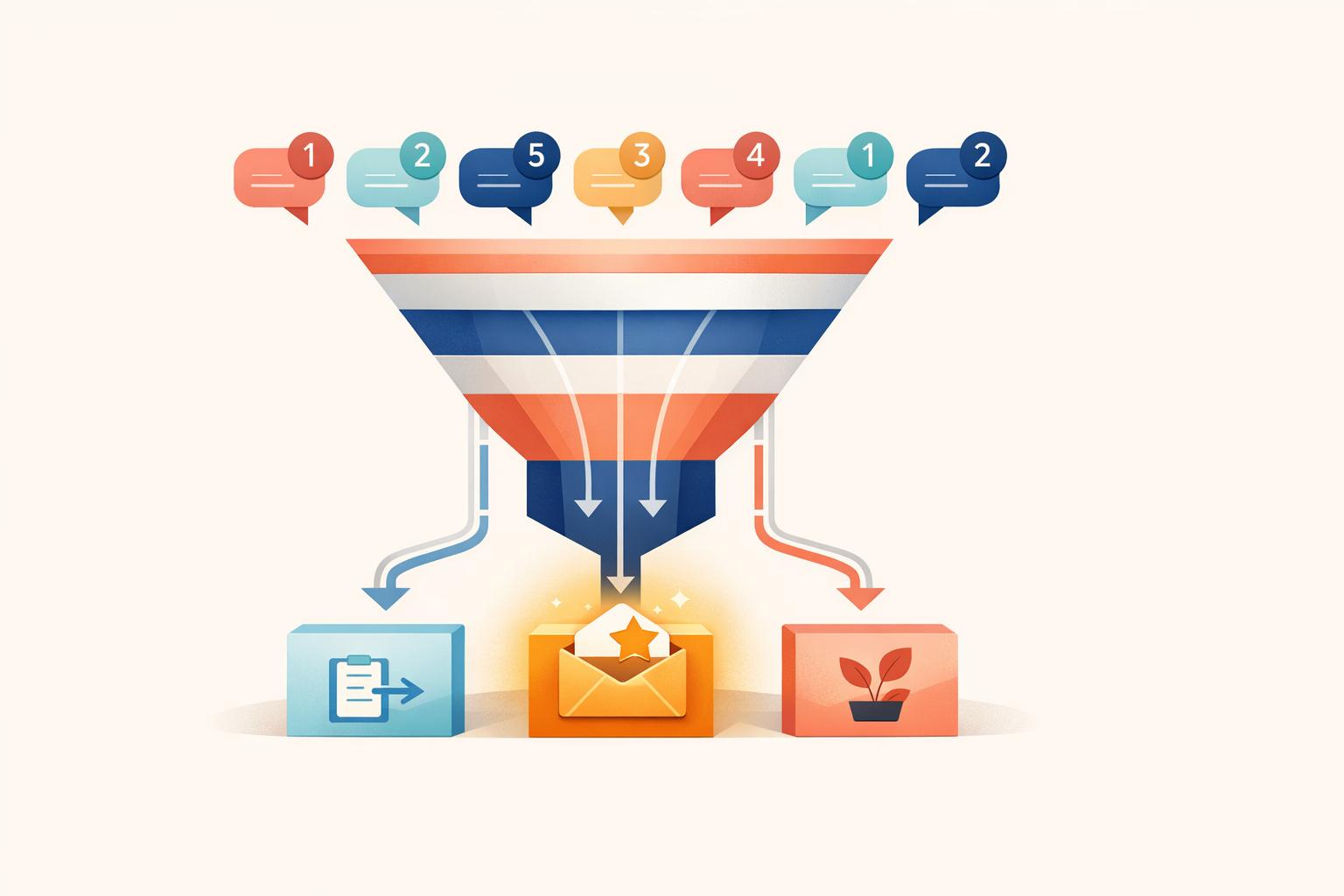
Routing should follow the conversation type: sales, partial qualification, support, or duplicate. Then the qualification result should determine the next owner and follow-up path.
| Conversation type | Salesforce action | Expected owner or queue |
|---|---|---|
| High-intent sales chat | Create or update Lead; set Sales Qualified; apply LeadSource = Website Chat; create priority follow-up task; preserve transcript link |
Territory or segment-based Sales Development queue; escalate to account owner when matched |
| Partially qualified inquiry | Create or update Lead; set Needs Review; record missing fields; create lower-priority review task |
Lead Operations or Marketing Review queue |
| Support-only conversation | Do not create a new sales Lead; attach conversation to existing Contact or Case where possible | Customer Support queue |
| Suspected duplicate | Do not create an additional Lead automatically; flag the match and append chat activity to the existing record after review | Data Quality queue or existing record owner |
Treat a high Einstein score as a priority signal, not as automatic qualification. The lead should only become sales-ready when the buying criteria are met.
Test the workflow, track results, and improve lead quality
Run a test matrix before going live
Once routing is set, test the full handoff before launch. Don’t just check whether a record appears in Salesforce. Check whether the right record appears, with the right data, in the right state.
A simple test matrix helps here. Include columns for scenario, expected chatbot behavior, expected Salesforce outcome, actual result, and pass/fail.
The cases most likely to expose problems are usually the messy ones:
- A visitor drops off in the middle of the chat
- Someone submits a personal Gmail address
- A repeat visitor uses an email that already exists as a Contact
- A prospect declines consent
For each case, confirm the correct record type, required fields, picklist values, transcript link, and whether any partial record is marked as incomplete.
For duplicate testing, Salesforce recommends creating a test Lead using the same field values as an existing Contact, then confirming that the duplicate warning fires and surfaces the matching record. [3] Test this before launch.
Timing matters too. A high-intent chat, like someone asking for pricing or a demo, should trigger immediate owner assignment. If a Salesforce API timeout or Flow error quietly drops that record, you need an alert or retry path in place before that happens in production.
Track the KPIs that show whether lead capture is producing usable records
After the workflow passes testing, the next step is to measure record quality, not just record creation. A system that creates a lot of half-filled Leads can look fine on paper and still waste your sales team’s time.
These are the main KPIs to watch:
| KPI | Formula | What a poor result signals |
|---|---|---|
| Chat-to-record conversion rate | Eligible CRM records created ÷ chats reaching the capture step × 100 | Consent, validation, API, or required-field failures |
| Required-field completeness | Records with all required fields ÷ total records created × 100 | Weak questioning, mapping gaps, or missing fallback handling |
| Duplicate rate | Duplicate or merged submissions ÷ total record-creation attempts × 100 | Normalization issues or incomplete matching rules |
| Sales acceptance rate | Leads accepted for follow-up ÷ Leads routed to sales × 100 | Over-qualification or insufficient context on the record |
| Assignment time | Salesforce assignment timestamp − chat completion timestamp | Flow, queue, alert, or ownership configuration problems |
| Tier conversion rate | Opportunities from a tier ÷ Leads in that tier × 100 | Weak scoring thresholds or misaligned qualification criteria |
One metric deserves extra attention: assignment time.
InsideSales research covering more than 55 million sales activities found that conversion rates are more than 8 times higher when a Lead is contacted within the first 5 minutes rather than between 5 minutes and 24 hours later. [2] That turns assignment time from a nice-to-have metric into a day-to-day operating metric.
To keep the numbers honest, segment results by chatbot, landing page, qualification tier, and intent type. Otherwise, support chats can water down the data for actual sales inquiries.
Conclusion: What a reliable Salesforce AI lead capture system must include
A working system is more than a live integration. A production-ready Salesforce AI lead capture system needs qualified-intent detection, consent capture, clean field mapping, duplicate checks, and Flow-based routing, all tested before launch.
When those pieces work together, sales gets records with the context they need. Follow-up moves faster. And your team spends less time on manual entry, duplicate cleanup, and re-qualification.
FAQs
Which chats should create Salesforce Leads?
Create Salesforce Leads when chat visitors show clear buying intent or share contact details. Focus on high-intent pages like pricing, demo requests, and contact forms.
Use AI-powered qualification to gauge engagement, the quality of the visitor’s questions, and intent signals like decision-making authority, budget, and timeline. In most cases, asking 5 to 8 targeted questions is enough to send only qualified prospects to Salesforce, along with the full conversation context and engagement scores.
How do I prevent duplicate Salesforce records?
Use the native AI Actions integration to run a lookup before creating a new record. With the Get Contact action, your AI agent can search by email or name during the conversation.
If it finds a match, it can update the existing contact or link the new conversation to that record instead of creating a duplicate. That helps keep your CRM clean.
What happens after a qualified chat is captured?
Once a lead meets your criteria, the system sends that data to Salesforce CRM in real time. It maps key details like name, email, phone, company, and message to the right fields automatically.
It also adds the conversation transcript, engagement score, and behavioral data to the lead record. From there, it can trigger instant Slack, email, or SMS alerts, so your sales team can jump in fast with the full story in front of them.