I’d use an AI Discord bot for routine fan questions - not moderator decisions. With ChatSpark, fans use /ask to get answers from approved sources about stream times, videos, rules, and membership perks.
Here’s the setup I recommend:
- Approve the facts: Assign a source owner, keep dates current, and leave private records out.
- Limit access: Check your plan, connect the app, and restrict
/askto one help channel. - Set answer limits: Keep replies to 1–3 short sentences with official links. Send uncertain or sensitive questions to moderators, and never claim a handoff happened unless delivery is confirmed.
- Test before expanding: Check answers and permissions with a regular member account, then run a 7-day pilot. Track accuracy, handoffs, moderator fixes, time saved, and cost.
My rule: automate known facts, not guesses. Start small, keep moderators involved, and expand only when answers and handoffs work as intended.
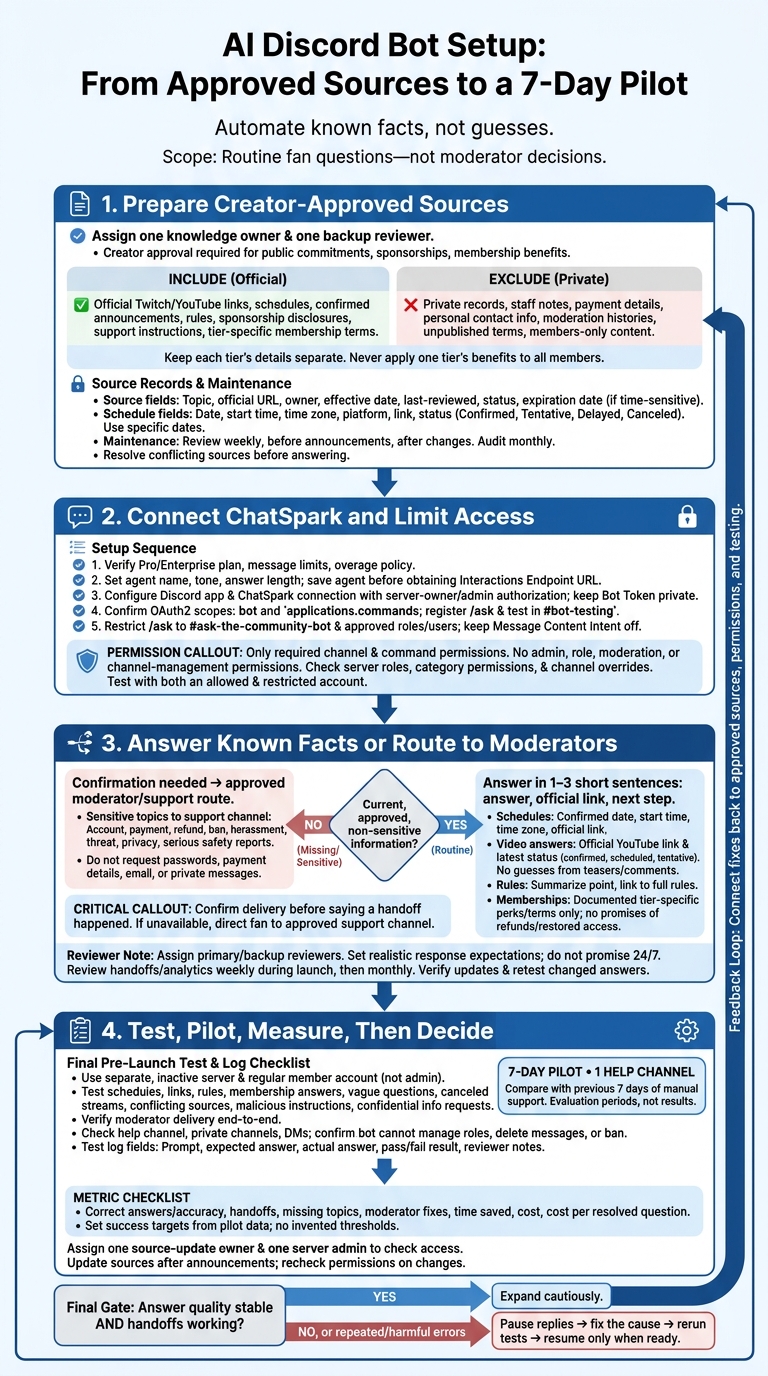
AI Discord Bot Setup: From Approved Sources to a 7-Day Pilot
Step 1: Prepare Creator-Approved Sources
Assign one knowledge owner and one backup reviewer from the creator team to approve source updates. This keeps answers about schedules, uploads, rules, and perks accurate. Require creator approval before changing public commitments, sponsorships, or membership benefits. Limit the bot to routine facts - not refunds, ban appeals, staff decisions, or unannounced projects.
Gather Schedules, Rules, Links, and Membership Terms
Collect official Twitch and YouTube links, stream schedules, confirmed video announcements, server rules, sponsorship disclosures, and support instructions. Document each membership tier’s price, billing cycle, perks, eligibility, and restrictions separately. Never apply one tier’s benefits to all members; perks can differ by tier.[3][4]
Keep public-answer sources separate from private records. Leave out staff notes, payment details, personal contact information, moderation histories, and unpublished sponsorship terms. Include public perk descriptions, but not members-only content.
For each entry, record its topic, official URL, owner, effective date, last-reviewed date, and confirmation status.
Keep Dates and Announcements Current
Review schedules weekly, before announcements, and after any change. Record the date, start time, time zone, platform, official link, and status: Confirmed, Tentative, Delayed, or Canceled. Use specific dates rather than relative wording such as “tomorrow.”
Update rules and perks whenever their terms change. Audit sources monthly for expired announcements and broken links, and archive replaced entries. If two current sources disagree, resolve the conflict before letting the bot answer.
Set ChatSpark’s Knowledge and Answer Rules
Add approved material to the ChatSpark agent as short, topic-labeled entries. Keep one authoritative version of each fact. Set a creator-approved tone, and keep replies concise with official links.
Instruct the agent not to invent dates, prices, perks, policy interpretations, or staff decisions. When information is missing, outdated, conflicting, private, or uncertain, it should say confirmation is needed and route the question to the escalation channel.
Once the sources are ready, connect the bot. Set Discord permissions and trigger limits to control where and when it can answer.
Step 2: Verify the ChatSpark Connection and Limit Discord Access
Once your sources are approved, connect the Discord app and limit its access. ChatSpark supports Discord deployment on Pro and Enterprise plans. Before setup, check your plan, message limits, and overage policy.[5]
Set Up the Agent and Authorize the Discord App
Set the agent’s display name, tone, and answer length before testing.
Save the agent first. The Interactions Endpoint URL appears after the agent ID is created. In the Discord Developer Portal, create or select the creator’s application, then configure the ChatSpark-generated URL. Have the server owner or a server admin complete authorization. Enter the required Application ID, Public Key, and Bot Token in ChatSpark’s setup. Keep the token private.[5][6][12]
After connecting the app, check its command scopes before opening the channel to fans. Confirm the bot and applications.commands OAuth2 scopes. Scopes authorize installation; permissions control what the app can do. Register /ask, give it a few minutes to appear, and test it in a private #bot-testing channel first.[1][2][7][9]
Limit Bot Access to a Help Channel
Once /ask works, create #ask-the-community-bot as the public help channel. Grant only the permissions needed to view the channel, send messages, and use application commands. Leave admin, role, moderation, and channel-management permissions off.
Check server roles, category permissions, and channel overrides to keep bot access limited to the help channel. This keeps staff and private spaces off-limits while putting fan support in one place.[6][8]
Choose How Fans Trigger Replies
Use /ask as the only way fans trigger replies, including answers to recurring questions. Keep Message Content Intent off.
In Server Settings → Integrations → your app, restrict command availability to the help channel and approved roles or users. Test those restrictions with one allowed account and one restricted account.[5][9][10][11]
Step 3: Set Answer Rules and Moderator Handoffs
With Discord access limited, spell out how the bot should answer questions and when it must pass them to a moderator.
Define Answers for Schedules, Videos, Rules, and Perks
Create a separate approved knowledge entry for each topic. Keep answers to 1–3 short sentences: answer, official link, next step.
Stream answers should include the confirmed date, start time, time zone, and official Twitch link. Video answers should include the YouTube link and a status label: confirmed, scheduled, or tentative. Always use the latest approved status. Never infer dates from teasers or fan comments.
For rules, summarize only the relevant point and link to the full rules channel. For memberships, stick to documented perks and terms. Never promise refunds, restored access, or exceptions.
Missing, outdated, or conflicting information calls for a handoff - not a guess. Keep internal prompts, moderator notes, and enforcement procedures out of public answers.
Send Unanswered and Sensitive Questions to Moderators
Route account, payment, refund, ban, harassment, threat, and privacy issues to the approved support channel immediately. Don’t troubleshoot them publicly or ask for passwords, payment details, email addresses, or private messages. Direct fans with serious safety reports to that channel, too.
Confirm delivery before saying a handoff happened. If the bot can’t forward questions privately, say so plainly. Then direct the fan to the support channel listed in the information channel.
Assign Reviewers and Fill Knowledge Gaps
Name a primary reviewer and a backup for schedule corrections, membership issues, and safety reports. Publish response expectations that reflect actual staffing. Don’t promise 24/7 coverage. Review handoffs and analytics weekly during launch, then monthly to keep fan answers current.
Group repeated questions by topic. Have the documentation owner verify answers, remove personal information, and update approved sources. Each source should have an owner and a review date; time-sensitive entries also need an expiration date. Update the knowledge base and retest every changed answer before launch.
Step 4 and Conclusion: Test, Launch, and Track Results
Test Answer Accuracy and Permissions
Once sources and permissions are in place, run a final pre-launch test in a separate, inactive server.[8] Check answers about schedules, links, rules, and membership against approved sources. Keep a shared test log with each prompt, expected answer, actual answer, pass/fail result, and reviewer notes.
Include vague questions, canceled streams, conflicting sources, malicious instructions, and requests for confidential information. Check that the bot asks for clarification, refuses, or hands off when appropriate. Test delivery to moderators from start to finish.
Test with a regular member account - not just an administrator account. Check the help channel, private staff channels, and direct messages. Confirm that the bot cannot manage roles, delete messages, or ban members.[6][13][14]
Launch in 1 Channel and Measure Results
After the bot passes testing, run a 7-day pilot in one help channel, with moderators reviewing early answers. Compare results with the previous seven days of manual support to see whether the bot reduces repetitive fan questions. Track correct answers, handoffs, missing topics, moderator fixes, time saved, and cost per resolved question. Use the pilot data to set your success targets.
During the pilot, assign one owner to update sources and one server admin to check access. Update sources after creator announcements, and recheck permissions whenever roles, channels, or integrations change.
Pause replies if errors repeat or cause harm. Fix the cause, then rerun the test set before resuming. Expand only when answer quality stays stable and handoffs work as intended.
FAQs
How can I prevent fans from manipulating bot answers?
Configure the bot to answer only from approved documentation and FAQs. Use personality instructions to specify which topics it can discuss and which it must decline.
Set a high confidence threshold. If the bot can’t find a clear answer backed by those sources, it should say so instead of guessing. Automatically route uncertain or out-of-scope questions to a human moderator. Also route questions to a moderator after two unsuccessful attempts to clarify.
Can the bot show stream times in each fan’s time zone?
Yes. Configure ChatSpark’s localization settings so your AI agent includes explicit time zone labels with stream times. Set the agent’s locale to en-US to help it use U.S. date formats and clear labels such as ET, CT, MT, or PT.
How do I estimate monthly costs from my pilot?
Use your pilot results to build low, expected, and high monthly budgets in U.S. dollars. For each budget, calculate:
Cost per verified resolution = Total monthly operating costs ÷ Number of verified self-service resolutions
Include the ChatSpark plan fee - $129.00 per month for Pro, which is required for Discord integration - plus overage rates, model usage, hosting, logging, integrations, and support labor. State which costs each budget includes, and use the same cost categories each month so comparisons stay meaningful.