I use ChatSpark to answer routine Discord support questions - not to handle payments, account recovery, or moderation decisions. It responds only to /ask requests, using approved materials. Discord access requires Pro at $129/month or Enterprise.
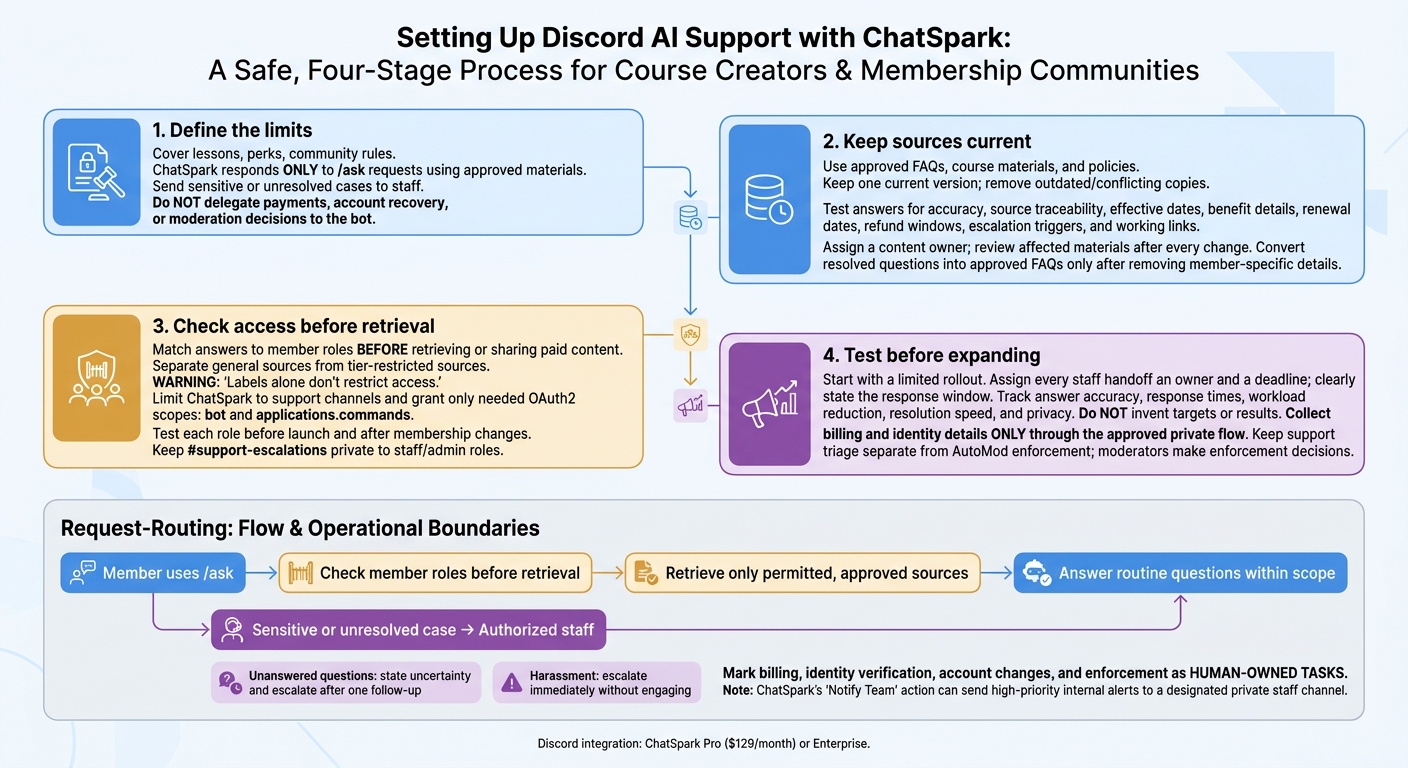
My setup comes down to four steps:
- Define the limits: Cover lessons, membership perks, and community rules. Send sensitive or unresolved cases to staff.
- Keep sources current: Use approved FAQs, course materials, and policies. Test answers, fix gaps, and remove old versions.
- Check access: Match answers to member roles before retrieving or sharing paid content. <u>Labels alone don’t restrict access.</u>
- Test before expanding: Start small, assign staff handoffs, and track accuracy, response times, workload, and privacy.
The goal: give your members answers they can use while keeping private details and staff decisions out of the bot’s hands.
Discord AI Support: A Safe Setup Workflow
Build and Maintain ChatSpark’s Knowledge Base
Collect and Label Support Materials
Build the knowledge base around only the topics the agent is allowed to answer.
Gather approved course materials, FAQs, community rules, onboarding guides, membership tier details, troubleshooting entries, and support policies. Label each item with the fields needed for support routing: topic, owner, effective date, version, access level, tier, last updated, symptom type, and policy owner.
Keep general sources separate from tier-restricted sources. Labels help organize content, but they don’t enforce access restrictions.
Organize Content and Test Answers
Write direct answers using approved sources. Remove conflicting copies of policies and keep one current version of each source so outdated wording doesn’t compete with the guidance members should follow.
Test ChatSpark’s answers against those sources. Check factual accuracy, source traceability, effective dates, benefit details, renewal dates, refund windows, escalation triggers, and working links. Log missing or conflicting details for the content owner. Don’t fill gaps with assumptions.
Knowledge Base Maintenance Checklist
Assign a content owner and review affected materials after every course, membership, or policy change. Remove outdated information, revise changed lessons and policies, and fix broken links.
Retest common questions. Turn resolved support questions into approved FAQ entries, removing member-specific details first. Use U.S. English and U.S. date formatting, such as November 3, 2026.
Once the source library is current, map each content set to the member roles allowed to view it.
Set Discord Roles and Content Access
Once you’ve labeled the knowledge base by tier, map each Discord role to the channels and content it can access.
Limit App Permissions and Channel Visibility
Limit ChatSpark to support channels, and set content access for each Discord role.
Invite it with only the OAuth2 scopes it needs: bot and applications.commands.[2][3]
Check the access you grant against Discord’s official permissions documentation. Keep support permissions separate from admin permissions.
Match Knowledge Access to Member Roles
Check member roles before retrieving or sending answers. This keeps paid materials tied to the right membership tier.
| Role | Allowed channels | Permitted knowledge | Can escalate |
|---|---|---|---|
| Free Member | #public-faq; /ask |
Public documentation only | No |
| Paid Member | #course-help; /ask in approved channels |
Course-specific materials | No |
| Moderator | All support channels; full bot access | Full knowledge base | Can trigger handoffs |
| Staff/Admin | #support-escalations; full bot access | Internal SOPs | Admin control |
Apply the same role rules when routing restricted or unresolved cases to staff to automate customer support without losing quality.
Access Control Checklist
- Test each role before launch.
- Confirm that support replies don’t expose restricted content.
- Keep
#support-escalationsprivate to staff/admin roles. - Run the checks again after membership changes.
Manage Escalations and Review Support Results
Once access rules are in place, define how unresolved or sensitive cases reach staff.
Send Sensitive Cases to Authorized Staff
Give every handoff an owner and a deadline. Apply the same role boundaries used for access control to decide what each staff member can see.
Share only what staff need to handle the case:
- General FAQ: The question and platform.
- Billing or refunds: Account ID, transaction date, and the specific charge.
- Access problems: Account email, platform, and error code.
- Harassment or safety: User IDs, channel, and timestamps.
Collect billing and identity details only through the approved private flow.
| Issue | AI handling | Human review | Immediate moderator action |
|---|---|---|---|
| Lesson navigation | Links to docs and gives 3–5 steps | Checks accuracy if the user reports a broken link | N/A |
| Access issues | Explains general role requirements and prerequisites | Verifies identity and manually adjusts roles or permissions | N/A |
| Refunds | Explains the general policy and links to the request form | Reviews the account history and processes the transaction | N/A |
| Harassment | Escalates immediately without engaging | Reviews conversation history and provides member support | Issues warnings, mutes, or bans through AutoMod or manual tools |
| Unanswered questions | States uncertainty and escalates after one follow-up | Updates the knowledge base to fill the documentation gap | N/A |
Keep support triage separate from AutoMod enforcement. Alerts prompt review; moderators make enforcement decisions. Use ChatSpark’s “Notify Team” action to send internal alerts to a designated private staff channel for high-priority issues [3]. Clearly state the response window.
Test a Limited Rollout and Measure Results
Start with a limited rollout before expanding. During the trial, measure answer accuracy, workload reduction, resolution speed, and privacy. Discord integration requires ChatSpark Pro ($129/month) or Enterprise [1][2].
Conclusion: Keep Clear Support Boundaries
Keep ChatSpark within approved knowledge, role-based access, and staff-owned escalations.
FAQs
How do I prevent paid content leaks in shared channels?
Keep your AI agent’s knowledge base limited to approved, public-facing documentation. Leave out moderator procedures, internal links, and private member-only materials. Set personality instructions that require the agent to answer only from approved sources and say when information is missing.
Direct account-specific or sensitive questions to a private, secure support channel rather than answering in public. Test these access restrictions in a private channel to check whether the agent shares sensitive or gated content by mistake.
What happens if a member’s role changes mid-conversation?
ChatSpark’s documentation doesn’t explain how agents handle role changes during a conversation. Agents retain conversation memory for a single session, but process each interaction using the current context.
Within your existing support workflow, make sure the agent’s interactions and escalation rules account for the permissions or access levels tied to the member’s new role.
How can I measure whether AI support is worth the cost?
Run a monthly ROI audit. Add plan fees, model usage costs, and support labor in U.S. dollars. Then divide that total by verified self-service resolutions to calculate cost per resolution.
Track confirmed resolution rates, reductions in ticket volume, and staff time saved - after subtracting time spent on reviews and follow-ups. Check response times, repeat contacts, and accuracy to make sure time savings don’t come at the expense of quality. Accurate, consistent answers to routine questions suggest a positive return.