Want to streamline customer interactions across platforms like WhatsApp, Instagram, or email? Omnichannel CRM integration with conversational AI makes it possible. Here's how it works:
- Omnichannel CRM consolidates customer interactions from multiple channels into one system, offering a complete view of the customer journey.
- Conversational AI provides 24/7 automated responses, personalizes interactions using CRM data, and ensures seamless transitions between bots and human agents.
- Businesses using this integration report up to 73% faster response times, 40–60% higher lead conversion rates, and significant cost savings.
Why it matters: Customers no longer need to repeat themselves when switching channels, and businesses can reduce inefficiencies while improving satisfaction. The integration also helps reduce labor costs, automate repetitive tasks, and improve decision-making with real-time data updates.
This guide explains how to prepare your CRM, set up ChatSpark AI, and measure ROI for maximum impact.
Preparing Your CRM for Integration
Getting your CRM ready for ChatSpark integration involves a few crucial steps. Before diving in, ensure your system can handle bi-directional data flows and real-time updates. This groundwork is key to a smooth and efficient setup.
Checking CRM System Compatibility
Your CRM needs to support a REST API with webhook functionality for real-time synchronization. Without webhooks, ChatSpark won't be able to instantly refresh customer records when conversations occur on platforms like WhatsApp or Instagram. Additionally, your CRM should have secure authentication protocols such as OAuth 2.0 or JWT tokens [4].
Another critical factor is data quality. Before integrating, perform an audit to clean up duplicates, fix inconsistent formatting, and remove outdated contacts. Poorly maintained data can lead to errors or irrelevant responses from the AI [4]. Also, check that your CRM's data structures - like Leads, Contacts, or Tickets - can be mapped to inputs required by the chatbot, such as name, email, or sentiment [1][2].
Don’t overlook rate limits, especially during high-traffic periods. Use the table below to compare plan limits and confirm that your CRM's API can handle the expected request volume.
Once you've confirmed technical compatibility, it's time to align the integration with your business goals.
Setting Business Goals and Use Cases
Clearly defining specific, measurable goals is essential before integrating ChatSpark. For instance, are you aiming to cut first response times by 80%, reduce tier-one support tickets by 50%, or improve customer satisfaction by 25%? Establishing these KPIs helps configure workflows and track performance [4].
Next, identify the ChatSpark use cases that best match your needs. Popular applications include:
- Customer support bots for FAQs
- Lead capture widgets for real-time prospect qualification
- Messaging agents for platforms like Slack or WhatsApp
- E-commerce assistants for personalized product recommendations
- Booking agents for scheduling appointments [3]
For example, businesses using integrated sales chatbots have reported an average 67% increase in sales [2].
Finally, ensure your sales and support teams are aligned. While sales might focus on conversion rates and support prioritizes resolution times, both teams should agree on how the AI will escalate conversations to human agents. Set clear triggers, such as customer frustration or low AI confidence, to ensure smooth handoffs [4].
With goals in place, you can now tackle the technical setup for ChatSpark integration.
Technical Requirements for ChatSpark Integration
Start by generating an API key in the ChatSpark dashboard. Then, register your CRM's HTTPS URL as a webhook endpoint to receive real-time notifications like lead.captured or conversation.started [5][8]. Be sure to create separate API keys for testing and production environments [9].
For security, your system must support HMAC-SHA256 signature verification using the X-ChatSpark-Signature header. This ensures incoming data is authentic [5]. Also, integration endpoints must respond with 200 OK within 10 seconds of receiving a webhook event. If not, retries may cause duplicate records [5].
Your subscription plan determines which features you can access. For example, webhooks and Training APIs require an Enterprise plan, while the Plus plan includes Chat, Conversations, and Leads endpoints [3][8]. If your system lacks custom API infrastructure, ChatSpark can connect to over 5,000 apps - including major CRMs - via Zapier [7].
| Plan | API Access | Rate Limit | Key Features |
|---|---|---|---|
| Plus | Chat, Conversations, Leads | 60 req/min | Lead capture and conversation history |
| Pro | Plus + Agents, Analytics | 120 req/min | Agent management and detailed analytics |
| Enterprise | Full access | 300 req/min | Training, Webhooks, and full CRUD support [3] |
How to Integrate Your CRM with ChatSpark
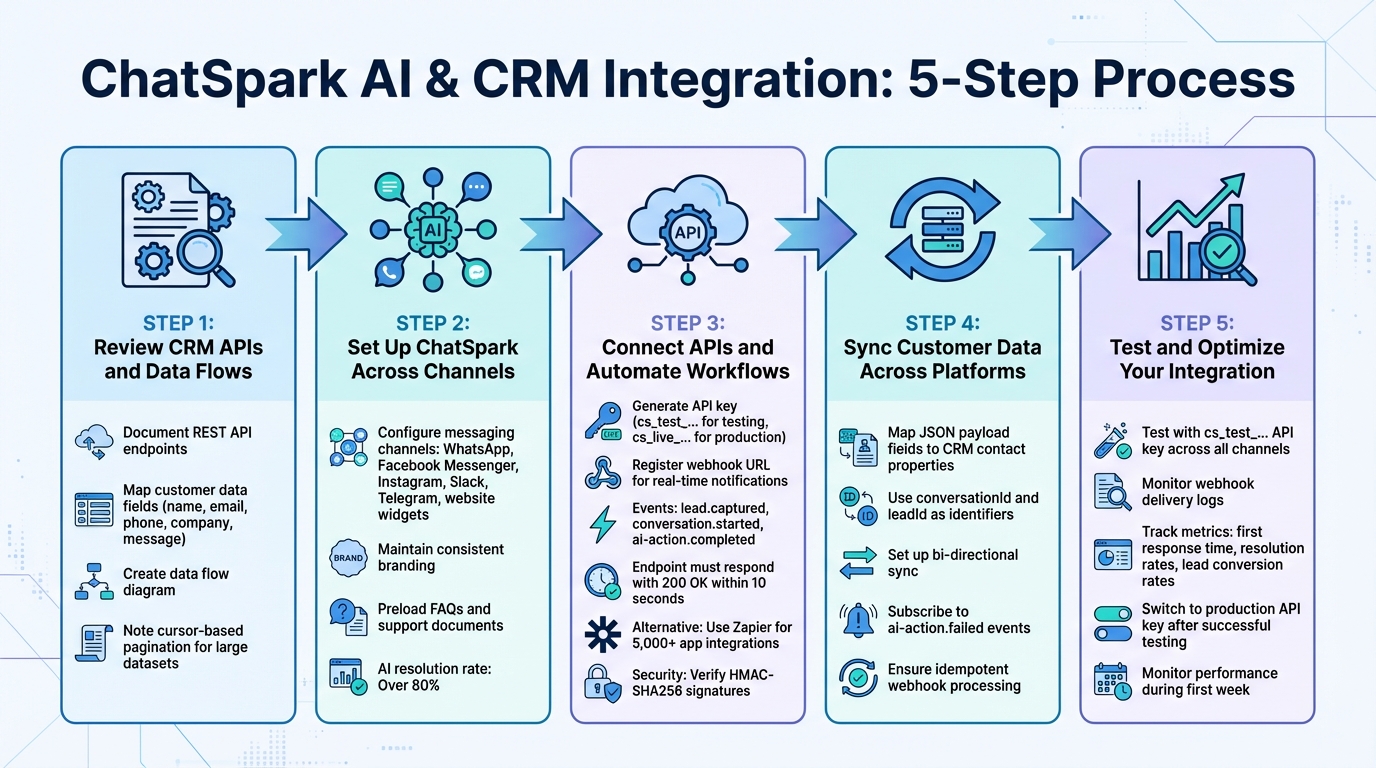
5-Step CRM Integration Process with ChatSpark AI
Once your CRM is ready and your goals are clear, you can follow these five steps to establish a smooth connection between your CRM and ChatSpark's AI. Each step builds on the previous one, ensuring seamless integration across all messaging channels.
Step 1: Review CRM APIs and Data Flows
Start by documenting your CRM's REST API endpoints and the customer data fields you plan to sync. This could include fields like name, email, phone number, company, and message details for personalized interactions [6].
Next, map out how data flows within your system - from capturing initial leads to closing deals. This helps you identify where AI responses can be triggered. If your CRM uses cursor-based pagination for large datasets, make a note of it for later setup [10].
To make things clearer, create a simple data flow diagram. This visual tool will show where leads enter your CRM, how they are qualified, and when AI responses are triggered. It will also help you avoid duplicates or missed updates during webhook configuration.
Once your data flows are mapped, you’re ready to set up ChatSpark across your messaging platforms.
Step 2: Set Up ChatSpark Across Channels
Log into the ChatSpark dashboard and configure all your messaging channels, such as WhatsApp, Facebook Messenger, Instagram, Slack, Telegram, and website widgets. Maintain consistent branding and preload responses using updated FAQs, product details, and support documents [7].
For website widgets, copy the provided embed code and add it to your site's footer. For platforms like WhatsApp or Instagram, connect your business accounts through ChatSpark. Slack and Telegram integrations require bot tokens, which you can obtain from their respective developer portals.
When properly trained, ChatSpark's AI can achieve resolution rates of over 80% [7].
Step 3: Connect APIs and Automate Workflows
Generate your API key in the ChatSpark dashboard. Use a cs_test_... key during the initial setup phase to avoid affecting live data or hitting rate limits [9]. Once testing is complete, switch to a cs_live_... key for production.
If you’re using the Enterprise plan, register your CRM's HTTPS endpoint as a webhook URL. This allows real-time notifications for events like lead.captured, conversation.started, and ai-action.completed, which automatically push data into your CRM [6]. Ensure your endpoint responds with 200 OK within 10 seconds to avoid retries, as ChatSpark will attempt delivery up to three times using exponential backoff [5].
For simpler setups, ChatSpark integrates with over 5,000 apps through Zapier [7]. You can create workflows (Zaps) that, for instance, add new leads to your CRM whenever a lead.captured event occurs. Be aware that Zapier’s free plan may introduce delays in syncing data [11].
Also, remember to verify HMAC-SHA256 signatures using the X-ChatSpark-Signature header for added security [5].
Step 4: Sync Customer Data Across Platforms
Map the JSON payload fields from ChatSpark to your CRM’s contact properties. For example, when a lead.captured event occurs, it will include fields like name, email, phone, company, and message, which should populate corresponding CRM records [6]. Use identifiers like conversationId and leadId to link AI interactions to specific contacts [6].
Set up bi-directional sync to ensure updates in your CRM, such as changes to contact details or deal status, flow back to ChatSpark. This keeps the AI updated with the latest context during conversations. Define rules to handle data mismatches, like converting ChatSpark’s timestamps into your CRM’s preferred date format.
Subscribe to ai-action.failed events to catch any issues where the AI cannot update your CRM. This allows your team to step in before data gets out of sync [6]. Make sure your webhook processing is idempotent to handle occasional duplicate deliveries [5].
Once your data sync is set up, thoroughly test the integration.
Step 5: Test and Optimize Your Integration
Use your cs_test_... API key to test across all channels. Check that lead data appears in your CRM within seconds and that conversation transcripts are linked to the correct contact records. Verify that AI actions trigger the right workflows in your CRM.
Monitor webhook delivery logs in the ChatSpark dashboard for failed deliveries or timeout errors. If your server doesn’t respond within 10 seconds, consider optimizing its processing speed or using asynchronous handling [5].
Finally, track metrics like first response time, resolution rates, and lead conversion rates to evaluate the integration’s performance. Compare these metrics to your original goals to measure success. Use ChatSpark’s analytics tools to identify the channels bringing in the best leads and refine the AI’s training data accordingly. Once testing confirms everything is running smoothly, switch to your production API key and closely monitor performance during the first week of live operation.
Common Integration Challenges and Solutions
Even with thorough preparation, integrating your CRM with ChatSpark might not always go off without a hitch. Studies indicate that 60% of integration failures are caused by mismatched APIs and poor data flow coordination, while 70% of issues stem from inadequate testing[12]. By identifying these common pain points and applying practical solutions, you can avoid disruptions and keep your messaging channels running smoothly. Let’s dive into some recurring challenges and how to overcome them.
Fixing Data Synchronization Problems
Data synchronization is one of the most frequent challenges. A common issue is "shallow sync", where your CRM only receives basic conversation logs or summaries instead of detailed customer data[13]. For instance, if the user.email field in ChatSpark isn’t mapped correctly to your CRM’s Email Address field, critical information may not transfer as expected.
Duplicate records are another headache. Without proper deduplication (e.g., using email as a unique identifier), your CRM can quickly become cluttered. To avoid this, configure ChatSpark to check for existing contacts before creating new entries.
Data quality is a widespread issue, affecting 85% of organizations and leading to an average annual financial loss of 15%[12]. To combat this, conduct monthly data audits to catch outdated information, formatting errors, or orphaned records. Automated data cleansing tools can also cut manual errors in half[12].
For better performance, consider implementing caching and real-time synchronization. These steps can significantly reduce response times and improve customer retention rates[12][14].
Once synchronization issues are under control, the next hurdle is managing API errors.
Resolving API Errors
API errors are another common obstacle. When they occur, begin by reviewing the x-request-id header in ChatSpark’s response. This unique ID helps you trace the specific request that failed[15]. Error responses usually include a code, a message, and additional details for field validation, making troubleshooting easier[15].
Authentication issues like API_KEY_INVALID, API_KEY_EXPIRED, or API_KEY_REVOKED (HTTP 401) require you to verify your API key in the ChatSpark dashboard[15][9]. If you encounter API_KEY_SCOPE_INSUFFICIENT, it means your key lacks the permissions needed for the operation[15][16].
Rate limit errors need a different approach. ChatSpark enforces request limits based on your plan: Plus allows 60 requests/min, Pro supports 120, and Enterprise handles up to 300 requests/min[3]. If you hit a RATE_LIMIT_EXCEEDED error, check the Retry-After header to see how long to wait before retrying. Using exponential backoff can help manage retries effectively.
For webhook-related issues, ensure your CRM endpoint responds with a 200 OK within 10 seconds, as required by ChatSpark[5]. If the endpoint is slow, the system retries up to three times using exponential backoff[5]. You can also subscribe to the ai-action.failed event for instant failure notifications[6]. To prevent unauthorized data injection, verify the X-ChatSpark-Signature header using HMAC-SHA256[5], and use idempotency keys to avoid creating duplicate records during retries[16].
Planning for Growth and Performance
Once immediate issues are resolved, it’s crucial to prepare your integration for future growth. Design your system to handle increasing traffic from the start. For example, configure ChatSpark to automatically manage tier-one support queries. Companies using integrated chatbots report 40–60% higher lead conversion rates compared to those relying on standalone bots[1]. Automating FAQs, order tracking, and basic troubleshooting allows you to scale support without adding more staff[4].
Set up escalation triggers based on sentiment analysis or confidence scores. If the AI detects frustration or its confidence drops below a certain level, it should route the conversation to a human agent immediately[4]. Keep an eye on your containment rate - the percentage of queries resolved by the AI without human help. This metric can highlight areas for improvement[4].
"Legacy CRMs are an acknowledged nucleus for many customer contact points, but these solutions only track interactions at specific moments in time, without providing the full context of what was shared... As we move forward into the age of conversational CRM, your entire org is empowered to make use of the content and context of customer conversations." – Mike Gozzo, SVP Product Management, Zendesk[17]
Organizations that adopt real-time data management outperform competitors by 20% in customer satisfaction metrics[12]. Regular audits can also reduce customer service errors by 30% and improve data accuracy by 20%[12]. Tackling these challenges head-on will ensure your integration evolves alongside your business needs.
Measuring the ROI of Your Integration
After completing the technical steps to integrate ChatSpark with your CRM, the next critical task is measuring its return on investment (ROI). This step ensures you can clearly demonstrate the benefits of the integration. By understanding the ROI, you can justify the initial costs and pinpoint areas for future optimization. Thankfully, ChatSpark simplifies this process with built-in tools that automatically track performance and calculate savings.
Metrics to Track
Once your integration is up and running, it's time to focus on the numbers that matter. Start by monitoring the AI resolution rate, which shows the percentage of customer inquiries the AI resolves without human involvement. This is a key indicator of efficiency. Another crucial metric is lead conversion rates - integrated chatbots often achieve 40–60% higher lead conversion rates compared to standalone systems[1].
On the cost side, measure the cost per resolution. AI-handled inquiries typically cost between $0.50 and $2.00, while human resolutions range from $8.00 to $16.00[20]. Lastly, evaluate knowledge coverage to identify gaps in your training data and make improvements.
| ROI Pillar | What It Measures | Typical % of Total Value |
|---|---|---|
| Direct Revenue | Sales closed during/after AI conversations | 35–50%[20] |
| Cost Savings | Support costs avoided through AI resolutions | 15–25%[20] |
| Indirect Revenue | Leads captured, upsells, and cross-sells | 20–30%[20] |
| CLV Impact | Retention improvement and satisfaction | 10–20%[20] |
Using ChatSpark Analytics Tools
ChatSpark provides a real-time dashboard that consolidates all performance data in one place, eliminating the hassle of juggling multiple sources. For Pro and Enterprise users, monthly ROI reports summarize key metrics like cost savings, efficiency gains, and overall performance.
The system calculates cost savings based on an industry-standard agent rate of $30/hour, with each automated resolution saving about 10 minutes of agent time[18]. These standardized metrics make it easy to present clear, consistent data to stakeholders.
A particularly useful feature is the "Unanswered Questions" list, which highlights gaps in your knowledge base. Addressing these gaps can significantly improve your resolution rates[18]. Additionally, the "AI Actions" metric tracks successful automated workflows, such as syncing leads to Salesforce or updating deals in HubSpot[18][19].
These tools provide the foundation for assessing the overall business impact of your integration.
Calculating Business Impact
With the right metrics in hand, you can calculate your total business impact by combining cost savings, revenue growth, and efficiency improvements. For example, in early 2026, a global construction products company integrated ChatSpark into their flagship brand's systems. Over four months, the AI handled 10,754 messages, captured 153 new leads, and achieved a 98% resolution rate. This resulted in 66+ agent workdays saved and a total cost savings of $47,880 on a $4,000 investment, delivering a staggering 1,097% ROI[19].
"Cost savings are calculated using the industry average fully loaded support agent cost of $30/hour... Each automated resolution saves approximately 10 minutes of agent time." – ChatSpark Data Insights[18]
Don't forget to factor in indirect revenue from upsells and cross-sells initiated by the AI, along with customer lifetime value (CLV) improvements driven by higher retention and satisfaction. Pro and Enterprise users can rely on their automated monthly reports to identify growth opportunities and demonstrate ongoing value to leadership[18].
Getting Started with Omnichannel CRM and ChatSpark
Now that we've covered integration details and the potential for ROI, let’s dive into how you can get started quickly.
Main Benefits of Integration
Integrating ChatSpark with your CRM simplifies cross-channel engagement by creating a unified conversation experience. Customers can move seamlessly from your website to platforms like WhatsApp and Instagram without repeating themselves. This approach not only enhances the customer experience but also boosts first contact resolution rates to over 70%, all while preserving your brand voice across six channels and supporting over 85 languages[24][25][26].
Automated workflows take care of syncing lead data, purchase history, and support cases with tools like Salesforce and HubSpot, cutting down on manual data entry. According to Gartner, conversational AI is projected to save contact centers $80 billion by 2026, and ChatSpark’s analytics tools make it easier to track your contribution to those savings[24].
Additionally, every conversation is backed by detailed transcripts, engagement scores, and session data. This gives your sales team the insights they need to deliver personalized follow-ups, making your customer interactions more meaningful and effective[23].
Your Next Steps
First, check if your CRM is one of the 40+ platforms natively supported by ChatSpark, including Salesforce, HubSpot, and Follow Up Boss[21][23]. Then, take a closer look at your customer journey to identify common intents and automate customer support without losing quality. Establish baseline metrics like containment rate, first contact resolution, and customer satisfaction over a 30-day period so you can measure the improvement after implementation[24][25].
Next, prioritize the channels where your customers are most active. For example, WhatsApp might be ideal for order tracking, while Slack could work well for internal support[22]. ChatSpark’s Quick Start guide can have you up and running in under five minutes, from connecting your first channel to training the AI with your business data[3][7].
If you’re on a Professional plan or higher, you’ll gain access to AI Actions for direct CRM synchronization. Plus plans also offer API access for creating custom workflows[23]. After setup, test cross-channel continuity and key workflows, like lead qualification. Use real-time analytics to refine your processes and aim for resolution rates exceeding 80%[7][25].
FAQs
What CRM data should I sync to ChatSpark first?
Syncing lead information - like names, emails, and phone numbers - lays the groundwork for capturing leads automatically during conversations. Beyond that, integrating customer history, ticket details, and internal knowledge bases helps create more tailored interactions and makes workflows smoother. Focus on syncing data that's critical for real-time updates to ensure smooth and efficient customer communication.
How can I prevent duplicate contacts during webhook retries?
To keep your contact database clean and avoid duplicates, put idempotency controls and deduplication strategies in place. Start by using a unique deduplication key for every contact creation event. This key allows you to check whether the contact already exists in your CRM before adding a new one.
When handling webhooks, process them idempotently to ensure reliability. Always return a 200 OK response within 10 seconds to manage retries seamlessly. Tools like replay guards and deduplication keys are crucial for preventing duplicate entries and maintaining smooth webhook operations.
What’s the simplest way to estimate ROI before launch?
The simplest way to get a sense of ROI before launching is by trying out a tool like ChatSpark's ROI calculator. It provides quick estimates of potential savings, the number of agent hours you could free up, and the ROI percentage. These calculations are based on factors like ticket volume, resolution rates, and the percentage of cases the AI can resolve. It's a handy way to make informed, data-backed decisions before moving forward with implementation.